![MicrosoftTeams-image6f6e78ac5251452f5e9d5419521926001b2457277276701c3aff0c935893efe05f359183e579e81145254f68fa804b37b1631dcaf07986d136aeb8e94ed62bd3.png]](https://support.mediroutes.com/hs-fs/hubfs/MicrosoftTeams-image6f6e78ac5251452f5e9d5419521926001b2457277276701c3aff0c935893efe05f359183e579e81145254f68fa804b37b1631dcaf07986d136aeb8e94ed62bd3.png?height=50&name=MicrosoftTeams-image6f6e78ac5251452f5e9d5419521926001b2457277276701c3aff0c935893efe05f359183e579e81145254f68fa804b37b1631dcaf07986d136aeb8e94ed62bd3.png)
Steps to Un-Perform a Trip
-
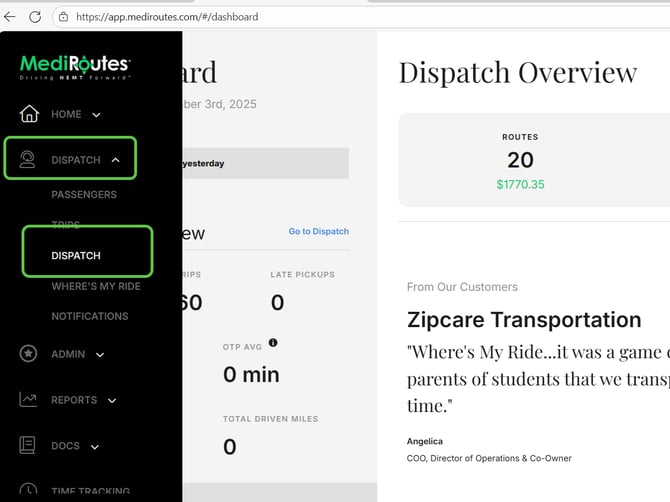
Open Dispatch in the MediRoutes.com(WebVersion)
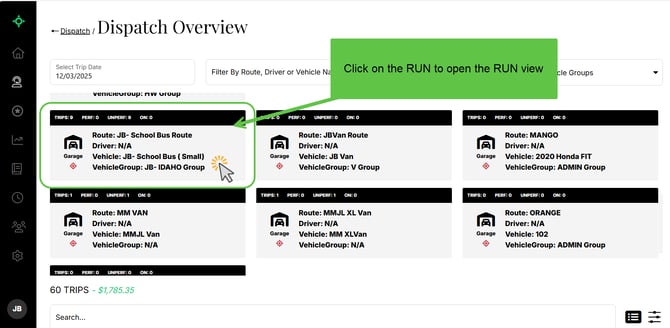
Navigate to the Dispatch tab to locate the trip that was marked performed by mistake. You will be able to see this in the RUN View.
-
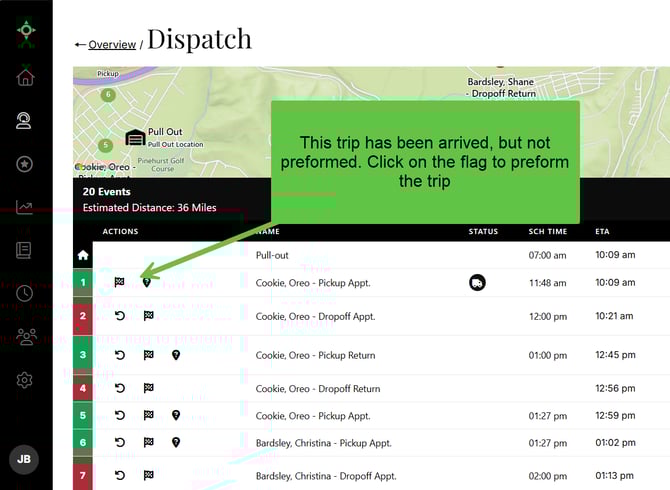
Verify Trip Status
Ensure the trip shows both Arrived and Performed statuses.If both of these steps have not been completed, the Un-Perform option will not appear.
-
Click “Un-Arrive/Perform”
Once the trip is fully completed, you will see an option labeled Un-Arrive/Perform Trip.
Select this option to revert the trip status.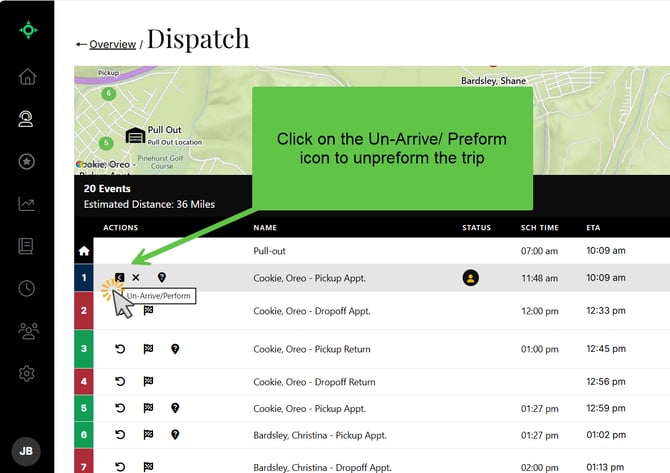
-
Reassign the Trip (If Needed)
After the trip has been un-performed, it will return to an uncompleted state.
Dispatchers can now update driver assignment, adjust scheduling, or reassign the trip to a different driver.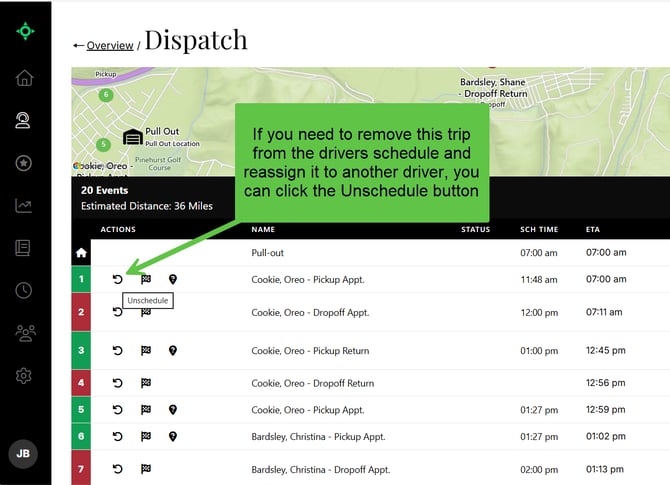
Important Notes:
-
Trips cannot be un-performed unless both the Arrived and Performed actions have been recorded.
-
If the trip has already been sent to an integrated billing system or exported, additional follow up with the broker may be required.
-
If the Un-Perform option does not appear, contact Support for assistance.