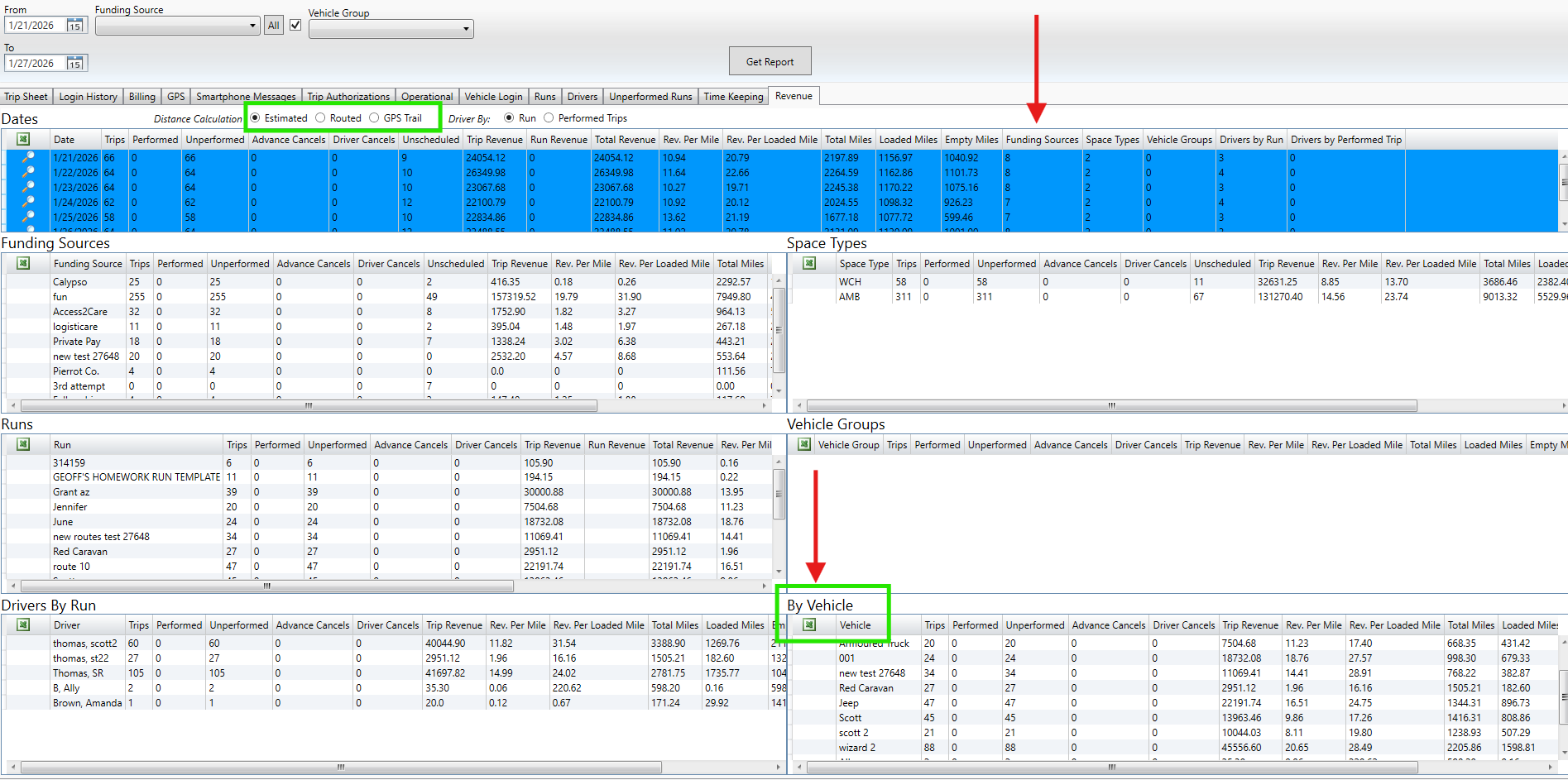
How to Read and Use the Columns in Dates and Sub Categories Sections:
Once the report populates, you’ll see many columns of data that can feel overwhelming at first glance. The following overview breaks down how the key columns relate to each other and how understanding these relationships can help you quickly identify missing or incorrect data. By knowing what each column represents, how values are calculated, and which fields are dependent on others, you can spot gaps, inconsistencies, or outliers in the report that may impact billing accuracy, compliance, or operational analysis.

-
Date
- Trips - Total number of trip for that day (including active, No shows/Driver Cancel and canceled trips ).
- Performed - Trips that are performed by Driver Mobile APP. Includes Driver No Show/Driver Cancel/Dry Run on Mobile app (is a performed trips)
- Unperformed - Trips not Performed by Mobile app. Includes Advanced Canceled trips (trips Canceled in advance of the driver starting to perform the trips, by a dispatcher/office personal on Desktop or Web area)
- Advanced Cancel - trips Canceled in advance of driver performing the trip. Does Not Include Driver No Show trips.
Tip: The value in the Unperformed trips column should always match the value in the Advanced Cancel column. If these two columns are not equal, it usually indicates that you have at least one trip that is marked as not performed and not canceled. When this happens, that trip will still be counted in the Total Revenue section, which can cause your revenue totals to appear higher than they should be.
-
Driver Cancel - trips that were a Driver no show, Driver Cancel, Dry Run, from the Driver hitting Cancel on the Trip Event on the Driver Mobile app. Note, these are part of the Performed column number.
- Unscheduled - trips active, and scheduled to a RUN, but Not Performed.
- Trip Revenue - Total trip revenue from the Rates/Billing Items listed on trips, includes Performed trips, No Shows/Dry Run, and active trip regardless of performed or not. Does NOT include Cancel trips revenue.
- Run Revenue - Revenue from a special Run Billing items
- Total Revenue - adding Trip and Run Revenue together to get a grand total
- Rev. Per Miles - Total Revenue calculated to per mile based on Total Miles column value.
- Rev. Per Loaded Miles - Same as Rev per mile, except using total revenue per Loaded Miles column.
- Total Miles - Miles for all trips, based on estimated/routes/GPS trail miles value
- Loaded Miles - Total Miles that are occupied by a passenger on the vehicle
- Empty Miles - Total Miles that are not occupied by a passenger on the vehicle.
All of the Column descriptions remain the same across each Sub Category section; what changes are the values themselves, which are dynamically updated based on the Category filters.
Total Vehicle Miles Report:
A lot of clients want to gather total vehicle miles for a specific time frame, such as a full year, to support billing, compliance, insurance, and operational analysis. The Vehicle section of the Revenue Report can generate mileage values per vehicle, including total miles, empty miles, and loaded miles, giving you a clear breakdown of how each vehicle is utilized over the selected period.
Steps to get Vehicle Miles data:
-
Run report as normal, with Date range for the desired.
-
Once the report has finished running, make sure all rows in the Date area are selected so you’re including the full time frame you want to analyze. With those rows highlighted, you can then export the Vehicle section to pull mileage by vehicle into a spreadsheet or other reporting tool. By default, the Miles column will display Estimated Miles. If you prefer to base your totals on actual routed paths or GPS data, you can switch the mileage source to Routed or GPS Trail. The total miles, empty miles, and loaded miles values will automatically recalculate based on your selection, giving you flexibility to align the report with your billing, compliance, or operational needs.