![MicrosoftTeams-image6f6e78ac5251452f5e9d5419521926001b2457277276701c3aff0c935893efe05f359183e579e81145254f68fa804b37b1631dcaf07986d136aeb8e94ed62bd3.png]](https://support.mediroutes.com/hs-fs/hubfs/MicrosoftTeams-image6f6e78ac5251452f5e9d5419521926001b2457277276701c3aff0c935893efe05f359183e579e81145254f68fa804b37b1631dcaf07986d136aeb8e94ed62bd3.png?height=50&name=MicrosoftTeams-image6f6e78ac5251452f5e9d5419521926001b2457277276701c3aff0c935893efe05f359183e579e81145254f68fa804b37b1631dcaf07986d136aeb8e94ed62bd3.png)
Viewing Daily Run Availability
In addition to editing or suspending a Run from the template, schedulers may need to confirm the final, day-specific availability of a Run. The Daily tab is the source of truth for how a Run is configured on a specific date.
This is especially useful when a client wants to validate whether a Run is active, editable, or available for scheduling on a given day.
Where to Find Daily Run Details
-
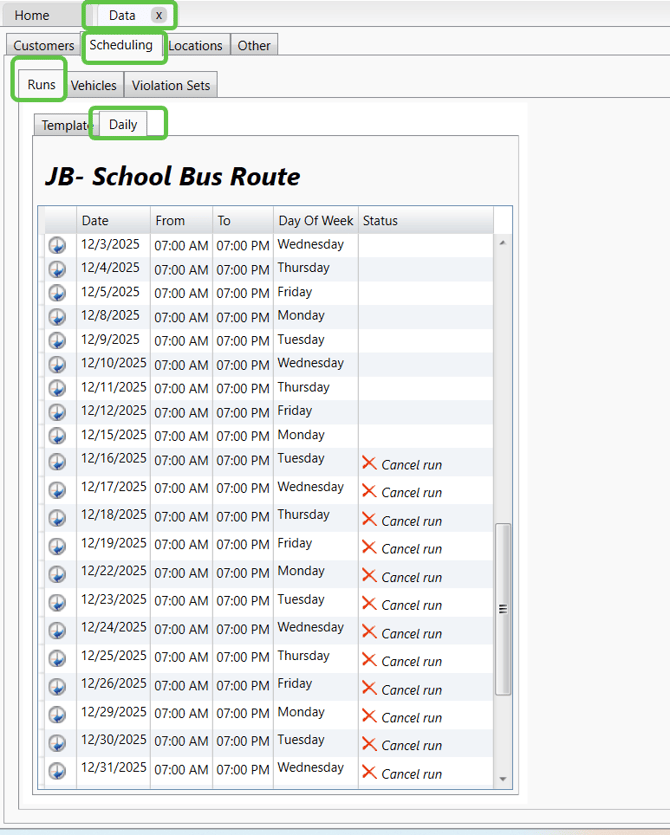
Go to the Data tab in MediRoutes.
-
Select Scheduling.
-
Click Runs.
-
Locate the Run you want to review.
-
Click into the Run and select the Daily tab (next to the Template tab).
What the Daily Tab Shows
The Daily tab displays each day’s configuration for the selected Run, all in one place. This includes:
-
Date
-
Time
-
Day of the Week
-
Status
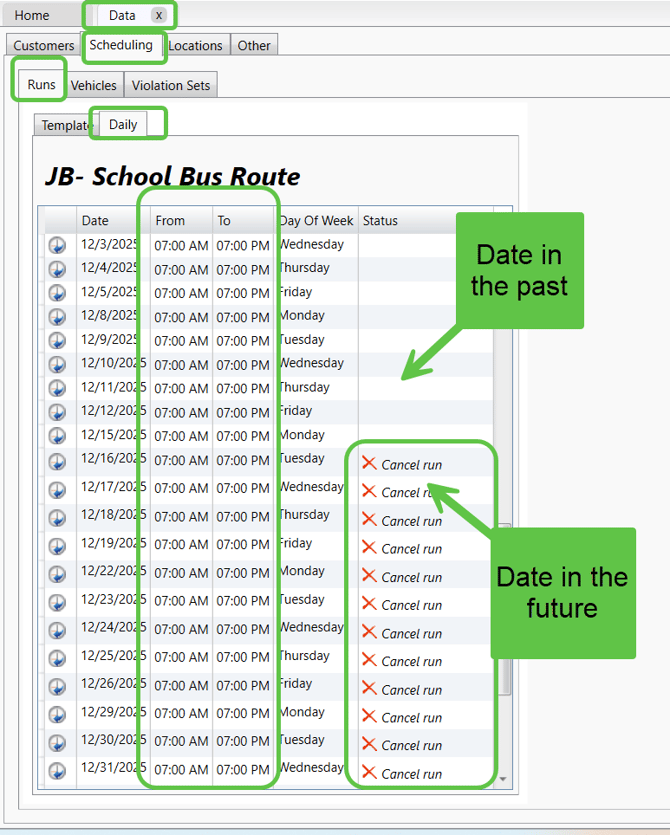
This view allows schedulers to quickly confirm how the Run is set up for both past and upcoming dates.
Understanding the Status Column
-
Blank Status
Indicates a historical date.
These dates cannot be changed. -
Future Dates
You can scroll down to view upcoming days for the Run.
From this screen, you can:-
Modify run times
-
Cancel a specific future run date
-
This makes the Daily tab the best place to validate whether a Run is usable for future scheduling and to make day-specific adjustments without altering the template.
When to Use the Daily Tab vs. the Template
-
Use the Template tab when:
-
Making long-term or structural changes
-
Suspending or ending a Run
-
Adjusting the overall Run setup
-
-
Use the Daily tab when:
-
Confirming final availability for a specific date
-
Making short-term changes to future runs
-
Answering “Is this Run valid for today or tomorrow?”
-
Editing the Run using the Run Template
To begin editing, open the Data tab in your MediRoutes desktop app and select the Scheduling tab below Data, then Runs. Next, click on the icon that looks like a pencil and paper located next to the specific Run you wish to suspend or end.
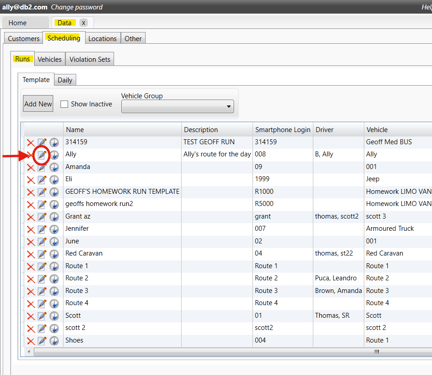
If a driver will be on vacation or out for a specific period of time, you may need to suspend a Run. If your Runs are setup per vehicle, you may need to suspend the Run if a vehicle will be out for maintenance. Suspending a Run will prevent it from appearing as an available option on the Schedules and Dispatch tabs for the designated time frame. This means that during the designated time frame, you would not be able to schedule trips to that Run.
To suspend a Run:
- In the Run template edit window, look at the bottom to see the Optional Suspend From-To Dates.
- Enter in the date range that the driver will be out for in the From Date and To Date boxes, then click OK to save.
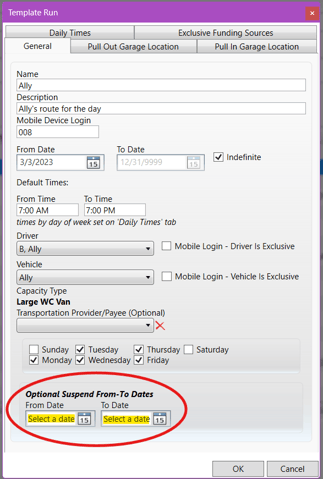
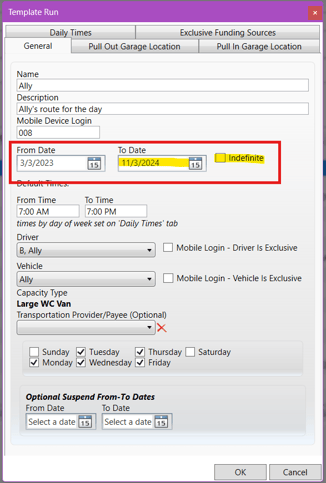
If a Run will no longer be used in the near future, it is recommended to end the Run to prevent further logins. However, you can reactivate the Run if needed in the future.
To end the Run:
- In the Run template edit window, locate the From Date and To Date boxes right under the Mobile Device Login box. The From Date should already have the date of when the Run was created.
- Uncheck the Indefinite checkbox to the right of the To Date.
- Enter the ending date for the Run in the To Date box and click OK to save.
💡Related Article
For tips on adjusting run settings, optimizing timing, and tailoring your runs to match your daily scheduling workflow, see:👉 Editing and Optimizing Run Settings.
This article is designed to help schedulers fine-tune the Runs they rely on throughout the day. It walks you through adjusting times, drivers, vehicles, and garage locations so your active Runs match your real-world availability. Use this guide whenever you need to temporarily modify a Run for the current day, cancel a Run you won’t be using, or quickly correct scheduling conflicts without changing your template setup.
Revised Date: 9/19/24 ARB