Why You Shouldn’t Compare Trips One-by-One
MediRoutes builds schedules by looking at all trips and all runs together.
-
Every trip is different (pickup times, locations, passenger type, etc.).
-
The system calculates many possible combinations before choosing the best match.
-
Example:
100 trips and 10 runs = nearly 10 million possible scheduling combinations.
Because of this, comparing two trips and asking “Why weren’t these together?” doesn't reflect the full scheduling logic. The system uses rules, time windows, and run settings—not just matching trips manually.
What Run Parameters Are
Run parameters are the basic settings that tell MediRoutes how a run works. They include:
A. Vehicle Capacity Type
The vehicle shown on the run:
-
Does NOT have to be the exact vehicle that will drive.
-
But its capacity type is used by the system.
Capacity type examples:
-
Number of seats
-
Wheelchair capability
-
Stretcher capability
The system uses these settings to ensure trips are placed on runs that can handle them.
B. Garage Address (Start/End Location)
This tells the system where the vehicle:
-
Starts the day
-
Ends the day
Why this matters:
-
The garage location affects ETAs and travel time.
-
If the garage is incorrect, the system may think a trip is late when it's not.
Find more information about setting up garage locations in the article below:
C. Violation Set (Scheduling Rules)
Every company has violation rules that control when the system considers a trip “too early,” “too late,” or outside your allowed time windows.
Example:
-
The first trip of the day often gets an ETA 10 minutes before the scheduled pickup because that fits most company or broker rules.
-
If the run has a 9:00 AM pull-out and the trip also starts at 9:00 AM, the system cannot schedule it earlier—so it may show “late” because it is impossible to leave before 9:00.
Violation rules affect:
-
ETA calculation
-
Whether a trip appears early or late
-
How trips are arranged on the run
Find more information about Violation Sets in the article below:
Where to Find Run Settings
To view run settings:
-
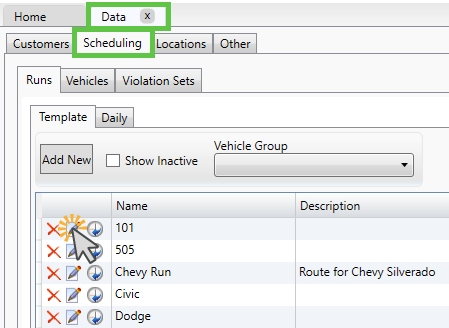
Go to Data tab
-
Select Scheduling
-
Choose a run and click the Edit (pencil/paper) Icon
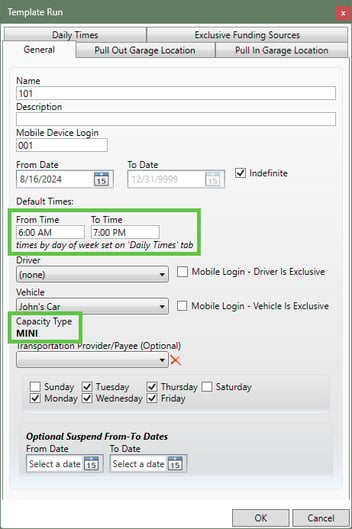
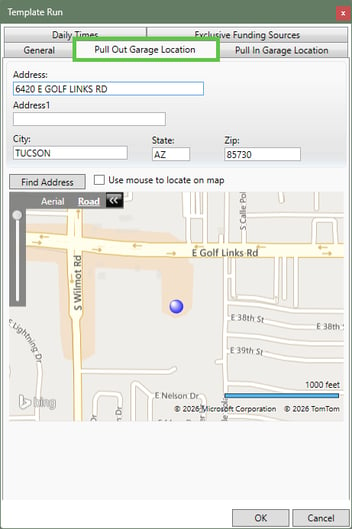
Here you can view:
-
Vehicle capacity type
-
Garage address
-
Daily recurring times
-
Default run times
These settings are the foundation for all scheduling behavior.
Editing Run Times for One Specific Date
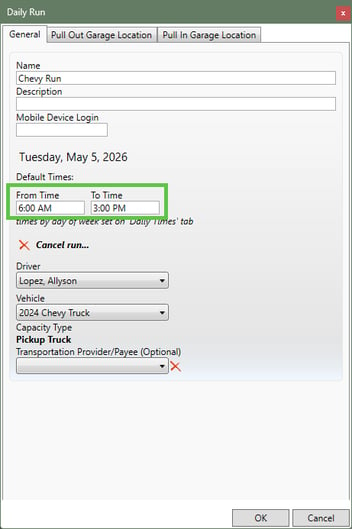
If a driver needs to start early or late for one day only, you can adjust that without changing the template.
How To Change Single Day Run Time
-
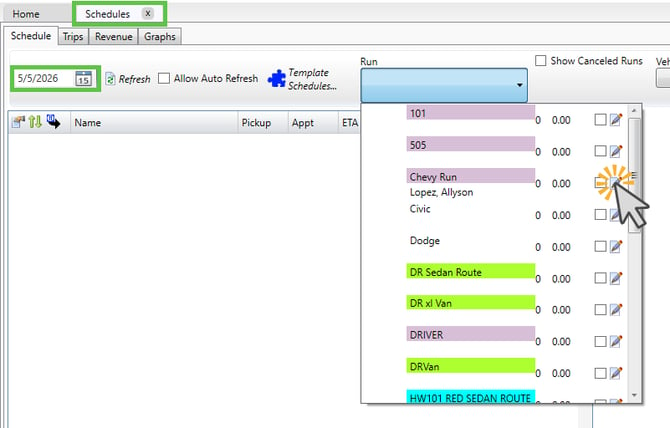
Go to the Schedules tab
-
Choose the date
-
Open the Run dropdown
-
Click the Edit icon next to the run
-
Change the From and To times for that day
-
Click OK to save
What Happens Next
-
ETAs update instantly.
-
The system reschedules trips based on the new start time.
Example:
Changing From time from 9:00 AM → 8:30 AM allows earlier trips to be scheduled correctly.
Find more information about editing Runs in the article below:
Editing Recurring Weekly Times (Daily Times)
If a run always starts at different times on specific days of the week (for example: early on Tuesdays, late on Wednesdays), you can set this once in the template.
How To Change Template Daily Run Times
-
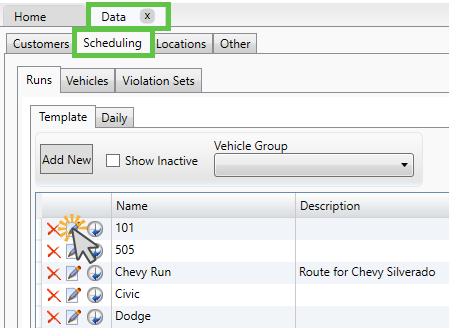
Go to Data
-
Select Scheduling
-
Locate the run and click the Edit (pencil/paper) Icon
-
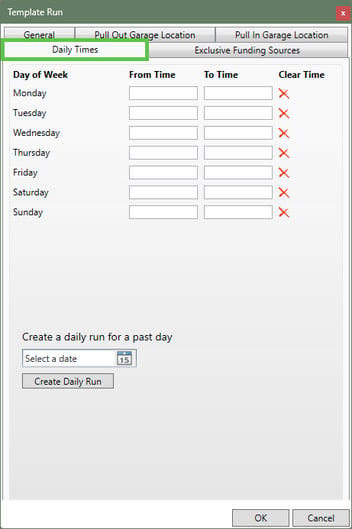
Select the Daily Times tab
-
Set times for each weekday
-
Click OK to save
When To Use This
-
A driver works earlier every Tuesday
-
Saturdays always start later
-
The default time doesn’t match real weekly patterns
This prevents needing to adjust the schedule every single week.
Understanding How ETAs Change Automatically
When you change start times:
-
The system automatically recalculates ETA for every trip.
-
Earlier pull-out = earlier ETA possibilities.
-
Later pull-out = may cause “late” indicators because the run cannot leave early.
This is normal behavior based on your violation settings.
You do have some flexibility with adjusting ETA's using Speed settings. See the article below for more information:
Template Runs vs. Single-Day Adjustments
You can adjust schedules in two ways:
| If this is true… | Use this method |
|---|---|
| You need to change one date only | Edit in Schedules tab |
| You need to set the same times every Tuesday/Wednesday/etc. | Use Daily Times in the run template |
| Default times for all days need to change | Edit the run template’s main settings |
Important Notes
-
The scheduling tab does not refresh instantly; it’s built for future planning, not real-time updates.
-
Use the live dispatch screen to see real-time activity.
-
There is no such thing as a “perfect schedule” because trips always change day-to-day.
-
Creating templates may allow you to auto-schedule 80% or more of your trips.
Find more information about creating Schedule templates in the article below:
Have any questions? Contact MediRoutes Support.