Overview
Funding sources in MediRoutes contain settings that affect how trip files from brokers or external partners are processed when they are imported into the system.
These settings control how MediRoutes interprets the data in an import file and how trips are created or updated during the import process.
Understanding these settings is important because they can affect how trips appear in the system.
Note: These settings are currently only available in the MediRoutes Desktop Application and cannot be viewed or edited in MediRoutes Online.
How to View Funding Source Import Settings
To review the settings that affect file imports:
-
Open the MediRoutes Desktop Application
-
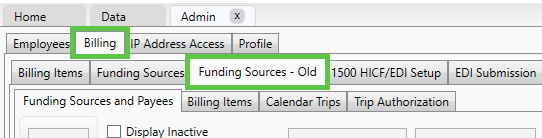
Navigate to the Admin tab

-
Click the Billing tab
-
Select Funding Sources – Old
-
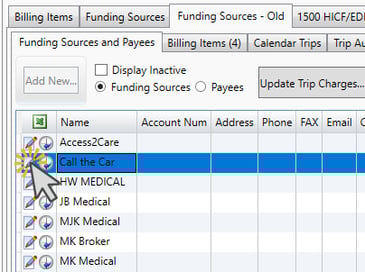
Locate the funding source you want to review
-
Click the pencil and paper (Edit) icon next to the funding source
-
Review the settings under the Options and Import tabs

Both of these tabs contain settings that may affect how imported trips are handled for that funding source.
How to Edit Import-Related Settings
To modify the settings:
-
Open the MediRoutes Desktop Application
-
Navigate to Admin
-
Click Billing
-
Select Funding Sources – Old
-
Locate the funding source you want to edit
-
Click the pencil and paper (Edit) icon
-
Update the desired settings under the Options or Import tabs
-
Click OK
Any changes made will apply to future trip imports for that funding source.
Important: Changing these settings can alter how incoming trip files are processed. Be sure to review the settings carefully before saving changes.
Import Settings Explained
The Options and Import tabs on a funding source contain settings that can affect how MediRoutes processes imported trip files. These settings control how trip details such as mileage, pickup times, and return trip behavior are handled during the import process.
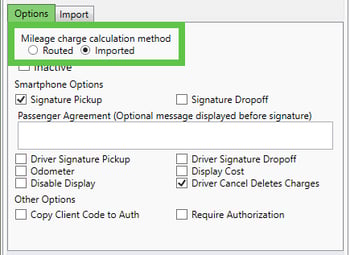
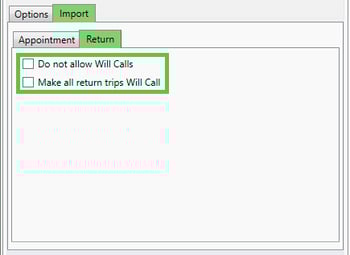
The table below explains what each setting does and how it may impact imported trips. (Scroll past the table to see where each setting is located.)
| Setting Name | Location | Description | Effect on Imports |
|---|---|---|---|
| Mileage Charge Calculation Method | Options Tab | Determines whether MediRoutes calculates trip mileage internally or uses the mileage value provided in the imported file. | Impacts how trip mileage is determined and how trip charges are calculated. If set to Routed, the system calculates mileage. If set to Imported, the mileage value from the import file is used. |
| Calc Pickup Time for Appts. | Import Tab → Appointment | Uses MediRoutes' internal pickup time calculation method to determine the pickup time for appointment trips. | The system calculates the pickup time automatically based on the appointment time and routing logic rather than using the time provided in the import file. |
| Use File Time | Import Tab → Appointment | Uses the pickup time specified in the imported file for appointment trips. | The pickup time from the import file is used instead of the system’s calculated pickup time. |
| Subtract Minutes from the Appointment Time to Create the Pickup Time | Import Tab → Appointment | Allows a specified number of minutes to be subtracted from the appointment time to determine the pickup time. | Adjusts pickup times by subtracting the configured number of minutes from the appointment time when trips are imported. |
| Do Not Allow Will Calls | Import Tab → Return | Prevents imported trips from being created as will call return trips. | Return trips must have a scheduled time and cannot be created as will call trips. This may affect how round trips are generated from imported files. |
| Make All Return Trips Will Call | Import Tab → Return | Automatically sets all return trips created from the import file to will call status. | All return trips created during import will be marked as will call trips instead of having a scheduled return time. |

Common Import Issues and Possible Causes
If imported trips are not behaving as expected, the issue may be related to one of the funding source import settings.
Below are some common issues and the settings that may cause them.
| Issue | Possible Setting Cause | Explanation |
|---|---|---|
| Pickup times from the import file are not being used | Calc Pickup Time for Appts. enabled | When this setting is enabled, MediRoutes calculates the pickup time internally instead of using the pickup time provided in the import file. |
| All trips are created as will call trips (including appointment trips) | Calc Pickup Time for Appts. disabled when the import file does not contain pickup times | If the imported trip file does not include pickup times for appointment trips and Calc Pickup Time for Appts. is not enabled, the system cannot determine a pickup time and may create the trips as will call trips. Enabling this setting allows MediRoutes to calculate the pickup time from the appointment time. |
| Trip mileage does not match the value in the import file | Mileage Charge Calculation Method set to Routed | When this option is set to Routed, the system calculates the mileage internally instead of using the value provided in the imported file. |
| Trip charges appear incorrect | Mileage Charge Calculation Method | Trip charges may be affected depending on whether the system uses calculated mileage or mileage values provided in the import file. |
Not all import issues are related to the settings in this article. For more information, please review the following article on imports:
Importing Trips from a CSV file
If you still have questions or issues with file imports, please contact MediRoutes Support.