Within the Funding Source Edit Screen you can grant brokerage access to our integration partners.
Currently, the following companies have integrated with our API will be displayed under Funding Source, Brokerage Tab.
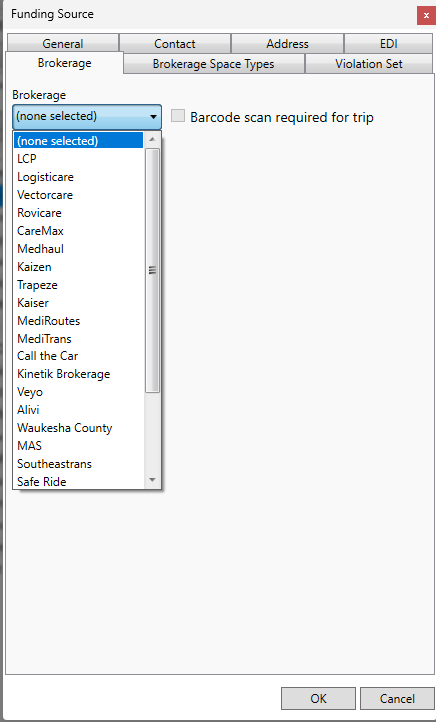
Our list of integration partners continues to grow and we will add additional brokers/companies to the above list once they have completed their work coding to the MediRoutes API.
If you perform transportation on behalf of one of our integration partners, we would recommend that you reach out to one of your representatives of these companies to ensure that they are prepared for you to grant them access to the MediRoutes API through the steps below and so they can explain what to expect after you have granted API access.
Turning on the API
The guide below provides step by step instructions on exactly how to enable API access to our integration partners.
Navigate to Funding Source
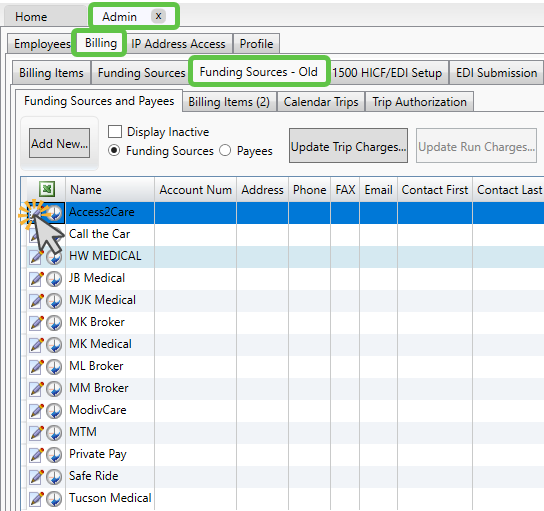
First, go to Admin => Billing => Funding Sources-Old and then click the edit button next the funding source that you want to grant access for.
Select the Broker
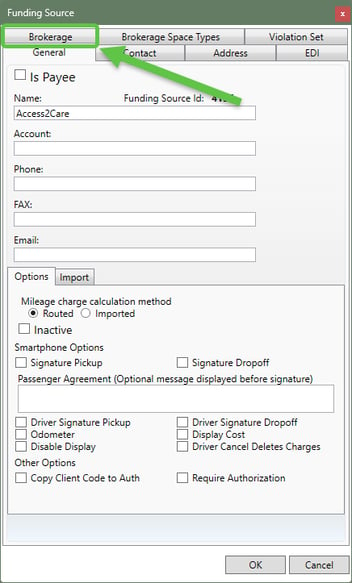
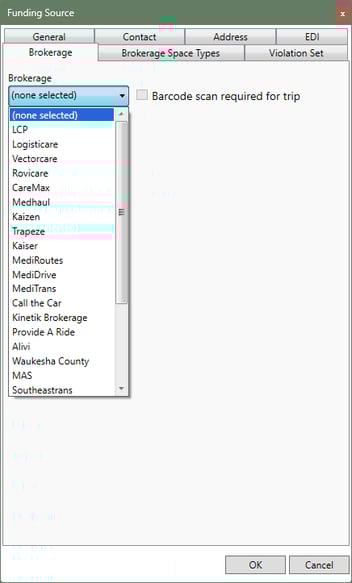
Once in this popup, navigate to the Brokerage tab and select the broker you wish to grant access to from the drop down list.
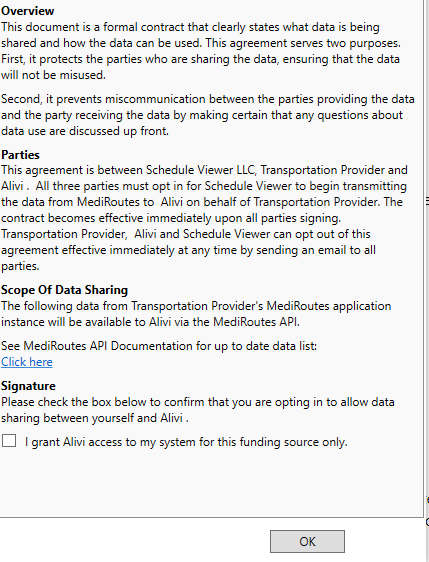
On the screen, a data sharing agreement will display, indicating what information is being shared and ensuring that you understand that by granting access, they will have API access to your system, for the funding source being edited.
Agree to Data Sharing Agreement
If you want to grant access, check the box to authorize access and press the OK button to save your changes.
Notifying Broker / Turning on API Access
Once you have signed the DSA and pressed Ok to save your changes, MediRoutes will send an email to the broker you selected informing them that you have granted access. Internally, we will also grant the API user for the broker access to your system so that they can start utilizing the API.
Each broker can utilize the API in different ways, such as loading or editing trip data and collecting information on pickups and drop-offs. Each broker should explain exactly what to expect from them when API access is granted.
Brokerage Space Type Mapping
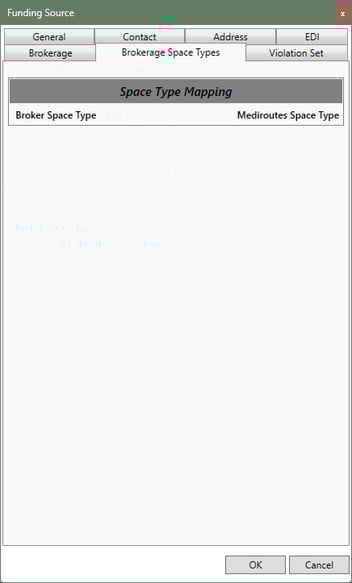
Some brokers require mapping or matching their level of service abbreviations with your space types in MediRoutes. To check if this step is needed and complete it, click on the Brokerage Space Types tab. If you don't need to do this, the tab will look like this:
If you do need to match these values, the tab will look like this:
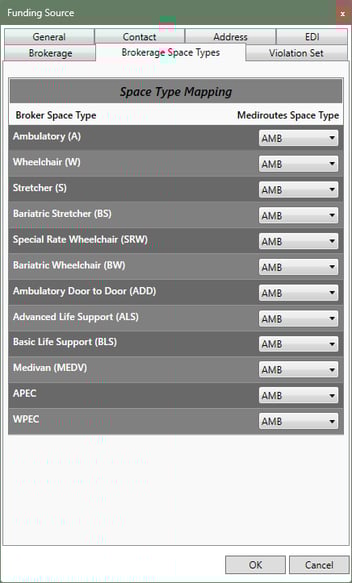
Use the dropdown boxes to match the broker values on the left with their respective MediRoutes space types on the right. This ensures that trips are created with the correct level of service in the MediRoutes system when sent through the API.
Revoking Access (Removing an Integration)
If you no longer want a broker to have API access to your system, you can revoke this access by navigating to Admin => Billing => Funding Sources and editing the brokers funding source, just as you would do in Step 1 of the instructions above.
From there, you will note that it specifies at the bottom of the DSA what user granted access, when they granted that access, and immediately below that there is an option to Revoke Access.
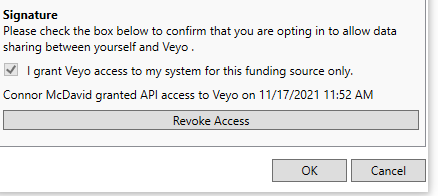
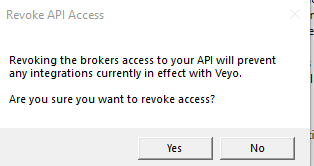
Clicking on Revoke Access will bring up a confirmation pop-up, confirming that you understand the impact that revoking API access would have on a brokerage integration. Click yes if you want to revoke access, and then the OK button to save your changes.
Other Brokerage Integrations
Several of our integration partners (MTM, Verida, ModivCare, MAS, Kaiser, VectorCare) require a different process to be granted API access. For these integration partners, please contact MediRoutes Support.