Overview
When creating a funding source in MediRoutes, rates can be configured during the initial setup. However, if the funding source was created without adding rates, you can add them later by editing the funding source.
This article explains how to add rates to a funding source that has already been created.
If you need to start from scratch with a new funding source, please follow our guide: How Do I Set Up a New Broker/Funding Source in MediRoutes?
Steps to Add Rates to an Existing Funding Source
1. Navigate to Funding Sources
-
Go to Admin > Funding Sources.
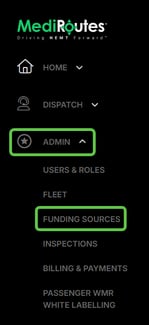
Desktop App:
If you are using the MediRoutes desktop application, go to Admin > Billing > Funding Sources.
2. Open the Funding Source
-
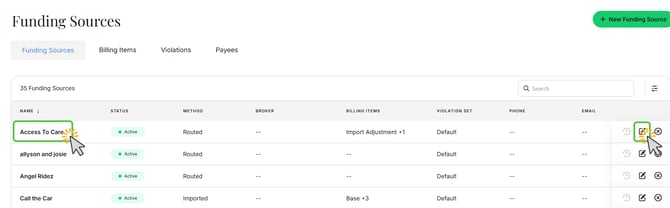
Locate the funding source that needs rates added.
-
Click the Funding Source Name or the Pencil to open the record.
3. Create a New Billing Item
-
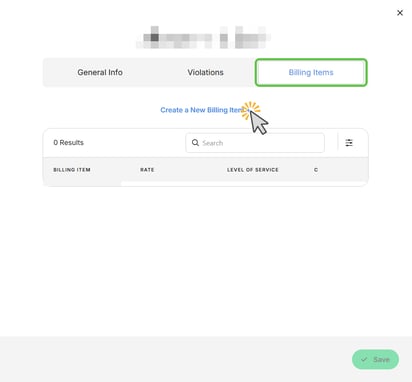
Click the Billing Items tab.
-
Click Create a New Billing Item.
-
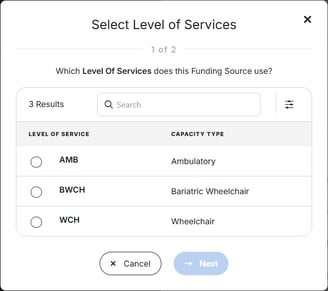
Select the Level of Service the billing item will apply to and click Next.
-
Enter the billing item details.
Billing item fields include:
-
Billing Item Description – A name or description for the rate.
-
Rate – The amount that will be charged.
-
Minimum Mileage Quantity – The minimum number of miles required for the rate to apply.
-
Maximum Mileage Quantity – The maximum number of miles the rate applies to.
-
Free Miles – The number of miles included before mileage charges apply.
Additional options include:
-
Default Rate – When selected, the billing item will automatically apply to trips using this funding source and level of service.
-
Apply to No Show Trips – Applies the billing item when a trip is marked as a no show.
Base Rate/Pickup Fee Example: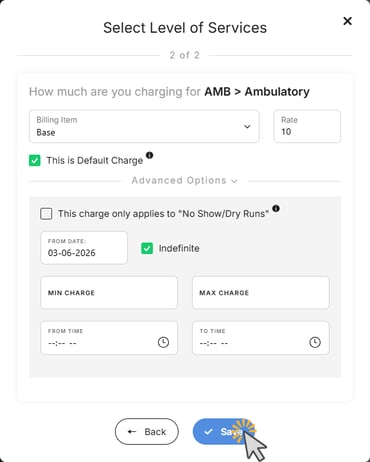
Mileage Rate Example (where mileage is charged after the first 5 miles):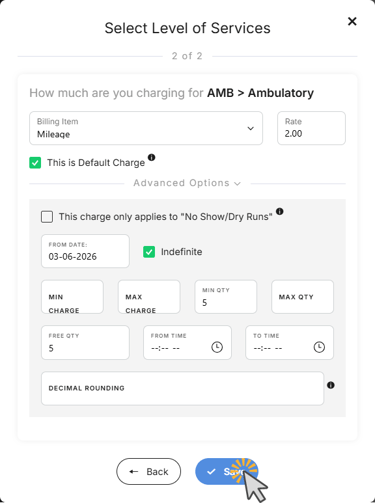
5. Click Save to create the billing item.
If additional billing items are needed, click Create a New Billing Item again and repeat this process until all billing items have been added.
4. Save the Billing Item
-
Review the information entered.
-
Click Save.
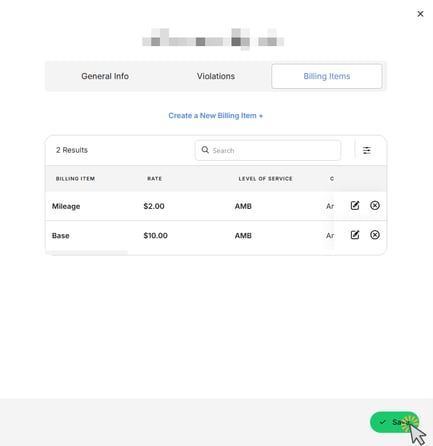
The billing item(s) will now appear in the Billing Items tab and will be used when calculating trip pricing for that funding source.
Additional Notes
-
A funding source must have at least one billing item configured in order to calculate trip costs.
-
Billing items that are not marked as default must be manually added to trips when needed.
-
Multiple billing items can be used to support different mileage ranges or pricing structures.
If you have further questions or run into any issues, please contact MediRoutes Support.