Overview
The Default Driver setting allows passengers to be assigned to a preferred driver during batch scheduling.
Once configured:
- Passengers can be assigned a default driver
- Batch scheduling can automatically place trips onto the correct driver’s run
This feature is only available in the MediRoutes Desktop Application.
Step 1 — Enable the ShowDefaultDriver Setting
Before using this feature, the Default Driver setting must be enabled.
Steps
- Navigate to:
- Data → Other → Settings

- Data → Other → Settings
- Use the dropdown list to locate:
- ShowDefaultDriver
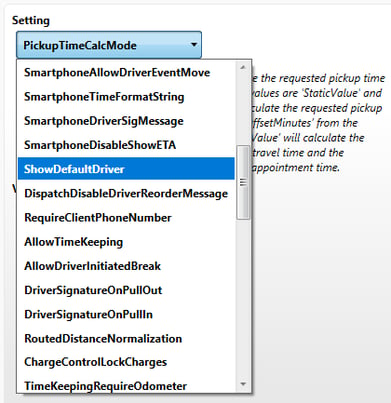
- ShowDefaultDriver
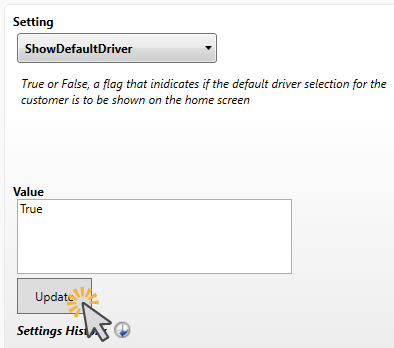
- Enter True
- Click Update
Step 2 — Verify Drivers Are Assigned to Runs
Default drivers must already be assigned to their runs.
Steps
- Navigate to:
- Data → Scheduling → Runs
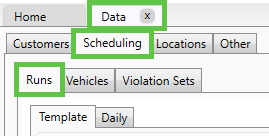
- Data → Scheduling → Runs
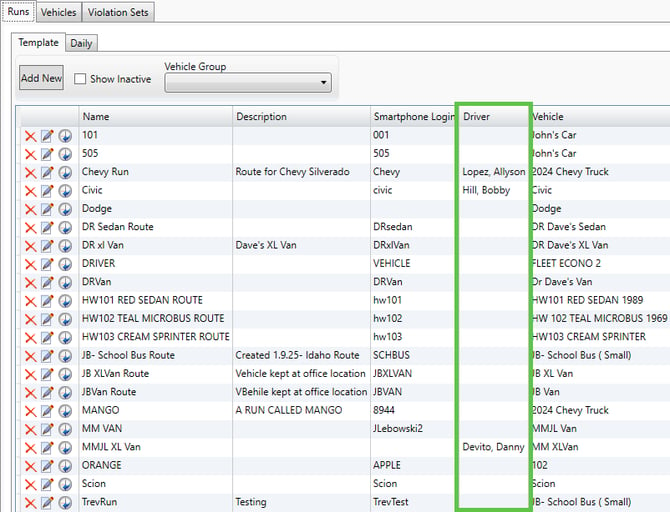
- Review all routes/runs
- Confirm drivers are assigned correctly
Important:
If routes are configured per vehicle and multiple drivers share the same route or vehicle, this feature will not work properly.
Drivers must consistently use the routes they are assigned to for Default Driver scheduling to function correctly.
Step 3 — Assign a Default Driver to a Passenger
Once the setting is enabled, passengers can be assigned a preferred driver.
Steps
- On the Home tab:
- Select a passenger trip, or
- Use the passenger search bar to locate the passenger
- Locate the Default Driver dropdown
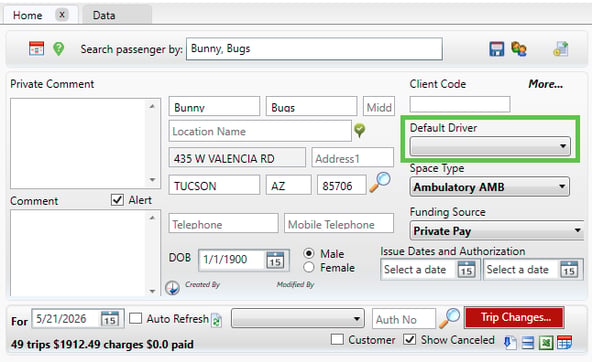
- Select the appropriate driver
- Click the blue floppy disk (Save) icon
Step 4 — Batch Schedule Using “Force to Default Driver”
After passengers have default drivers assigned, trips can be batch scheduled directly to those drivers.
Steps
- Navigate to:
- Schedules → Trips
- Select:
- All trips, or
- Trips for passengers with default drivers assigned
- Click Schedule to open the batch scheduling window
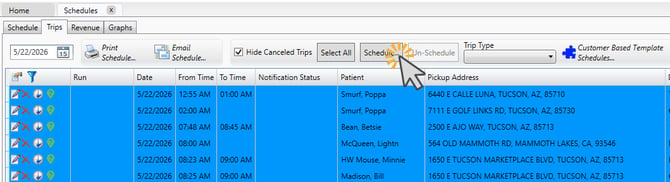
- Select Force to default driver
- Click Schedule
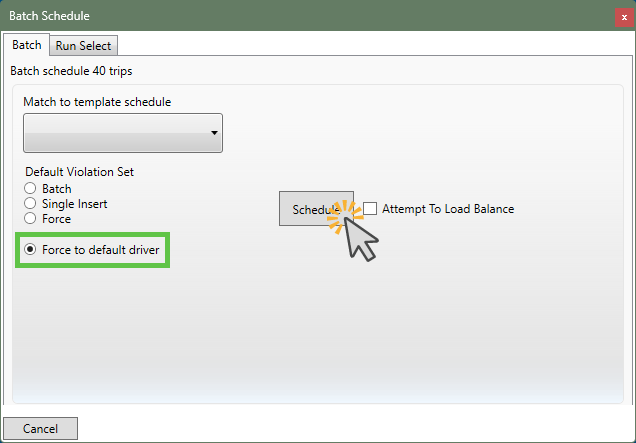
How This Works
When the Force to default driver option is selected:
- MediRoutes will automatically schedule passengers to their assigned default driver
- Trips will be placed onto the appropriate routes during batch scheduling
Best Practices
- Avoid sharing routes between multiple drivers
- Verify default driver assignments before batch scheduling
- Use “Force to default driver” only when passengers have been properly configured
Need additional help?
Contact the MediRoutes Support Team for assistance.