Overview
The MediRoutes Mobile App allows drivers to open trip addresses in a mapping application for navigation.
The way the default mapping app is selected depends on the device:
- iOS: You can choose a default mapping app directly within the MediRoutes app
- Android: The default mapping app is controlled by your device settings
This guide explains how to update the mapping app on both platforms.
iOS: Change the Default Mapping App in MediRoutes
On iOS devices, the default mapping app can be selected directly within the MediRoutes Mobile App.
Steps
- Open the MediRoutes Mobile App
- Log in using your MediRoutes username and password
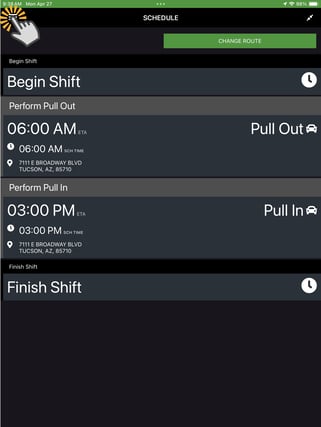
- Log in to your run schedule
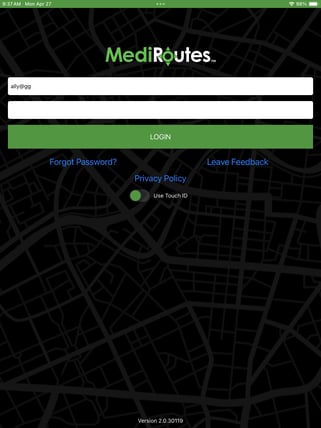
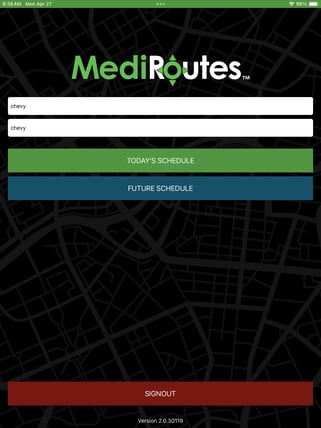
- Open the Menu
- Select Settings
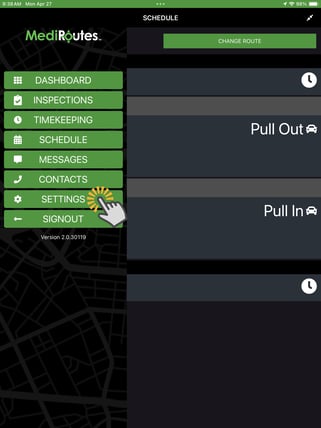
- Choose your preferred mapping app
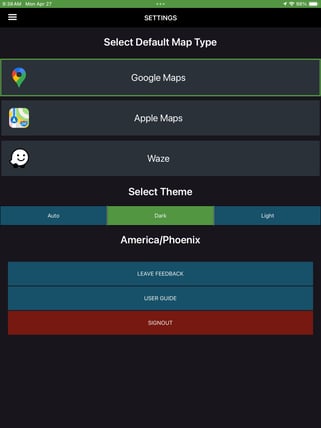
Your selected app will now be used when opening trip addresses.
Android: Change the Default Mapping App
On Android devices, the MediRoutes app uses the device’s default mapping application.
If you have more than one mapping app installed, you will need to update your device’s default app settings.
Steps (General Android)
- Open your device Settings
- Go to Apps
- Select Default Apps
- Locate the Maps / Navigation app setting
- Select your preferred mapping app
Important:
Changing the default mapping app on Android will affect all apps on your device, not just MediRoutes.
Note:
Steps may vary depending on your Android device manufacturer (Samsung, Google, etc.).
If you cannot find Default Apps, try searching for it in your device settings.
How This Setting Is Used
Once configured:
- Tapping Map address in MediRoutes will open your selected mapping app
- The app will be used for navigation to trip locations