Overview
User accounts in MediRoutes store important information about system users, including their access permissions, driver’s license details, and contact information.
Administrators can update user accounts when staff roles change, when driver information needs to be updated, or when contact details need to be corrected.
This article explains how to locate a user account and update it.
To easily skip to what you are looking for, use this table of contents:
How to Locate and Edit a User Account
User accounts can be edited from the Users and Roles section of the system.
MediRoutes Online
-
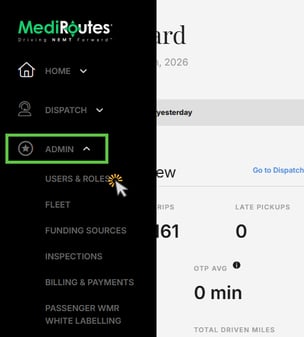
Navigate to Admin
-
Select Users and Roles
-
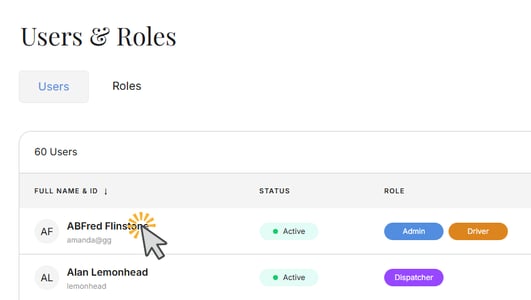
Locate the user you want to edit
-
Click the user’s name or the pencil (Edit) icon
MediRoutes Desktop
-
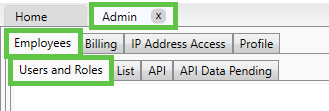
Navigate to Admin
-
Select Employees
-
Click Users and Roles
-
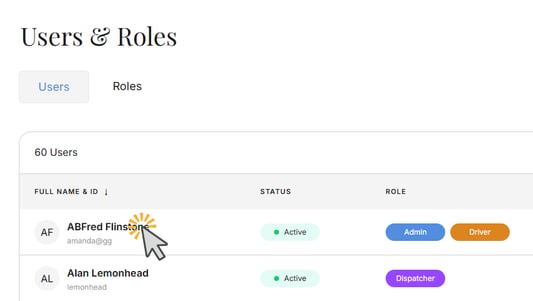
Locate the user you want to edit
-
Click the user’s name or the pencil (Edit) icon
The user account window will open, allowing you to update the user’s information.
Information That Can Be Updated on a User Account
User accounts contain several types of information that may need to be updated.
Usernames cannot be updated. If a user needs or requests a new username, please create a new user account using the article below.
Access Roles and Permissions
User accounts include roles and permissions that determine what areas of the system the user can access. These settings are managed in two different sections of the user account.
Roles (Details Tab)
System roles are managed on the Details tab of the user account slide-out.
Within this tab, the Roles section contains a list of role options displayed as checkboxes. These roles control the user's general access and capabilities within MediRoutes.
For more information on Roles, check out this article:
To update roles:
-
Open the user account
-
Navigate to the Details tab
-
Locate the Roles section
-
Select or deselect the appropriate role checkboxes
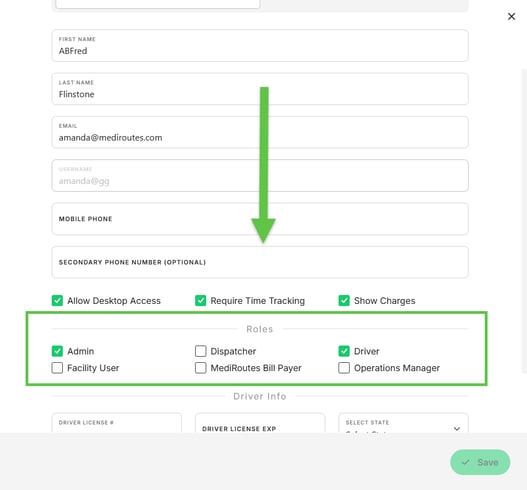
Changes to these roles affect the user’s overall access to system features.
Tip: Always make sure Desktop users have the box "Allow Desktop Access" checked. (This is not needed for users who solely use MediRoutes Online.)
Optional Selections (Additional Access Permissions)
Additional permissions are managed on the Optional Selections tab of the user account slide-out.
These settings determine which specific items within the system the user is allowed to view or interact with.
Examples include:
-
Vehicles the user can view
-
Funding sources the user can view
To update these permissions:
-
Open the user account
-
Navigate to the Optional Selections tab
-
Select or adjust the items the user should have access to
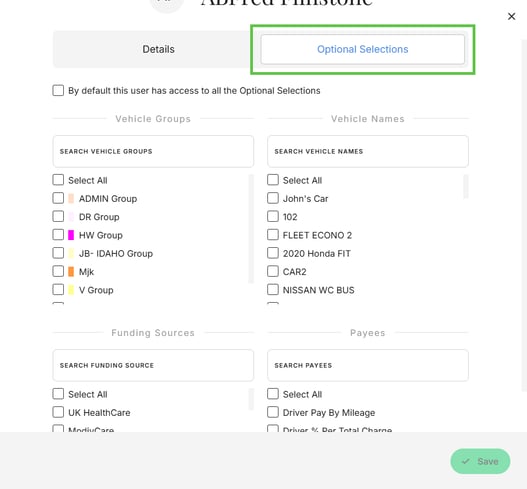
These selections help limit user visibility to only the relevant vehicles, funding sources, or other related system records.
Driver’s License Information
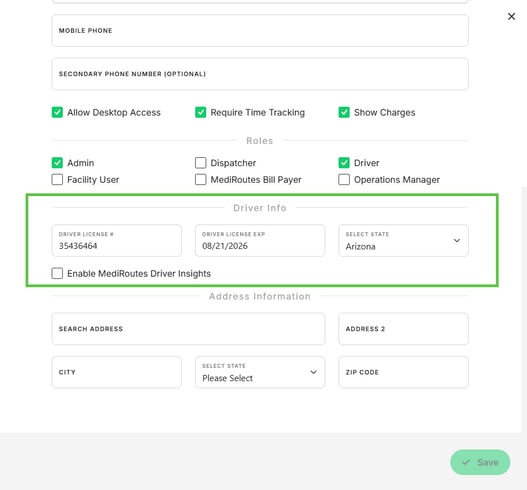
If the user is a driver, their driver’s license information is stored on their user account.
This includes:
-
Driver’s license number
-
License expiration date
-
License State
This information should be updated if a license is renewed or changed.
Contact Information
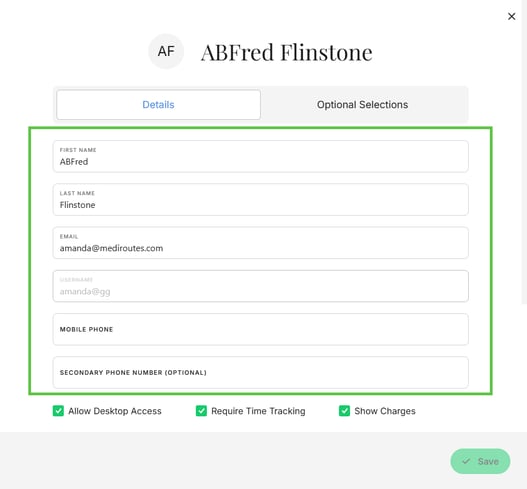
User accounts may also contain contact details such as:
-
Name
-
Email address
-
Phone number
Keeping this information current helps ensure accurate records and communication within the system.
Saving Changes
After making updates to the user account:
-
Review the changes
-
Click Save
The updated information will be stored on the user account and reflected throughout the system.
Troubleshooting User Account Updates
If you are having trouble editing or updating a user account, the following checks may help resolve common issues.
| Issue | Possible Cause | Solution |
|---|---|---|
| Unable to edit a user account | Insufficient permissions | Ensure your user account has the appropriate administrative role to manage users and roles. |
| A user cannot see certain vehicles or funding sources | Optional Selections not configured properly | Review the Optional Selections tab on the user account to ensure only the appropriate vehicles or funding sources are selected. |
| The user does not have access to expected features | Required role not assigned | Check the Roles section on the Details tab and verify the appropriate role checkboxes are selected. |
Still having issues? Contact MediRoutes Support for further assistance.