Overview
Breaks can be added to a driver’s schedule in MediRoutes to ensure proper time tracking and compliance with company or regulatory requirements.
There are three ways to insert breaks:
- Dispatch tab
- Creating a trip with a BRK space type
- Driver-inserted breaks
This article covers each method, starting with the most commonly used option.
Option 1 — Insert Breaks from the Dispatch Tab
This is the most efficient and commonly used method for inserting breaks into a run.
MediRoutes Online
Steps
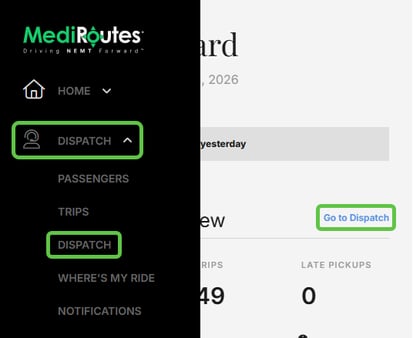
- Navigate to the Dispatch tab
- Select Dispatch from the menu
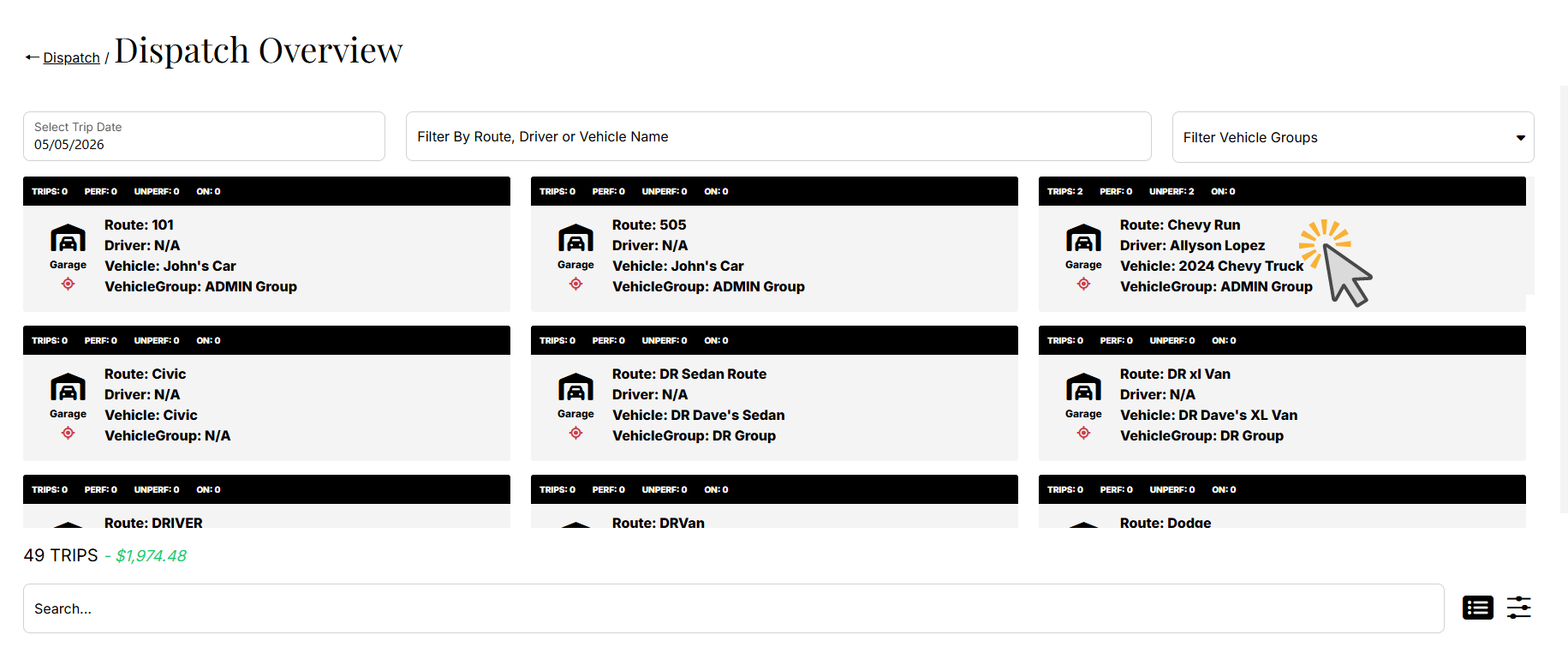
- Select the Run you want to add the break to
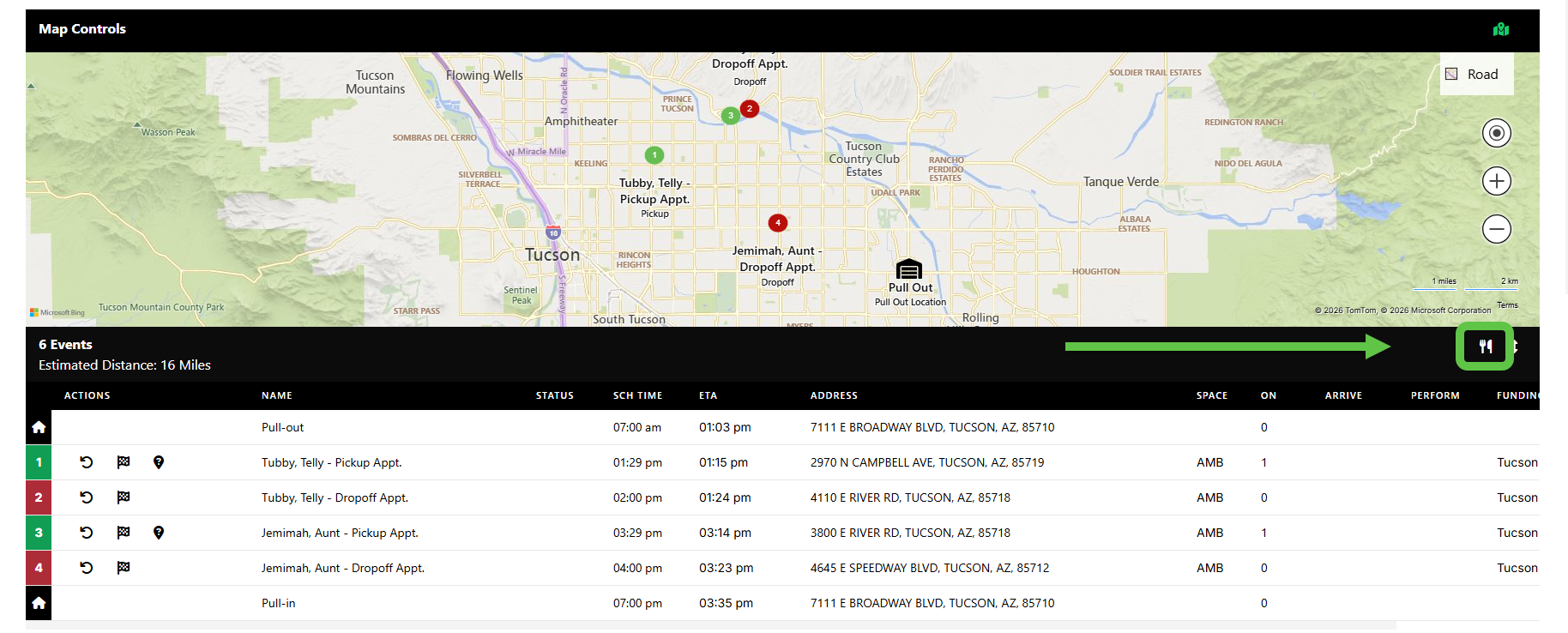
- Click the fork and knife (Insert Break) icon
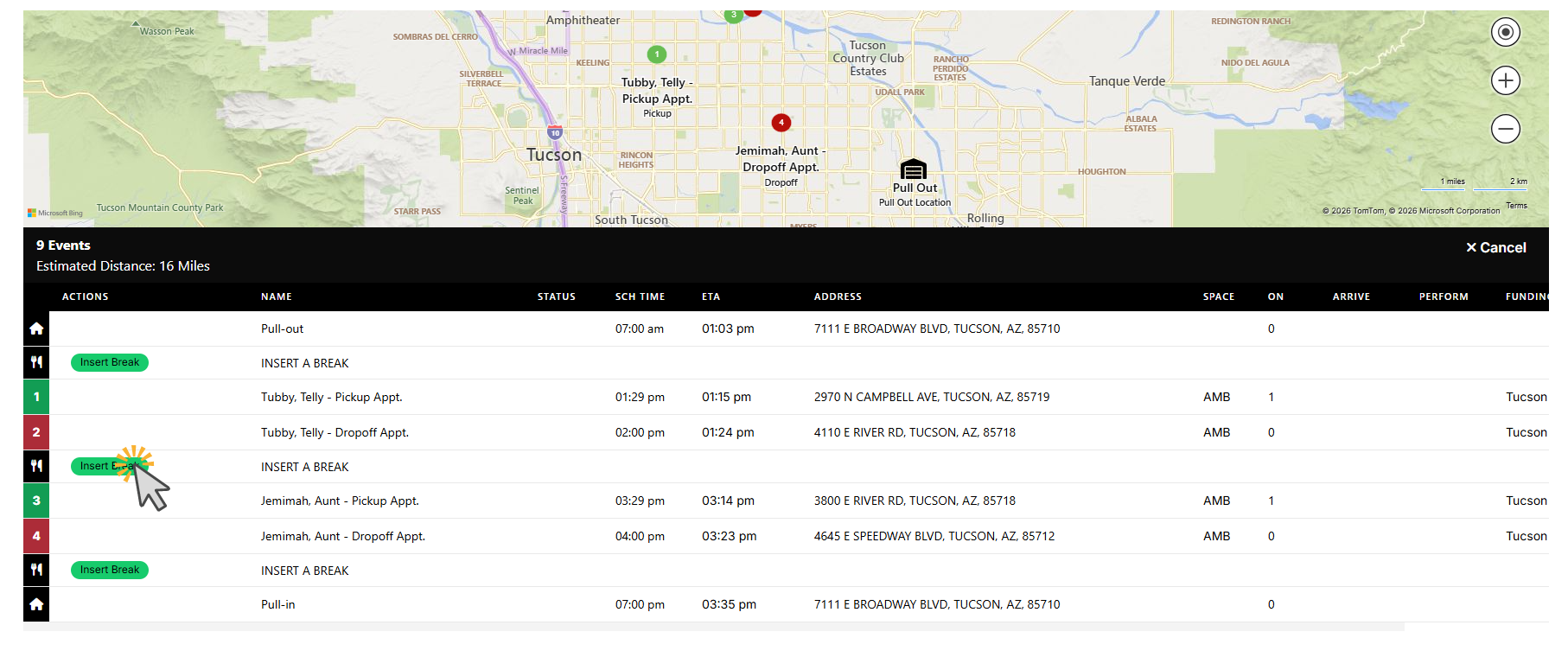
- Click Insert Break at the desired location in the schedule
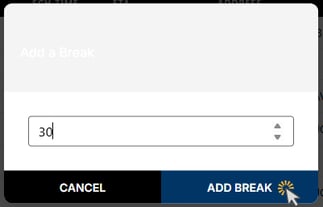
- Enter the break duration (minutes)
- Click Add Break
MediRoutes Desktop
Steps
- Open the Dispatch tab
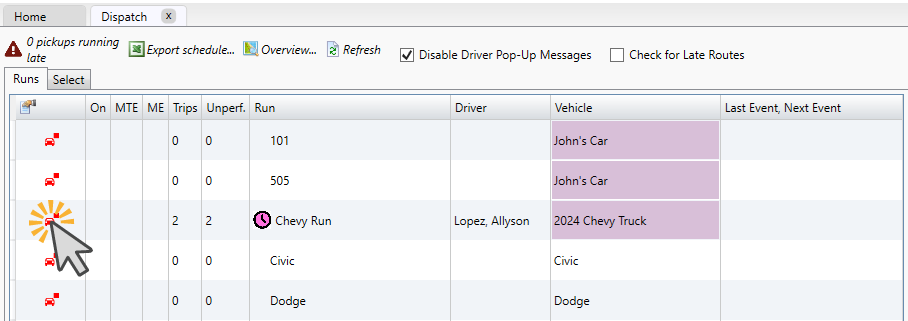
- Select the car icon for the run you want to edit
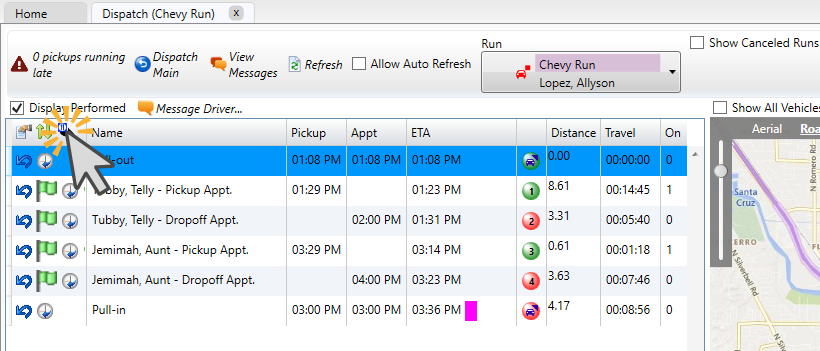
- Click the fork and knife (Insert Break) icon
Insert the Break
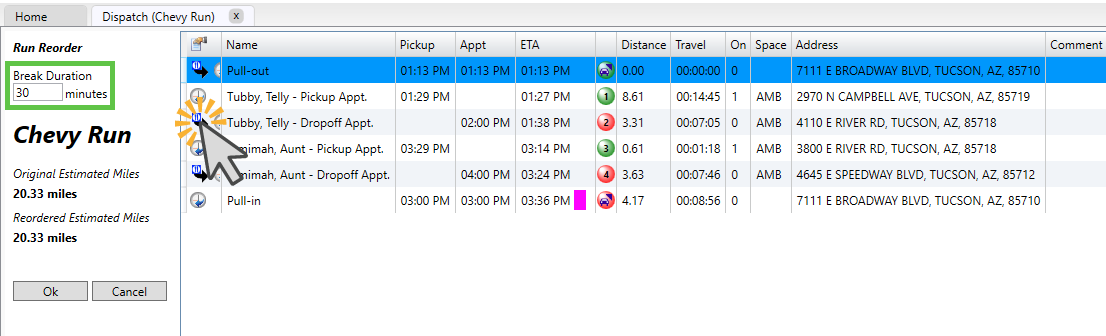
- Set the break duration on the left side
- Click the fork and knife icon between events where the break should be inserted
- Click OK to save
How This Works
- The break is inserted as an event in the run
- It will appear in the driver’s schedule
- It can be moved or adjusted as needed
Tip:
Schedule breaks in advance by going to a future date in Online Dispatch or by going to the Schedules tab in Desktop.
Option 2 — Create a Break Using a BRK Space Type
Breaks can also be created by adding a trip using a BRK space type.
Note:
This is an older method and is less commonly used compared to inserting breaks from the Dispatch tab.
Step 1 — Configure the BRK Space Type and Vehicle Capacities
Before using this method, the BRK space type must be created and vehicle capacities must be configured to support it. Use the guide below.
→ How Do I Set Up New Vehicles?
Important:
Configuring vehicle capacities can be complex. If you are unsure how to set this up, it is recommended to contact MediRoutes Support for assistance.
Step 2 — Create a Funding Source
A funding source is required to create break trips.
Steps
- Navigate to Admin
- Select Funding Sources (or Billing > Funding Sources on Desktop)
- Click New Funding Source
- Enter a name (can be anything, such as “Breaks”)
- Use existing violation set and skip Billing Items setup
- Save the funding source
Step 3 — Create a Break Passenger
You will need a passenger to represent the break.
You can either:
- Create a single shared passenger (e.g., First Name: Driver, Last Name: Break), or
- Create individual break passengers per driver
→ Passenger Record on MediRoutes Online
→ Creating Customer/Passenger Records on Desktop App
Important:
The space type for this passenger must be set to BRK and the funding source set to the breaks funding source.
Step 4 — Create a Break Trip
Once setup is complete, you can create a trip that represents a break.
MediRoutes Online (Web)
- Navigate to Dispatch → Trips
- Click New Trip
- Search for and select the break passenger
- Select One Way and Appointment for the trip type
- Enter a dropoff location
- Enter the pickup time (break start) and appointment time (break end)
- Click Assign Default Charges and Save
MediRoutes Desktop
- Use the passenger search on the Home tab to locate the break passenger
- Click New Trip (paper with plus sign, right of the passenger search)
- Select One Way and Appointment
- Enter a dropoff address
- Enter a pickup time (break start) and appointment time (break end)
- Click the green floppy disk (Save) icon
For more help creating trips in MediRoutes, reference the guide for your preferred platform:
How This Works
- The break is treated as a trip event in the schedule, with the pickup time functioning as the break start time
- It will appear alongside other trips in the run
- It follows the same scheduling logic as standard trips
Option 3 — Driver-Inserted Breaks
If enabled, drivers can insert their own breaks directly from the mobile app.
→ How Do Drivers Track Shifts and Breaks in the MediRoutes Mobile App?
→ What Is Timekeeping in MediRoutes and How Does It Work?
Note:
Even if you do not use the Timekeeping feature in MediRoutes, the information on driver inserted breaks within that article still applies.
When to Use Each Method
| Method | When to Use |
|---|---|
| Dispatch Tab | Standard scheduling and dispatcher-managed breaks |
| BRK Space Type | Legacy workflows or specific internal processes |
| Driver-Inserted | When drivers manage their own breaks |
Still need help? Contact MediRoutes Support.