Overview
Trips can be marked as paid in MediRoutes Desktop using one of two methods:
- Importing a payment file (for supported brokers like Modivcare)
- Manually adding payment history to individual trips
After marking trips as paid, you can view payment activity using the Billing History report.
Important:
Marking trips as paid and viewing payment history are only available in the MediRoutes Desktop Application.
Method 1 — Upload a Payment File (Modivcare)
Clients working with Modivcare can upload a payment file to automatically mark trips as paid.
Steps to Upload a Payment File
- Download the payment file from Modivcare
- Open MediRoutes Desktop
- Navigate to the Home tab
- Go to the Import page
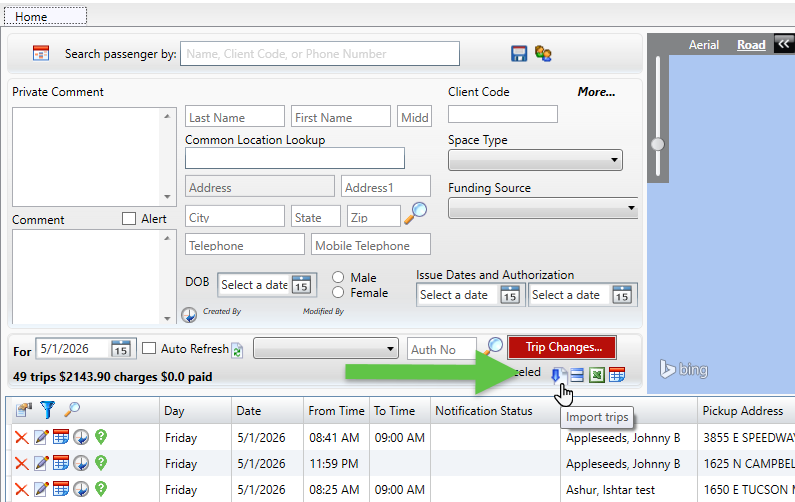
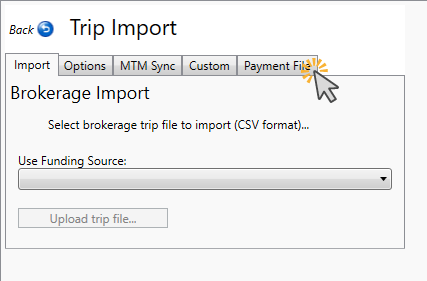
- Select the Payment File tab
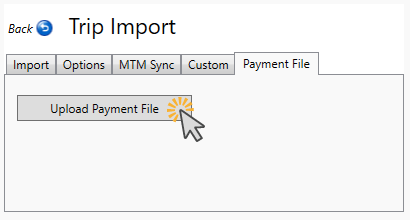
- Click Upload Payment File
- Select the payment file from your computer
- Click Open
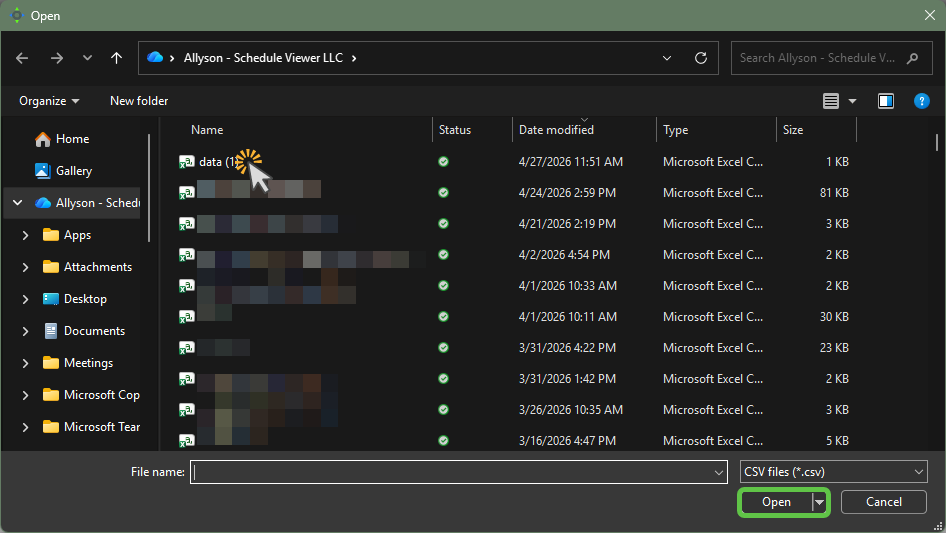
The system will begin importing the file and automatically apply payments to the corresponding trips.
Method 2 — Manually Mark Trips as Paid
If you do not have a payment file, you can manually mark trips as paid by adding a payment record to the trip.
Steps to Add Payment History
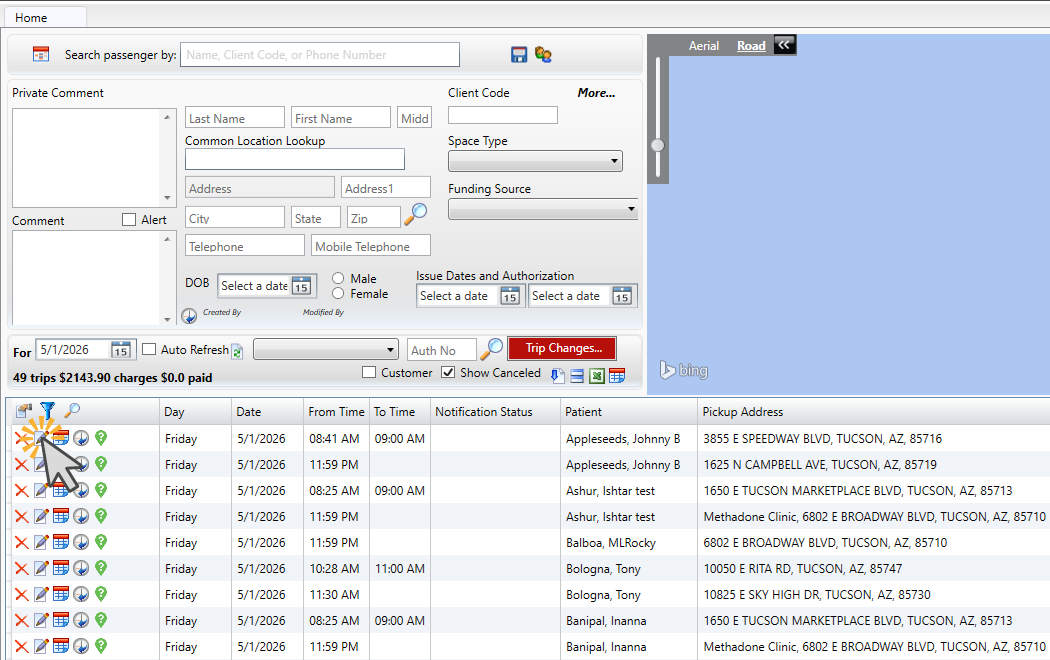
- Navigate to the Home tab
- Locate the trip you want to update
- Click the pencil and paper (Edit) icon
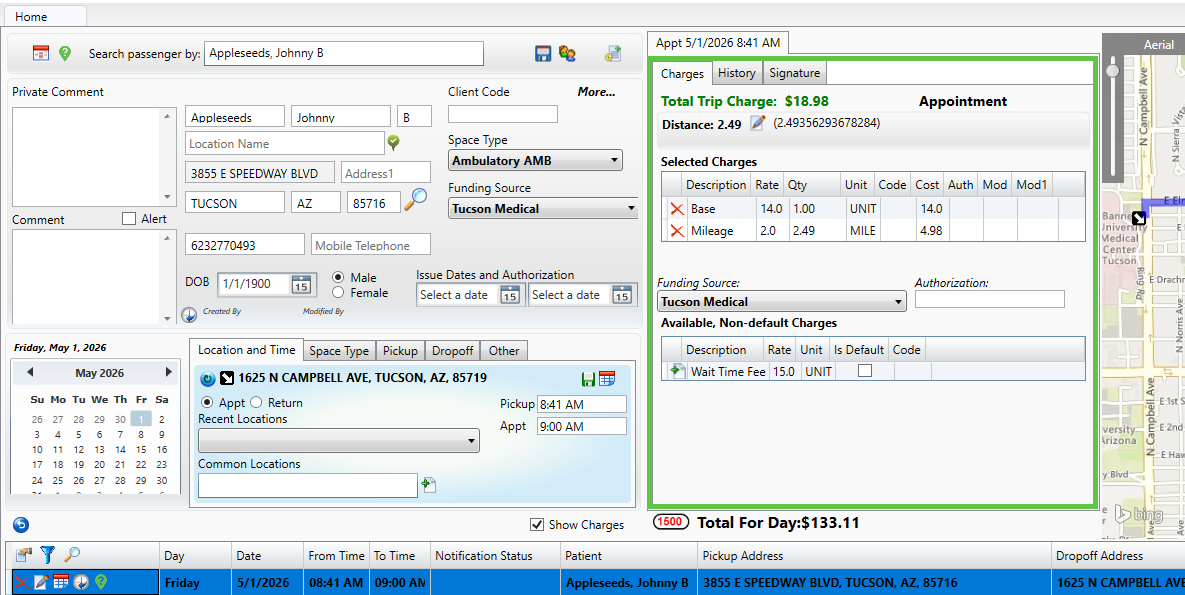
- In the edit view, go to the Charges section
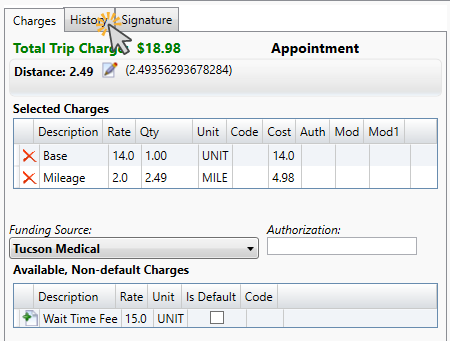
- Select the History tab
- Click Add New
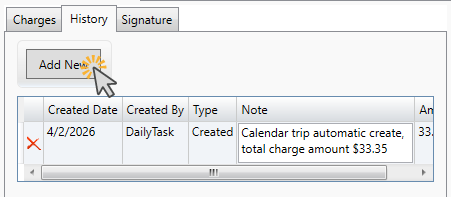
Enter Payment Details
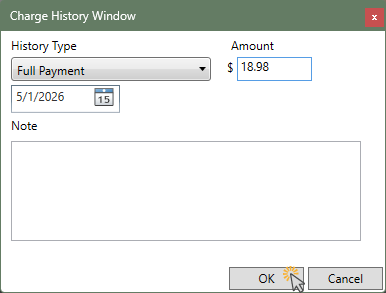
In the Charge History window:
- Select a History Type:
- Full Payment
- Partial Payment
- Enter the payment amount
- Enter the date of payment
- Add a note (optional)
- Click OK to save
How to View Trips Marked as Paid
After marking trips as paid, you can review them using the Billing History report.
Steps to Run the Billing History Report
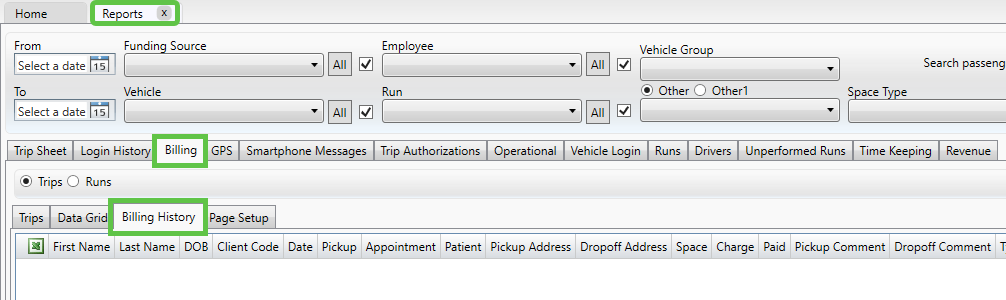
- Navigate to the Reports tab
- Go to Billing → Billing History
- Enter a date or date range
- (Optional) Select a funding source
- Click Get Report
How to Read the Report
The Billing History report will display all trips within the selected date range, not just paid trips.
To identify which trips have been paid:
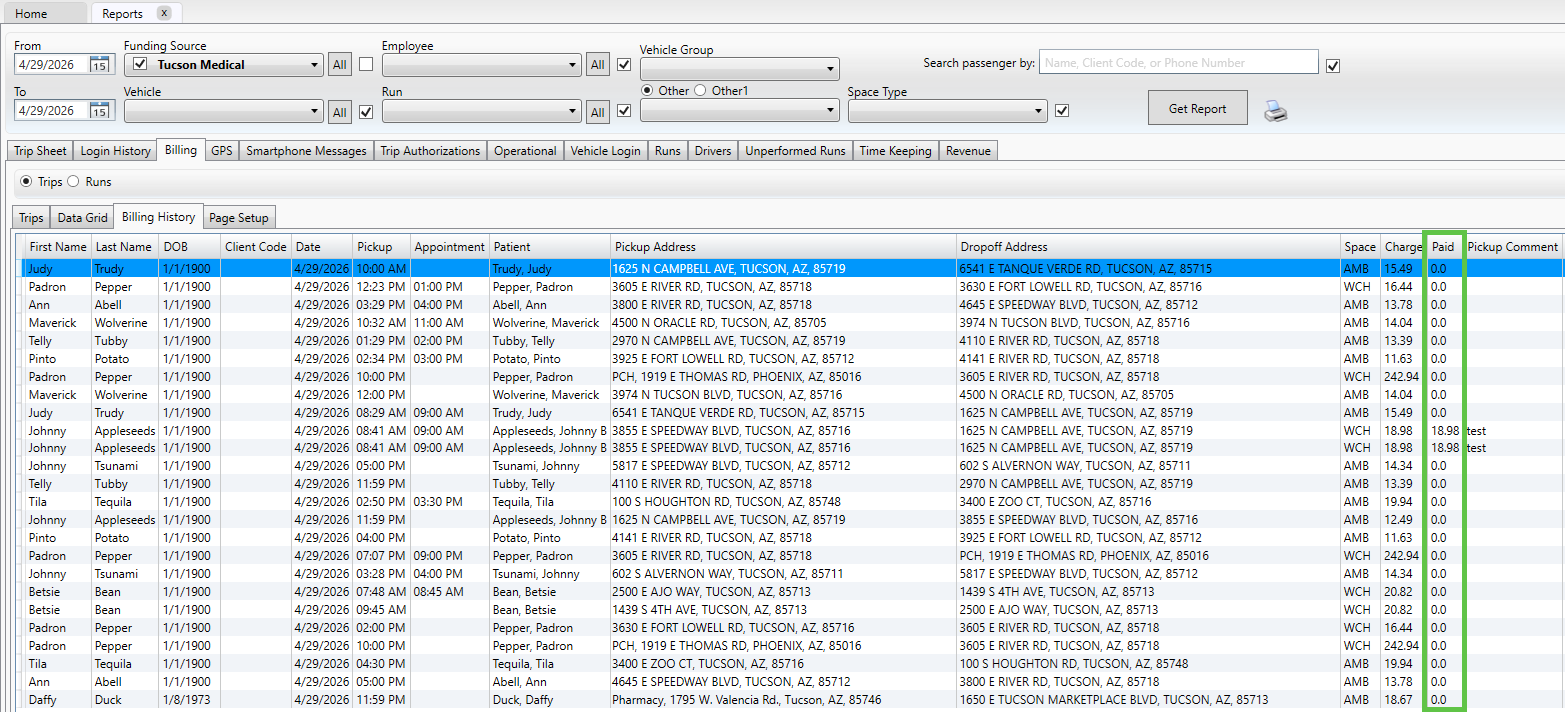
- Paid Column
- Shows the amount paid for each trip
- Trips with $0.00 have not been paid
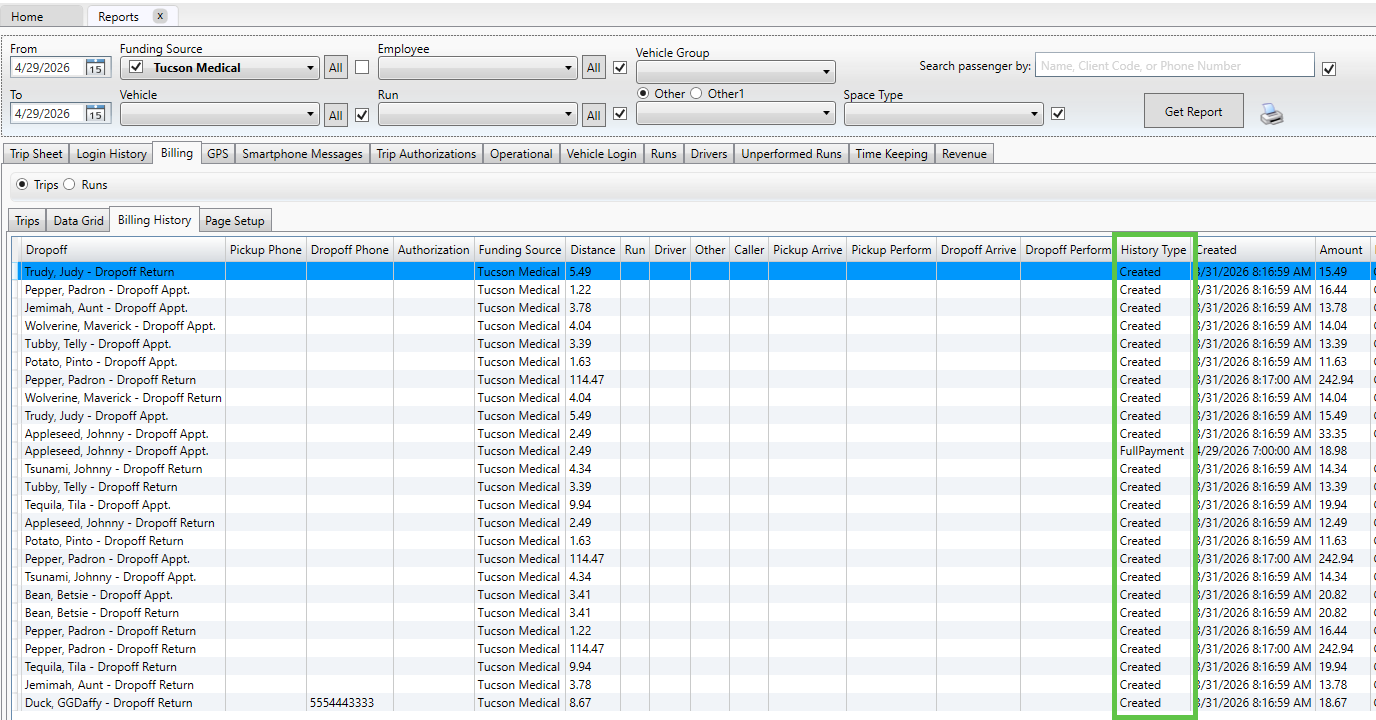
- History Type Column
- Full Payment → Trip has been fully paid
- Partial Payment → Trip has been partially paid
- Created → Trip was created but no payment has been recorded
Tip:
Use the Paid column and History Type column together to quickly identify unpaid, partially paid, and fully paid trips.
Best Practices
- Use payment file imports whenever available to save time
- Add clear notes when entering manual payments
- Regularly review the Billing History report for accuracy
Have questions or need more help? Contact MediRoutes Support.