Overview
The Trip Sheet Report in MediRoutes can be used to generate a trip log for a selected date range. This report contains information about completed trips, such as trip times, passengers, drivers, and other trip completion data. The report can also be exported for record keeping, auditing, or trip billing.
MediRoutes provides two different Trip Sheet reporting options depending on what information is needed.
Custom Trip Sheets
Custom Trip Sheets should be used when a report needs to display visible pasenger or driver signatures or when the report should include only specific fields rather than all recorded data. These reports are customizable so companies can control exactly which trip fields appear.
Trip Sheet Data Grid
The Trip Sheet Data Grid should be used when a complete trip log is needed. This report contains all recorded trip completion data captured by MediRoutes, with the exception of visible signatures. Because it includes the full set of trip completion fields, it is commonly used for data review, auditing, and exporting full trip records.
For Custom Trip Sheets, make sure the format you are needing is selected under the Page Setup tab before running the report.
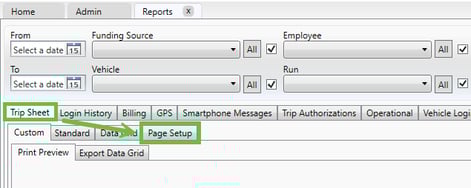
For more information on Custom Trip Sheet formats, please reference this article:
Pulling the Trip Sheet Report
-
Open the MediRoutes Desktop Application.
-
Navigate to the Reports tab.

-
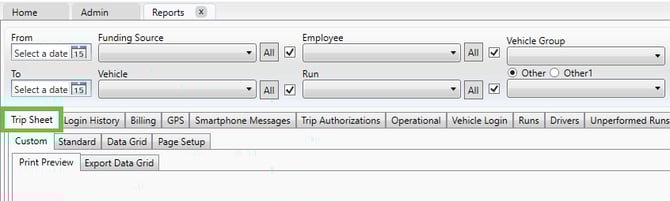
Locate and select Trip Sheet. (The Reports tab normally loads on Trip Sheet automatically.)
-
Configure the report filters:
-
Date Range – Select the start and end dates for the trips you want included in the log.
-
Driver / Vehicle / Passenger / Funding Source (optional) – Apply additional filters if needed.

-
-
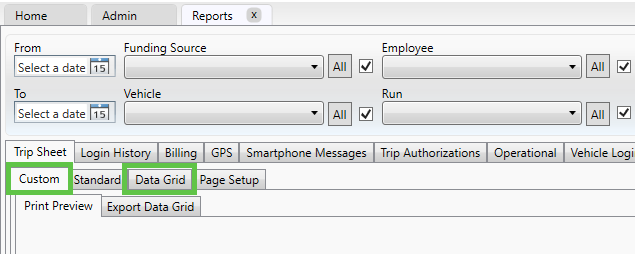
Choose the appropriate report type:
-
Custom Trip Sheet
-
Trip Sheet Data Grid
-
-
Click Get Report.
The system will generate the Trip Sheet Report using the selected filters.
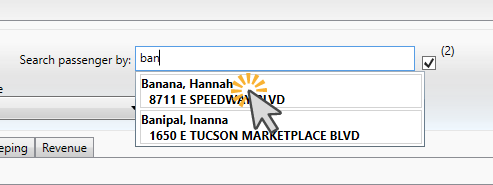
To pull a trip log for a specific passenger, make sure to use the Search Passenger by search box. Simply type some or all of the last name and select the passenger from the loaded results before running the report.
If the report appears blank, verify that:
-
The date range is correct
-
There are completed trips in that range
-
Additional filters are not limiting results.
If everything looks correct, and the report is still blank, please contact MediRoutes Support.
Exporting the Trip Sheet Report
Exporting steps vary depending on the report type and file format you need.
Exporting a CSV from the Trip Sheet Data Grid
-
Run the Trip Sheet Data Grid report.
-
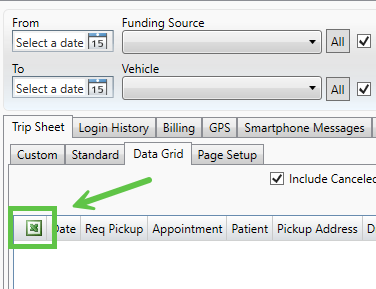
Locate the Excel icon in the top left corner of the report window.
-
Click the Excel icon. (If you are asked to update routed distances, click No.)
-
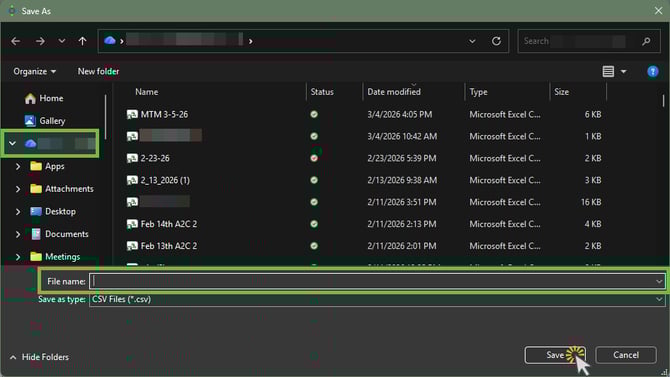
In the Windows file window:
-
Enter a file name.
-
Choose where you want to save the file.
-
-
Click Save.
The report will export as a CSV file.
Exporting a CSV from a Custom Trip Sheet
-
Run the Custom Trip Sheet report.
-
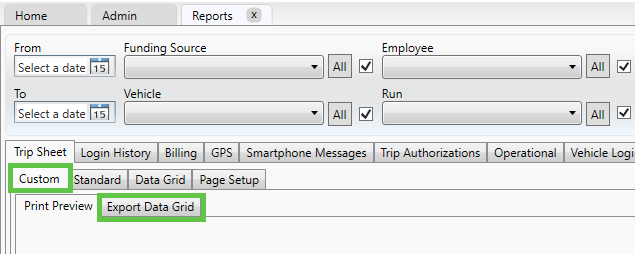
Under the Custom tab, select Export Data Grid.
-
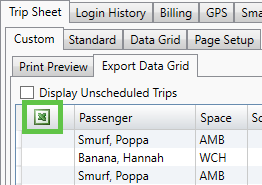
Click the Excel icon in the top left corner.
-
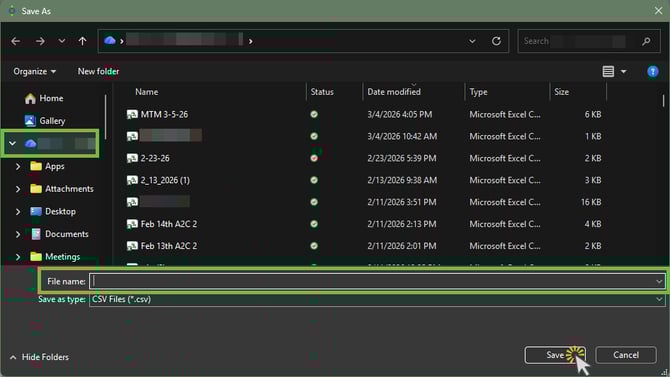
In the Windows file window:
-
Enter a file name.
-
Choose where to save the file.
-
-
Click Save.
The report will export as a CSV file.
Exporting a Custom Trip Sheet as a PDF
PDF exports are only available for Custom Trip Sheets.
-
Run the Custom Trip Sheet report.
-
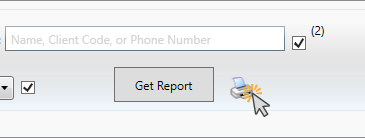
Click the Printer icon next to the Get Report button.
-
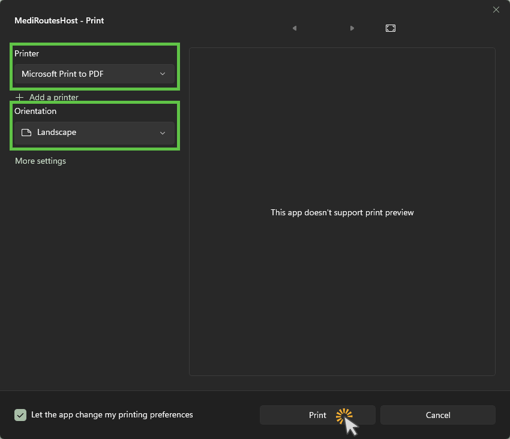
In the print window:
-
Set the Printer to Microsoft Print to PDF.
-
Change the Orientation to Landscape.
-
-
Click Print.
-
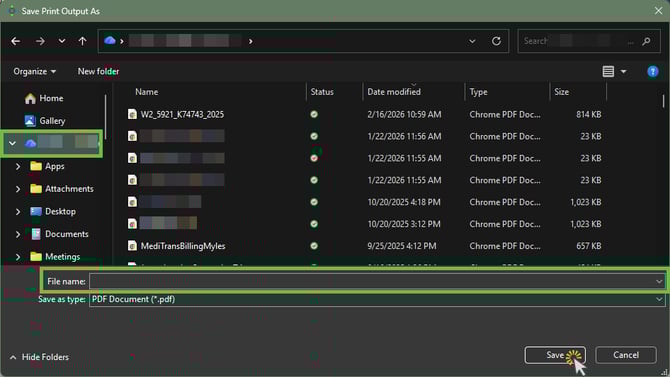
In the Windows file window:
-
Enter a file name.
-
Choose where you want to save the file.
-
-
Click Save.
The report will export as a PDF file.
Additional Notes
-
Trip Sheet Data Grid exports include all trip completion data except visible signatures.
-
Custom Trip Sheets are required if visible signatures are needed.
- If you run into any issues or have further questions, please contact MediRoutes Support.