Overview
If you are unable to log in to MediRoutes, the issue is typically related to incorrect credentials, account setup, or system/device settings.
This guide walks through the most common causes of login issues and how to resolve them.
The quick fix below is a summary. Proceed to the full guide for more in-depth guidance.
Quick Fix: Can’t Log In?
If you can’t log in to MediRoutes, try these steps:
-
Check your username and password
Make sure there are no typos, extra spaces, or caps lock issues. -
Reset your password
Use the Forgot Password option and try logging in again. -
Confirm your account is set up and active
If you’re a new user or unsure, contact your administrator to verify your account and permissions. -
Restart the app or try another device
Close and reopen MediRoutes or try logging in from another browser/device. -
Check your computer’s date and time (Desktop app)
Make sure your system clock and time zone are correct and synced.
Troubleshooting Login Issues
Follow the steps below in order until the issue is resolved.
Check Your Username and Password
-
Ensure your username and password are entered correctly
-
Check for:
-
Caps Lock being on
-
Extra spaces
-
-
Confirm you are using the correct username (not email unless specified)
Reset Your Password
-
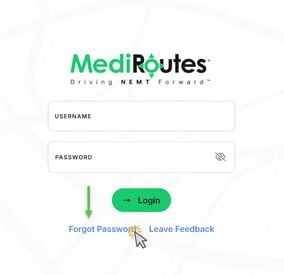
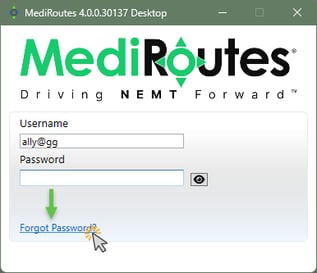
Click Forgot Password on the login screen
-
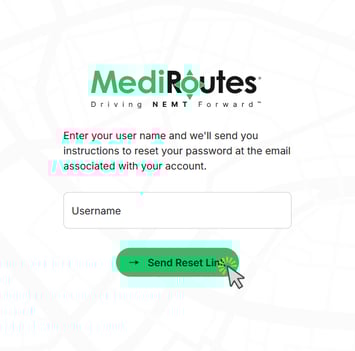
Enter your username
-
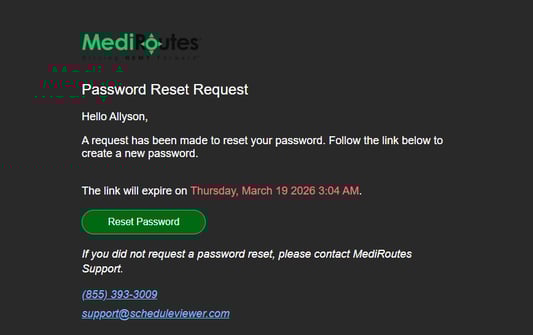
Follow the email instructions to reset your password
The email will come from info@mediroutes.com. Check Spam/Junk Folder.
-
Try logging in again
Not getting the password reset email? Contact your administrator to confirm your username and email address. Try sending the email to another email address by having your administrator change the email address on the account.
Confirm Your Account Is Set Up
If you are a new user:
-
Ensure you have completed account verification
-
Confirm your password has been created
If needed, ask your administrator to resend your verification email.
Follow this guide to verify a new user account:
How Do I Verify My MediRoutes User Account?
Admins can follow this guide to resend the verification link:
The verification link for one of my users expired, how do I resend in MediRoutes Desktop?
Confirm Your Account Has Access
If login still fails or access is denied:
-
Your account may:
-
Not be active
-
Not have the correct permissions
-
Contact your administrator to confirm your access or have it updated.
Admins can follow this guide to update your permissions:
Restart the Application or Browser
-
Close and reopen MediRoutes
-
Refresh your browser (for Online users)
-
Restart your device if needed
Try Another Device or Browser
If possible:
-
Try logging in from another device or browser
Check Your Computer’s Date and Time (Desktop App)
If you receive login errors such as expired token or similar:
-
Open your computer’s Date & Time Settings
-
Ensure the correct:
-
Time
-
Time zone
-
-
Sync your clock
-
Try logging in again
Incorrect system time can prevent successful login.
Still not working? Contact MediRoutes Support.