Overview
The GPS report in MediRoutes displays breadcrumb location data for drivers or vehicles over a selected date and time range.
This report can be used to:
-
Review vehicle movement and activity
-
Track driver routes
-
Analyze GPS data for operational or troubleshooting purposes
-
Provide GPS data requested by brokers or trip providers
This article explains how to run the GPS report and export the results.
How to Run a GPS Report
-
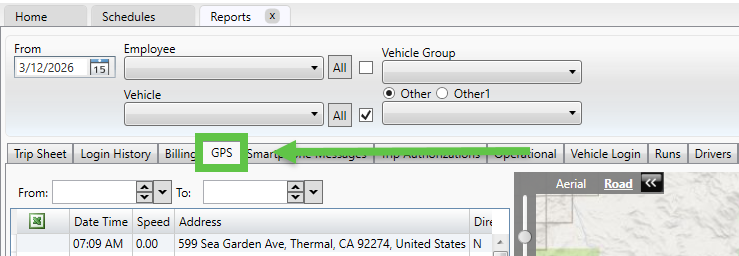
Navigate to the Reports tab

-
Click GPS
-
Select the desired date
-
Choose one of the following filters:
-
Employee (Driver)
-
Vehicle
-
-
(Optional) Select a time range
-
Click Get Report
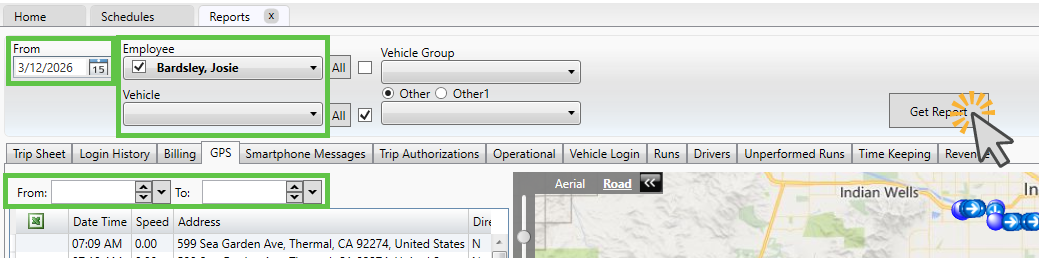
The report will display GPS breadcrumb data based on your selected filters.
Viewing the Report
-
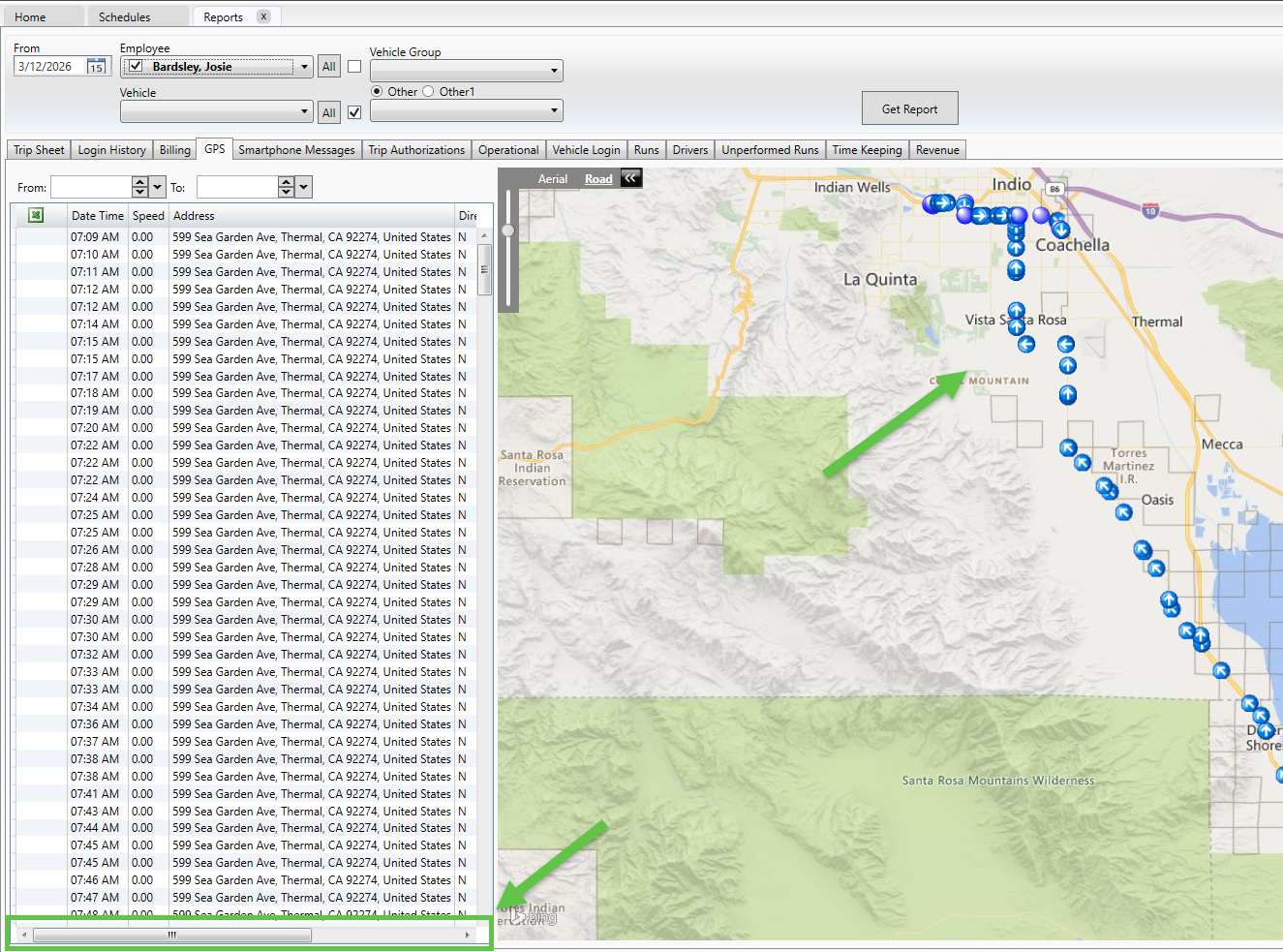
Use the scroll bar to view additional columns
-
Review breadcrumb data for the selected driver or vehicle
-
Adjust filters as needed and rerun the report for different results
Exporting the Report
To export the report:
-
Click the Excel logo
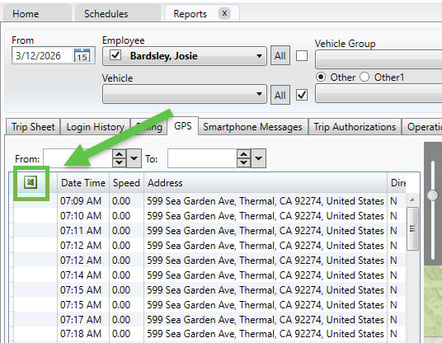
- Type in a file name and click Save
The report will download and can be opened in Excel for further review or analysis.
Common Issues and Possible Causes
| Issue | Possible Cause | Solution |
|---|---|---|
| No data appears in the report | Incorrect date or filters selected | Verify the date, driver, or vehicle selection and try again |
| Missing GPS data | Location permissions not set correctly on the driver’s device | Confirm the driver has location permissions set to “Always Allow” for the MediRoutes Mobile App |
Still have questions or issues? Contact MediRoutes Support.