Step 1 — Create a New Funding Source
A Funding Source tells MediRoutes who pays for a trip. It can be a broker (e.g., ModivCare, MTM), a facility (hospital, nursing home), or a private pay payer. Every trip must be linked to a funding source.
How to Create
-
Navigate:
-
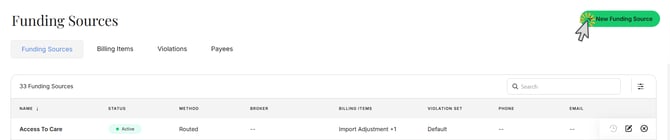
Go to Admin → Billing → Funding Sources in the desktop app or Admin → Funding Sources on the web.
-
Click New Funding Source to open the creation panel.
-
-
Basic Details:
-
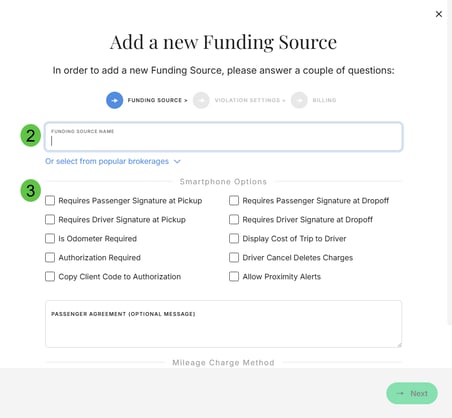
Enter a unique Funding Source Name (not used elsewhere in your system).
- Or select from popular brokerages-use for any integrated broker. (To find out if your broker is integrated with MediRoutes, reference the dropdown list given at this step or contact MediRoutes Support for more information.)
-
-
Signatures (Optional):
-
Set if passenger and/or driver signatures are required (pickup, drop-off, or entire trip).
-
-
Mileage Calculation:
-
Choose how mileage is calculated:
-
Routed: System calculates mileage automatically.
-
Imported: Mileage comes from file imports/API. This option must be selected if you will be importing trip files or connecting an API integration.

-
-
-
Odometer (Optional):
-
Enable Odometer per Trip if odometer readings must be recorded.
-
-
Violation Set:
-
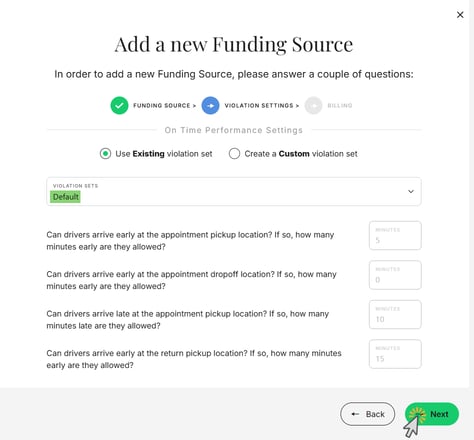
Click Next and set a default Violation Set (can be changed later).
-
-
Billing Items (Rates):
-
Click Next to add rates.
-
Step 2 — Set Billing Items (Rates)
Rates (also called Billing Items) define how trips are billed for a funding source. These rates determine trip charges based on mileage, level of service, time, or other special conditions. A funding source must have at least one rate in order for charges to calculate.
How to Set Billing Items
-
Select Manual Billing Setup:
-
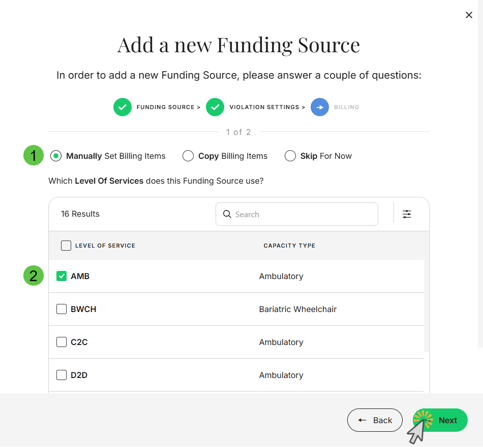
Choose Manually Set Billing Items to configure rates for this funding source.
-
-
Select Levels of Service:
-
Choose the Levels of Service (LOS) used by this funding source.
-
Common selections include:
-
AMB (Ambulatory)
-
WCH (Wheelchair)
-
-
Only the selected LOS options will be available when creating rates.
- Click Next.
-
-
Add Billing Items for Each LOS:
-
For each selected level of service, add the appropriate billing items, such as:
-
Base / Trip Rate
-
Mileage Rate
-
Wait Time
-
After-Hours or Special Charges
-
- If you don’t see the Billing Item Description you need in your Billing Item list, you’ll just need to add it. Click here to follow the steps for creating a new Billing Item Description. And don't worry, you can always come back to this funding source and add the missing Billing Items when you're done.
-
-
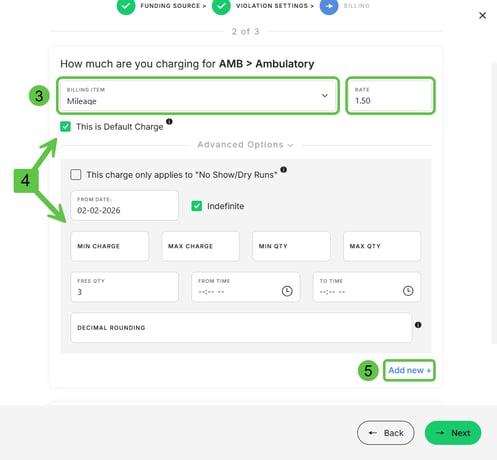
Configure Rate Details:
-
Enter the rate amount.
-
Set any minimums, maximums, or conditions required (apply to No Shows, first 3 miles free, etc.)
-
Check This is Default Charge if the rate should be applied automatically to trips using this funding source.
-
-
Add Additional Billing Items:
-
Click Add new + to add multiple billing items for each level of service as needed.
-
Repeat this process until all required rates have been added.
-
-
Proceed to the Summary:
-
Once all billing items are added, click Next to continue to the Summary of the new funding source.
-
Step 3 — Review and Save
The Summary step provides a final review of the funding source details before it is created.
-
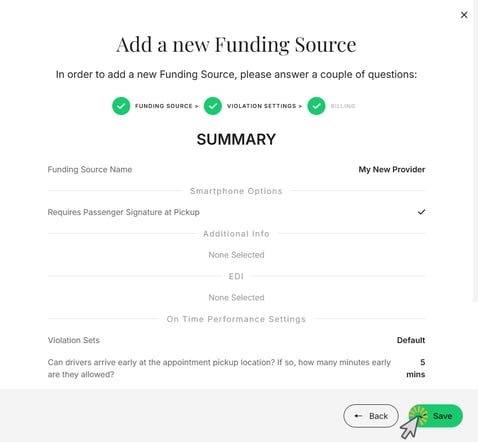
Review the Summary:
-
Confirm the funding source name is correct.
-
Verify the selected signature options.
-
Ensure all required billing items and rates are listed and configured correctly.
-
-
Make Changes if Needed:
-
Click Back to return to previous steps and make corrections.
-
-
Save the Funding Source:
-
Click Save to create the funding source and make it available for use.
-
What’s Next?
After the funding source is created, you can:
-
Assign the funding source to new or existing trips and passengers
-
Link the funding source to broker imports or APIs, if applicable
-
Update billing items or rates as contracts change
If you run into any issues during this process, please contact MediRoutes Support.