Overview
To begin working with the LCP broker in MediRoutes, you will need to:
- Create a funding source and rates
- Set up a custom import format using an LCP trip file
- Import trip files to create trips in MediRoutes
This article walks through each step required to complete the setup.
Important:
LCP is not currently a fully integrated broker in MediRoutes.
The process to make LCP an integrated broker has been started, but it has not been completed, and there is no timeline available for when full integration will be supported.
At this time, LCP trips must be imported using a custom import format as outlined in this article.
Step 1 — Create a Funding Source and Rates
Before importing trips, you must first create a funding source for LCP and configure the appropriate rates.
→ How Do I Set Up a New Broker/Funding Source in MediRoutes?
Step 2 — Obtain an LCP Trip File
To create a custom import format, you must have a trip file from LCP.
- This file is required to configure the import
- It must be available before proceeding
Important:
If you need help locating and exporting a trip file, you will need to contact LCP.
Step 3 — Create a Custom Import Format
Once you have an LCP trip file, you can configure the custom import.
Access the Custom Import Setup
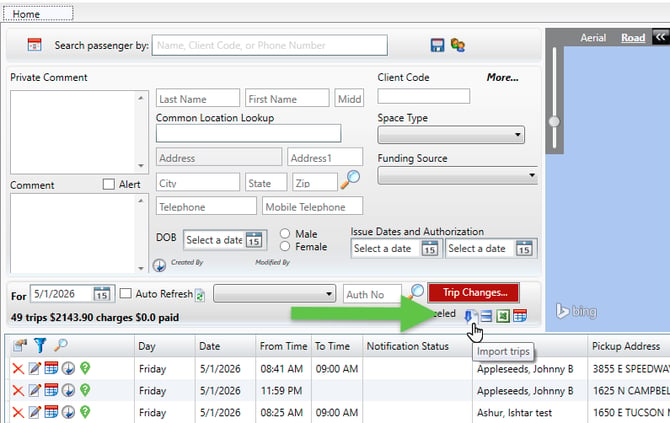
- Open MediRoutes Desktop
- Navigate to the Home tab
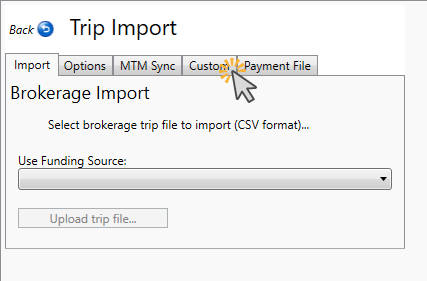
- Go to the Import page
- Select the Custom tab
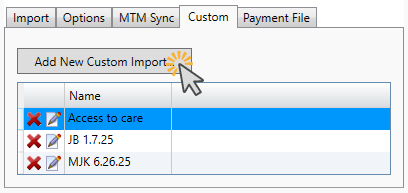
- Click Add New Custom Import
Upload the LCP Trip File
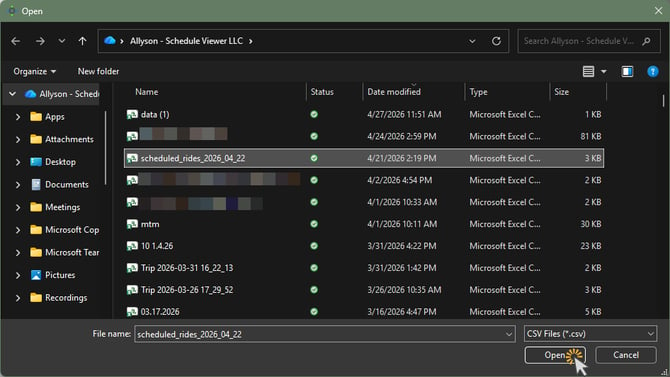
- Click Select File
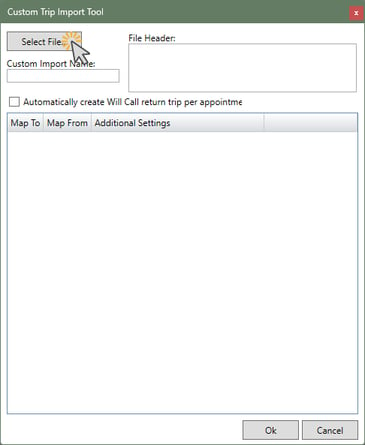
- Choose the LCP trip file from your computer and click Open
Important:
The file must not be open when selecting it.
Once selected, the column headers will populate in the custom import window.
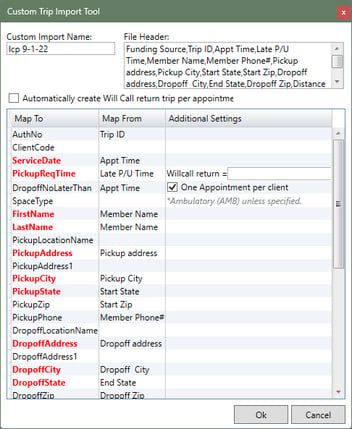
Configure the Custom Import
- Enter a name for the custom import
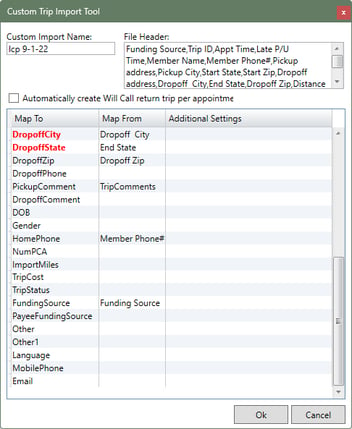
- For each field:
- Double-click in the Map From box
- Select the corresponding column header from the dropdown
- Map all required fields:
- Required fields are shown in red text
- The Zip Code field is also required
- Click OK to save the custom import
Tip:
Make sure all required fields are mapped correctly before saving to avoid import errors.
Reference:
See the screenshots below for an example of a properly mapped LCP custom import.
Note:
This setup is a one-time process. Once your custom import format is created, you can reuse it for all future LCP files.
Only recreate the import if the file’s column headers change or are reordered.
Step 4 — Import LCP Trip Files
Once the custom import is created, you can begin importing trip files.
→ How Do I Import Trips into MediRoutes?
How This Setup Works
- The custom import format tells MediRoutes how to read LCP files
- Once configured, future imports can be completed quickly using the same format
- Trips will be created automatically based on the file data
Best Practices
- Double-check all required field mappings
- Keep a copy of your import file for troubleshooting
Need more help with this? Contact MediRoutes Support.