Setting Up New Vehicles in MediRoutes
Setting up vehicles in MediRoutes requires completing several configuration steps in the correct order. These steps ensure vehicles are properly configured for scheduling, routing, and dispatch.
This article walks through the full setup workflow for creating vehicles in MediRoutes.
Prerequisites
Before setting up vehicles, ensure the following:
-
You have access to the Data tab in MediRoutes.
-
Your company has defined the passenger types you service (ambulatory, wheelchair, stretcher, etc.).
-
You understand the vehicle layouts used by your fleet (for example: how many wheelchair positions a vehicle supports).
Vehicle Setup Workflow
Vehicle configuration in MediRoutes follows this order:
-
Create or update Space Types
Defines the types of passenger seating or transport spaces. -
Create Vehicle Capacities
Defines how many of each space type a vehicle can carry. -
Create Vehicles
Adds vehicles to the system and assigns the appropriate capacity.
Each step builds on the previous one, so they should be completed in order. If your space types or capacities are already set up, you can click Step 2 or Step 3 above to jump directly to those sections.
Step 1: Create or Update Space Types
Space Types represent the type of seat or space a passenger requires during transportation.
Common examples include:
-
AMB – Ambulatory
-
WCH – Wheelchair
-
STR – Stretcher
Additional space types can be created depending on your company's needs.
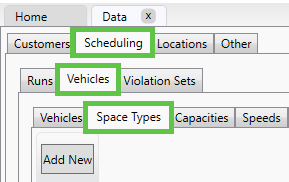
Navigate to Space Types
-
Click Data.

-
Select the Scheduling tab.
-
Select the Vehicles tab.
-
Click Space Types.
Update Existing Space Types
You can modify existing space types as needed.
-
Mark space types as Inactive if your organization does not service them.
- Add a Description to match file imports by double-clicking the field. (Make sure to comma separate.)
-
Adjust Load Time and Unload Time by double-clicking the time fields.
-
Assign the appropriate Capacity Type.

These values help MediRoutes calculate scheduling and loading times and import trips from new files correctly.
Create a New Space Type
-
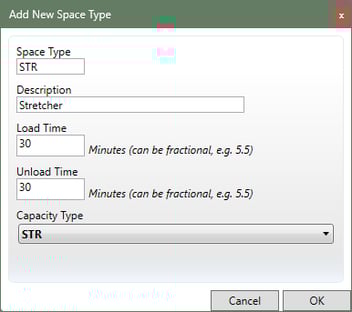
Click Add New. (top left corner)
-
Enter a Space Type Name (short code such as
BWCfor Bariatric Wheelchair). -
Enter a Description (full name of the space type).
-
Enter the Load Time.
-
Enter the Unload Time.
-
Select the appropriate Capacity Type.
-
Click OK to save.
Example of new Stretcher space type:
Note: Multiple space type descriptions can be entered (comma-separated). This helps match naming variations in imported trip files.
Example: Wheelchair, WC or Ambulatory, C2C, AM1
Step 2: Create Vehicle Capacities
Vehicle Capacities define how many passengers of each space type a vehicle can carry.
For example, a vehicle capacity might include:
-
3 Ambulatory passengers
-
2 Wheelchair passengers
Capacity configurations can be reused for multiple vehicles with the same seating layout.
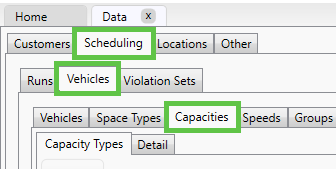
Navigate to Vehicle Capacities
-
Click Data.
-
Select the Scheduling tab.
-
Select the Vehicles tab.
-
Click Capacities.
Create a Capacity Type
-
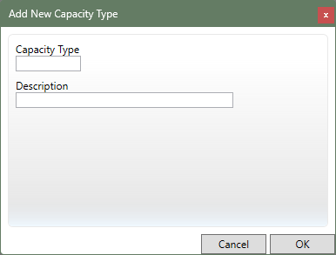
Click Add New.
-
Enter a Capacity Type Name (usually based on vehicle layout, ex. Minivan).
-
Enter a Description (basic vehicle description, ex. Standard minivan)
-
Click OK.
Tip: If multiple vehicles have the same layout, they can share the same capacity type.
Configure New Capacity Type
- Select the New Capacity Type.
- Click Detail at the top of the list.
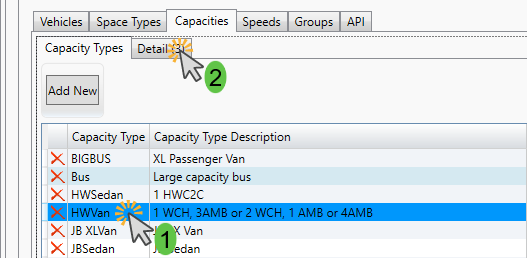
- Double-click the space type boxes to add the available number of seats for each passenger type.
- Click Add New to add additional configuration lines as needed.
The example below shows a Van that can carry 3 AMB with 1 WCH passenger, 1 AMB with 2 WCH passengers, or 4 AMB with no other types of passengers.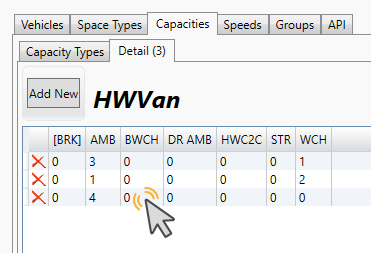
Step 3: Create Vehicles
Once capacities are configured, vehicles can be added to the system and assigned the appropriate capacity.
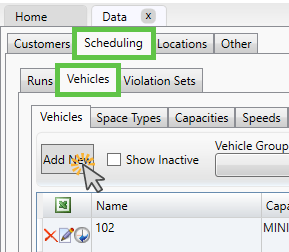
Navigate to Vehicles
-
Click Data.
-
Select the Scheduling tab.
-
Select the Vehicles tab.
-
Click Add New.
Configure the Vehicle
-
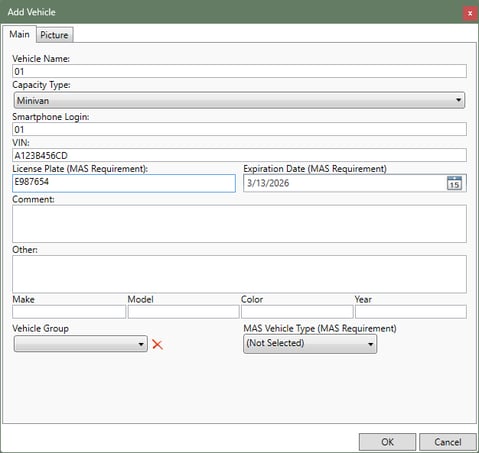
Enter the Vehicle Name.
-
Select the appropriate Capacity from the dropdown menu.
-
Enter the Smartphone Login.
The Smartphone Login is the unique identifier drivers use when logging into the MediRoutes mobile application.
Best Practice: The Smartphone Login should match the vehicle name and be unique for each vehicle.
4. Click OK to save the vehicle.
Optional Vehicle Details
Additional vehicle information can be entered by double-clicking fields in the data grid and entering the appropriate values. (Click outside of the box to save the value when done.)
Brokers or trip providers often require:
-
License plate numbers
-
Vehicle identification numbers (VIN)
Fields labeled MAS Requirement apply to the broker MAS. If you do not work with MAS, they may not be needed. Always confirm required vehicle details with the broker for billing.
Best Practices
✔ Standardize naming conventions
Use consistent vehicle names to make dispatching easier.
✔ Reuse capacity configurations
Create shared capacity types for vehicles with identical layouts.
✔ Keep unused space types inactive
Removing unused options prevents scheduling errors.
Common Issues
Capacity violations appear when scheduling trips to a new vehicle
This typically occurs when vehicle capacities have not yet been configured or were not configured properly.
Return to Step 2 and create a capacity configuration or add configurations to an existing capacity before scheduling trips to the vehicle.
Space type does not appear in capacity setup
This may happen if the space type:
-
Has not been created yet
-
Is marked Inactive
Return to Step 1 and create or update the space type needed.
If you have questions or encounter any issues outside of the ones listed above, please contact MediRoutes Support.