Overview
Tennessee Carriers is not currently an integrated API broker in MediRoutes. Trips are managed through:
- A configured funding source
- A custom import format for importing trip files
- A billing export report used to generate files for payment upload
This article walks through the complete setup and billing workflow for Tennessee Carriers.
Important:
Tennessee Carriers uses a custom import and reports billing workflow.
An API integration with Tennessee Carriers is in progress but not yet available.
Step 1 — Create the Tennessee Carriers Funding Source
Before importing trips, create a funding source for Tennessee Carriers.
→ How Do I Set Up a New Broker/Funding Source in MediRoutes?
Required Funding Source Settings
When configuring the funding source, ensure the following settings are configured correctly:
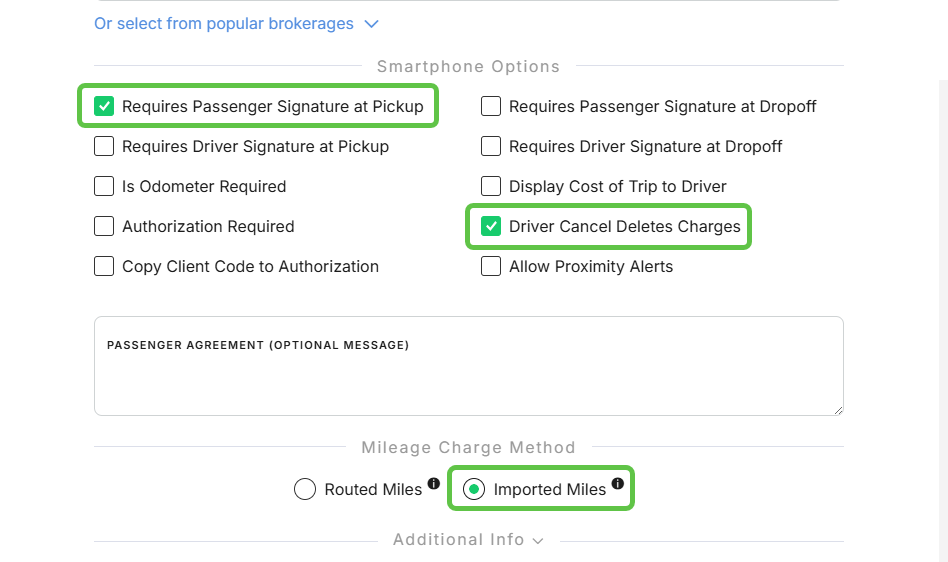
Mileage Charge Method
- Set to:
- Imported Trip Miles
- NOT Routed Miles
Important:
Tennessee Carriers billing requires imported trip distances from the broker file.
Driver Cancel Deletes Charges
- Enable Driver Cancel Deletes Charges
This prevents canceled/no show trips from appearing in financial reports.
Passenger Signature Requirement
- Enable Requires Passenger Signature at Pickup
This ensures passenger signatures are captured during pickup.
Step 2 — Obtain a Tennessee Carriers Trip File
A Tennessee Carriers trip file is required to create the custom import format.
Tennessee Carriers will provide guidance on which version of the TripSpark Novus Portal download should be used.
The correct version is currently V6, but this may change over time. Always test imports and confirm with Tennessee Carriers if needed.
Important:
Contact MediRoutes Support if you experience issues importing Tennessee Carriers files.
Step 3 — Create a Custom Import Format
Once you have a Tennessee Carriers trip file, configure the custom import format.
Access the Custom Import Setup
- Open MediRoutes Desktop
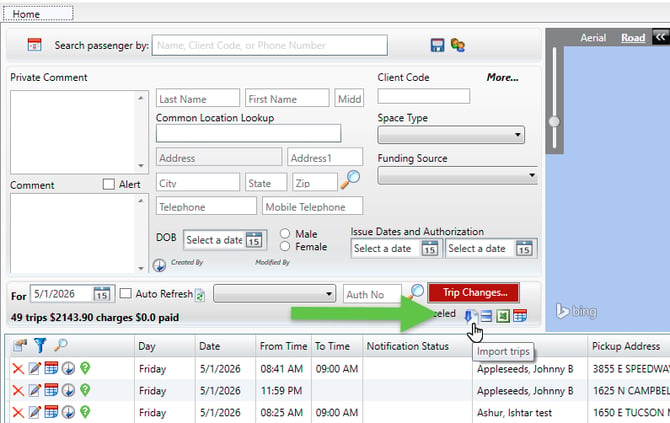
- Go to the Import page on the Home tab
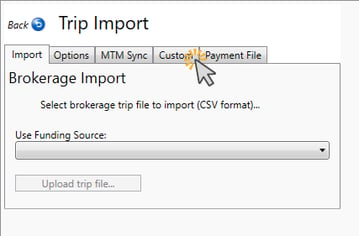
- Select the Custom tab
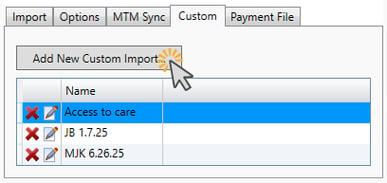
- Click Add New Custom Import
Upload the Trip File
- Click Select File
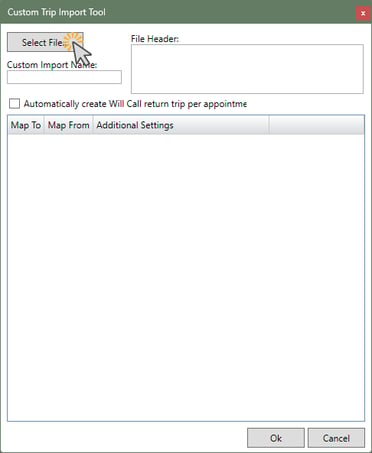
- Choose the Tennessee Carriers trip file from your computer and click Open
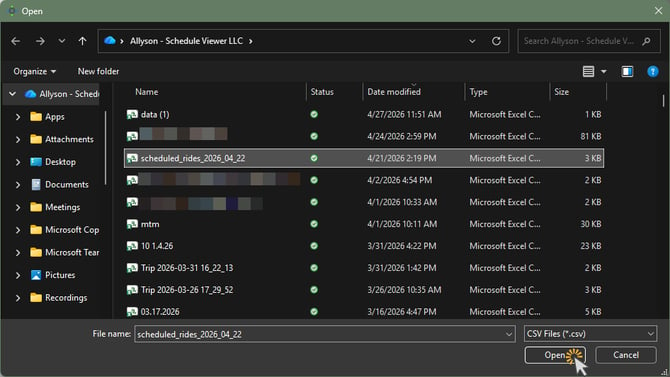
Important:
The file must not be open when selecting it.
Once selected, the column headers will populate in the custom import window.
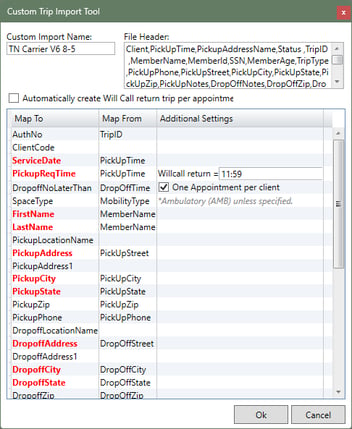
Configure the Import Mapping
- Enter a name for the custom import
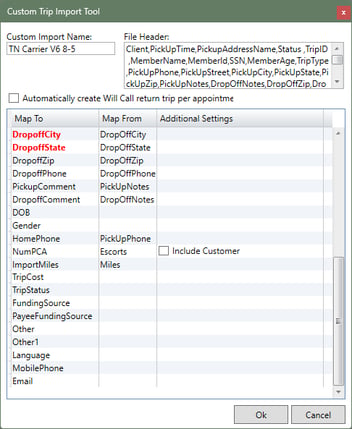
- Double-click each Map From field
- Select the corresponding column header from the dropdown list
- Map all required fields shown in red text (Zip Code is also required)
- Click OK to save
Reference:
Below is a properly mapped Tennessee Carriers import format.
Note:
The custom import format only needs to be configured one time.
You will only need to recreate it if the column headers in the Tennessee Carriers file are changed or reordered.
Step 4 — Import Tennessee Carriers Trip Files
Once the custom import format is created, you can begin importing trip files.
→ How Do I Import Trips into MediRoutes?
Step 5 — Export Billing Report for Tennessee Carriers
After trips are completed, billing reports can be exported from MediRoutes and uploaded to Tennessee Carriers for payment.
Run the Billing Report
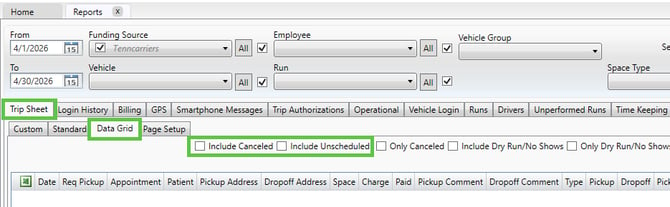
- Navigate to the Reports tab
- Select Trip Sheet → Data Grid
- Uncheck the boxes for Include Canceled and Include Unscheduled
- Enter the date range you are billing for
- Select TN Carriers as the funding source
- Click Get Report
Export the Tennessee Carriers Billing Format
- Locate Custom Exports on the far right

- Select Tennessee Carriers
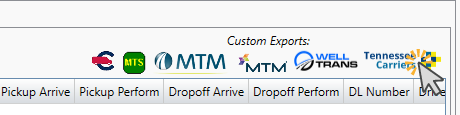
A Windows file window will appear prompting you to:
- Name the file
- Choose a save location
The report will then export in the Tennessee Carriers billing format.
Upload the Billing Report
Once exported, upload the billing file into the Tennessee Carriers / Novus portal for payment processing.
Important Billing Notes
No Need to Use Military Time
Although Novus displays military time, billing files can use standard AM/PM time formatting.
Novus will automatically convert times during import.
Billing uploads are not processed instantly and may take several hours to complete.
Upload permissions for billing are not automatically created in the Tennessee Carriers / Novus portal.
These permissions must be requested before billing uploads can be completed.
Tip:
Tennessee Carriers is happy to review the first billing upload with clients if needed.
Best Practices
- Verify all required field mappings on the custom import format
- Keep a backup of import files and billing reports
- Review the first billing upload carefully
Need additional help? Contact Mediroutes Support for assistance.