Overview
When a new user account is created in MediRoutes, the user will receive a verification email to complete their account setup.
This process allows the user to:
-
Verify their account
-
Create a password
-
Gain access to MediRoutes (Desktop, Online, or Mobile App)
This article explains how to verify your account and what to do if you are unable to complete the process.
How to Verify Your Account
To complete your account verification:
-
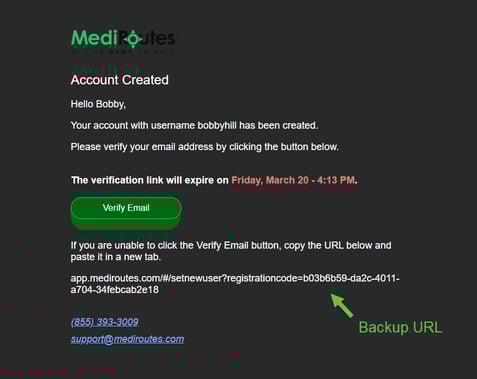
Check your email inbox for a message from MediRoutes (info@mediroutes.com)
-
Open the verification email
-
Click the Verify Email button. A backup URL is provided for copying and pasting in the event that the button is not working.
-
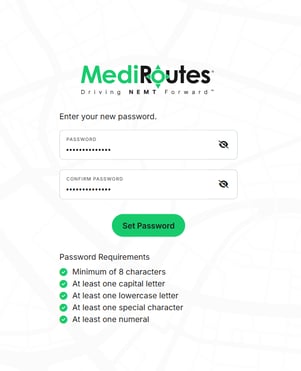
Follow the prompt to create your password
-
Click Set Password to complete the process
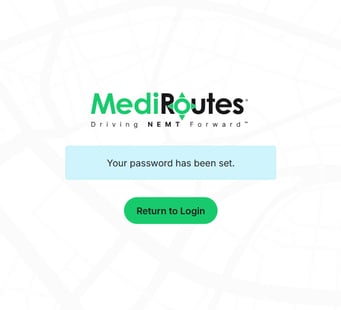
Once completed, your account will be verified and ready for login.
What to Do If You Did Not Receive the Verification Email
If you do not see the verification email:
-
Check your spam or junk folder
-
Confirm with your administrator that your email address is correct
-
Ask your administrator to resend the verification email
Warning: Company email domains tend to block emails from MediRoutes. If you have a company email address and are not receiving the verification email, have your administrator resend it to your personal email address.
Admins can resend the verification email using this guide:
The verification link for one of my users expired, how do I resend in MediRoutes Desktop?
What to Do If the Verification Link Is Expired
Verification links may expire for security reasons.
If your link is no longer valid:
-
Contact your administrator
-
Request that the verification email be resent
What to Do If You Cannot Complete Verification
If you are unable to complete the verification process:
-
Ensure you are using the most recent verification email
-
Try opening the link in a different browser or device
-
Confirm your password meets system requirements
If the issue continues, contact MediRoutes Support.