Overview
The trip import feature in MediRoutes allows users to create trips by uploading a file into the system.
This process helps reduce manual data entry and allows organizations to quickly load large volumes of trip data.
When importing trips, it is important to:
- Use the correct file format
- Ensure all required data is included
- Verify trips after import
This article explains how to upload a trip file and successfully create trips in MediRoutes.
Warning: If you are not importing for Modivcare, MTM, Verida, or Access2Care you will need to create a custom import file format before importing your trip file. Please use the following article to complete that setup:
Creating Custom Imports File Format
For more help with Custom Import Formats, contact MediRoutes Support.
Navigate to Importing Trips
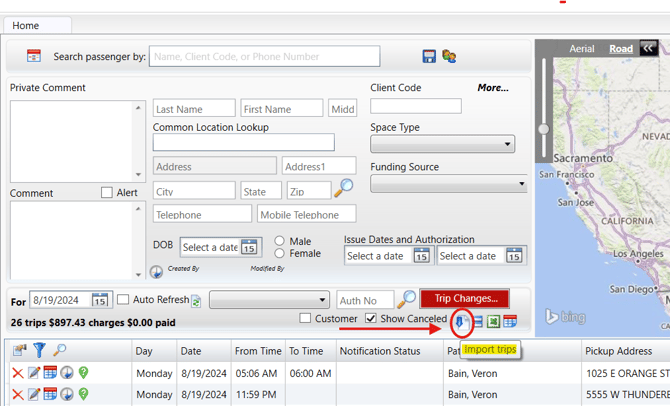
Click on the Import Trips Icon on the Home Tab. It is located below the passenger record, right under the red Trip Changes button, and looks like a paper with a blue down arrow.
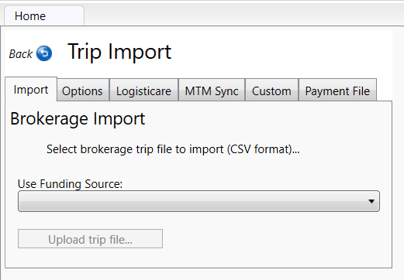
Pick a Funding Source
- Select the funding source to import trips under.
- Click Upload Trip File
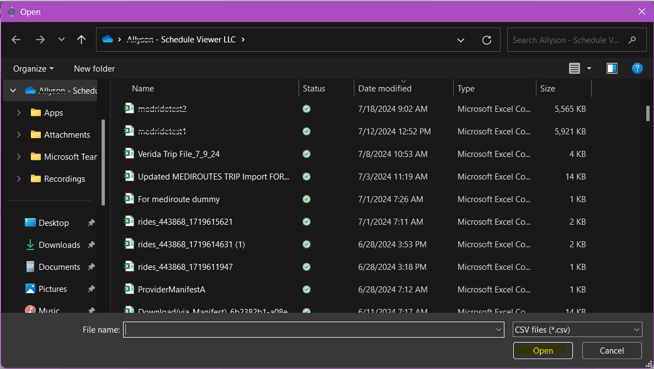
Upload the Trip File
- Pick the file in your Windows pop-up and click Open.
- Once you pick and open the file, the import process will begin.
If any passengers have a preferred name, this will need to be listed in the file using a specific format. Place the preferred name between the first and last name in the patient first name column while keeping the patient's last name in its own column. For example, first name column would be Margaret (Peggy) Smith and the last name column would be Smith.
Common Trip File Data Errors
Some data on CSV files may be considered "bad data" and can cause errors when you try to import the file. These are data issues from the file, created by the Broker or trip provider, so you will have to clean up the data by backspacing it from wherever it is located in Excel. If you are receiving an error when importing your file, reference the list below to see if there is anything in the file causing the error.
- Special Characters, like , : | ' / # " " in the Comment or Notes sections on the file. These special characters can cause issue since this is a CSV (Comma Delimited) file, which is raw data separated by commas. These particular characters can cause data to be moved around and not be mapped to the right place, causing error messages. You will need to remove the characters from the CSV file before importing the trips into Mediroutes. This is typically done by backspacing them out of the file using Excel.
- Carriage returns or extra whitespace cause similar issues as the special characters. Again, because the file is a CSV (comma delimited) file, extra whitespace, such as tabs or carriage returns, can move the data on the file and cause errors. Carriage returns are when someone has entered down to the next line in the file without having filled up the previous line. This is typically seen in the notes or comments for a trip. Some notes or comments may have several pieces of information all on their own line. This will need to be cleaned up by backspacing the carriage returns and just separating each piece of information with a period and a space.
- CSV UTF-8 file type. Some files will export to your computer as a CSV UTF-8 file type. This is not the same as the CSV (comma delimited) file type and will not work for importing into MediRoutes. To check the file type, you will need to open the file in Excel, click File in the top left, then click Save As on the left. At the top middle section of the Save As screen, you will see the file name and the file type. If the file type is listed as CSV UTF-8, you will need to select CSV (comma delimited) from the file type dropdown list and then save the file.
If you have reviewed and corrected all of the issues listed above and are still experiencing problems, please contact MediRoutes Support.