![MicrosoftTeams-image6f6e78ac5251452f5e9d5419521926001b2457277276701c3aff0c935893efe05f359183e579e81145254f68fa804b37b1631dcaf07986d136aeb8e94ed62bd3.png]](https://support.mediroutes.com/hs-fs/hubfs/MicrosoftTeams-image6f6e78ac5251452f5e9d5419521926001b2457277276701c3aff0c935893efe05f359183e579e81145254f68fa804b37b1631dcaf07986d136aeb8e94ed62bd3.png?height=50&name=MicrosoftTeams-image6f6e78ac5251452f5e9d5419521926001b2457277276701c3aff0c935893efe05f359183e579e81145254f68fa804b37b1631dcaf07986d136aeb8e94ed62bd3.png)
How to Print a Paper Copy of the Schedule (Trip Sheet)
Follow the steps below to print a trip sheet that drivers can use to write in pickup/drop-off times and collect passenger signatures:
Open MediRoutes Desktop
Log in to the MediRoutes desktop application with your credentials.
-
Go to the Reports Tab
-
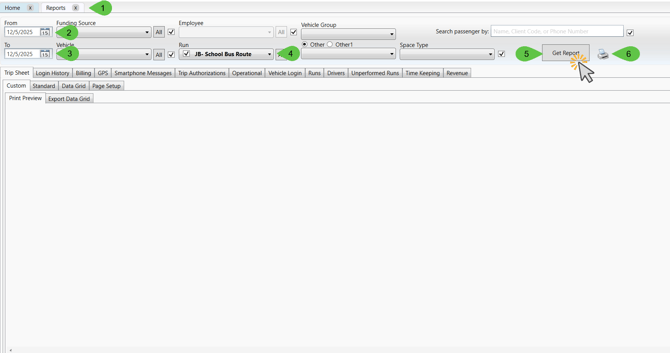
From the top menu, click on the Reports tab.
-
-
Select the From Date
-
In the date field, select the date for which you want to print the schedule.
-
- Select the To Date
- In the date field, select the date for which you want to print the schedule.
-
Choose the Run
-
In the Run drop-down menu, select the run name you want to print the schedule for.
-
-
Generate the Report
-
Click Get Report to generate the trip sheet for that run and date.
-
-
Print the Trip Sheet
-
Once the report appears on the screen, click the printer icon.
-
Select your printer and print the report.
-
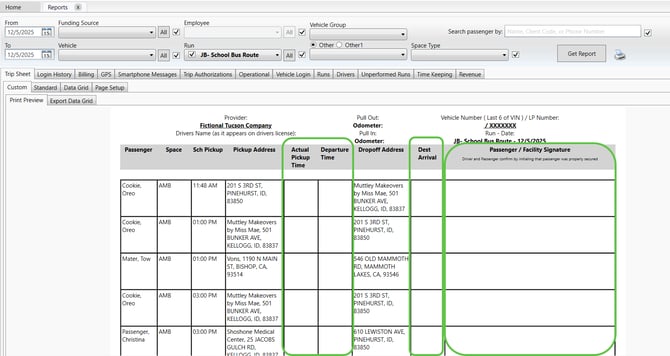
The printed trip sheet will include space for drivers to:
-
Write in pickup and drop-off times
-
Collect passenger signatures
You can now provide this paper copy to your driver for use during their route.
How to Save Your Trip Sheet as a PDF:
-
In the Reports tab, click the printer icon.
-
Select Microsoft Print to PDF as your printer.
-
Choose Landscape mode.
-
Click Print – you’ll be prompted to save your trip sheet as a PDF.
Once saved, you can email a copy of your trip sheet to drivers, brokers, or anyone who needs it.
How to Email Schedules Directly to Drivers
Follow the steps below to quickly email schedules from within MediRoutes:
Open MediRoutes
Log in to the MediRoutes desktop application.
-
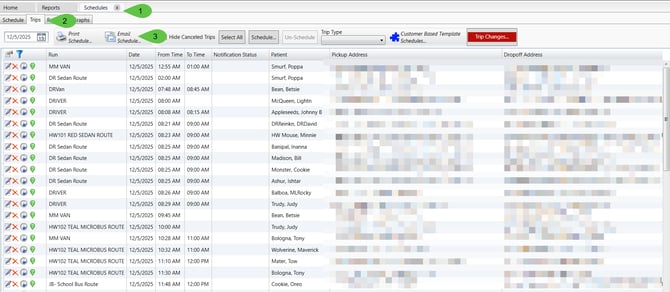
Navigate to the Schedules Tab
-
Click on the Schedules tab at the top of the screen.
-
-
Open the Trips Tab
-
Within the Schedules section, select the Trips tab.
-
-
Click the Email Schedule Icon
-
Look for and click the Email Schedule icon.
-
A new window will open.
-
-
Enter Driver Email Addresses
-
In the email field, manually type the driver’s email address.
-
Click into the empty field to add multiple addresses if needed.
-
-
Select the Schedules to Send
-
Use the green arrows to select which schedules you want to email.
-
If you want to start fresh, you can deselect all, then choose only the specific schedules you want to send out.
-
-
Send the Email
-
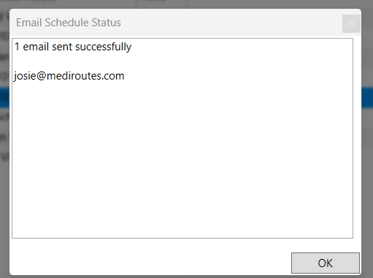
Once everything is selected, click the mail icon to send the schedules directly to your drivers.
-
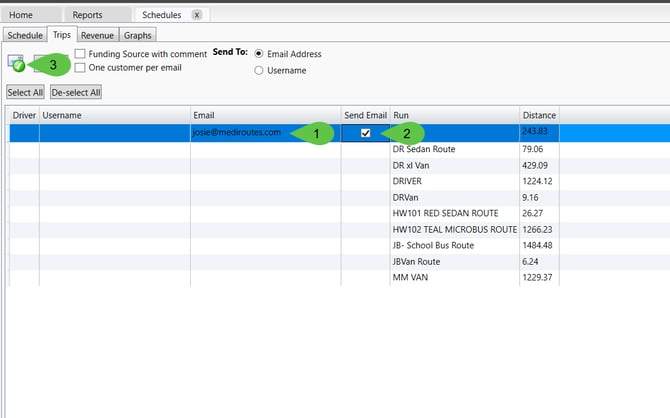
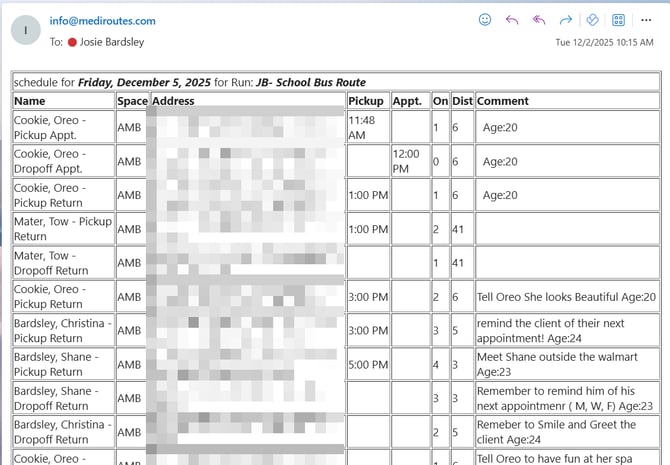
Your drivers will receive their schedules via email, making it quick and convenient to distribute route information electronically.