![MicrosoftTeams-image6f6e78ac5251452f5e9d5419521926001b2457277276701c3aff0c935893efe05f359183e579e81145254f68fa804b37b1631dcaf07986d136aeb8e94ed62bd3.png]](https://support.mediroutes.com/hs-fs/hubfs/MicrosoftTeams-image6f6e78ac5251452f5e9d5419521926001b2457277276701c3aff0c935893efe05f359183e579e81145254f68fa804b37b1631dcaf07986d136aeb8e94ed62bd3.png?height=50&name=MicrosoftTeams-image6f6e78ac5251452f5e9d5419521926001b2457277276701c3aff0c935893efe05f359183e579e81145254f68fa804b37b1631dcaf07986d136aeb8e94ed62bd3.png)
1. Open the Trip in the Mobile App
-
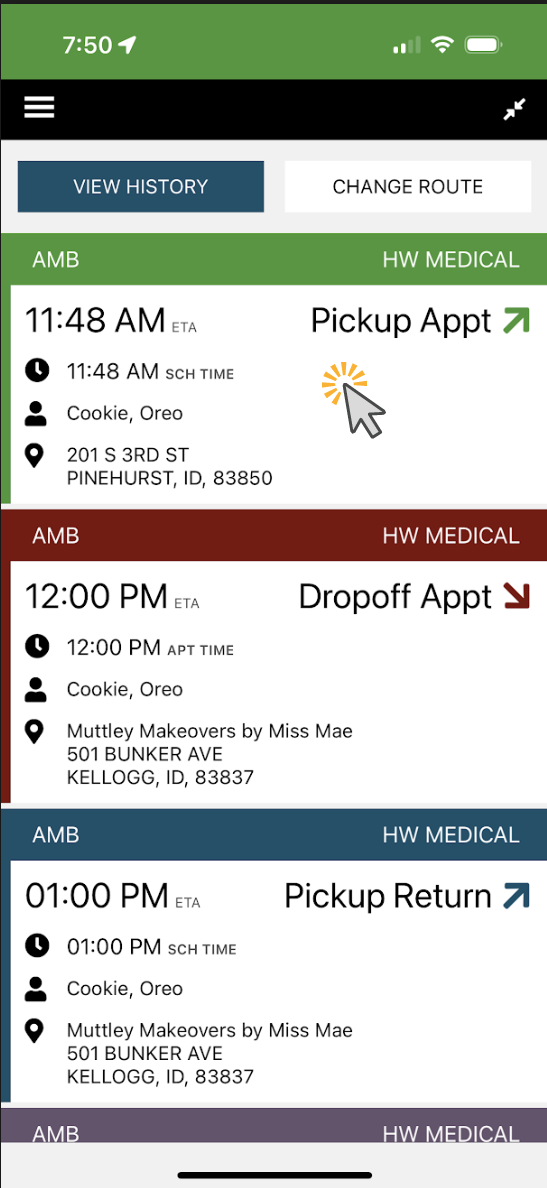
Locate the Pickup event in your active trips list. This might be a Pick up Appointment trip
-
Tap on the event to open the trip details.
2. Arrive at the Location
-
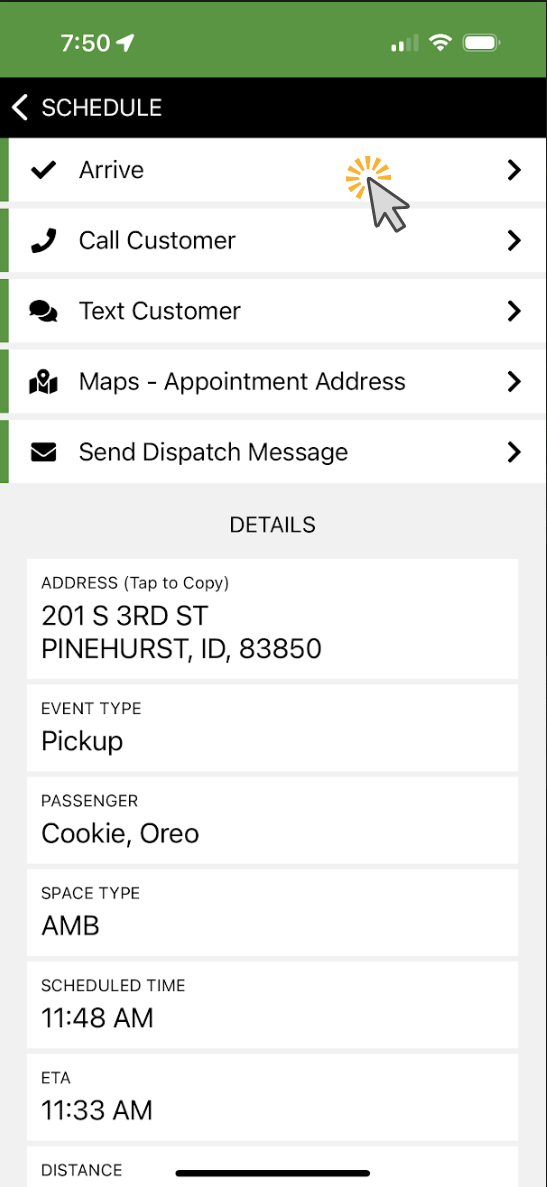
Press Arrive as you normally would once you're at the pickup location.
-
Confirm that you are on-site before proceeding.
3. Determine That the Member No Longer Needs Transport
If you are told any of the following, you should proceed with canceling at the door:
-
Member already left
-
Member took a taxi or rideshare
-
Member no longer requires a ride
-
Facility staff states transport is no longer needed
Example:
Spoke with a nurse, and was informed the member left earlier and could not wait.
4. Select Cancel Trip
-
Tap Cancel Trip on the trip screen.

5. Choose the Correct Cancellation Type
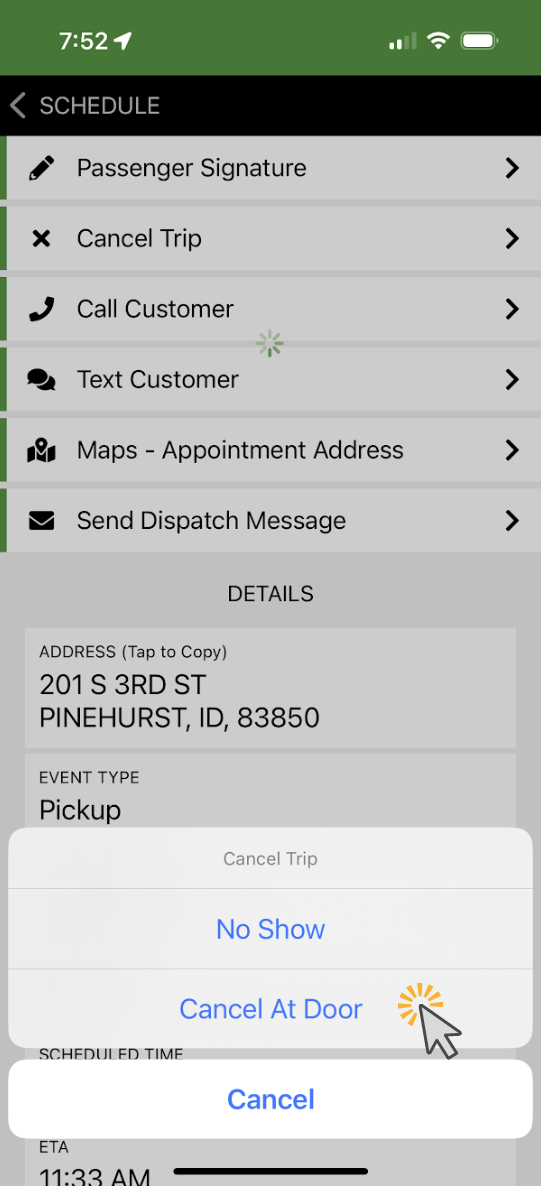
You will see two options:
-
No Show
-
Cancel at Door
Select Cancel at Door when a staff member or facility confirms that transportation is no longer needed.
6. Enter/ or select a Cancellation Reason
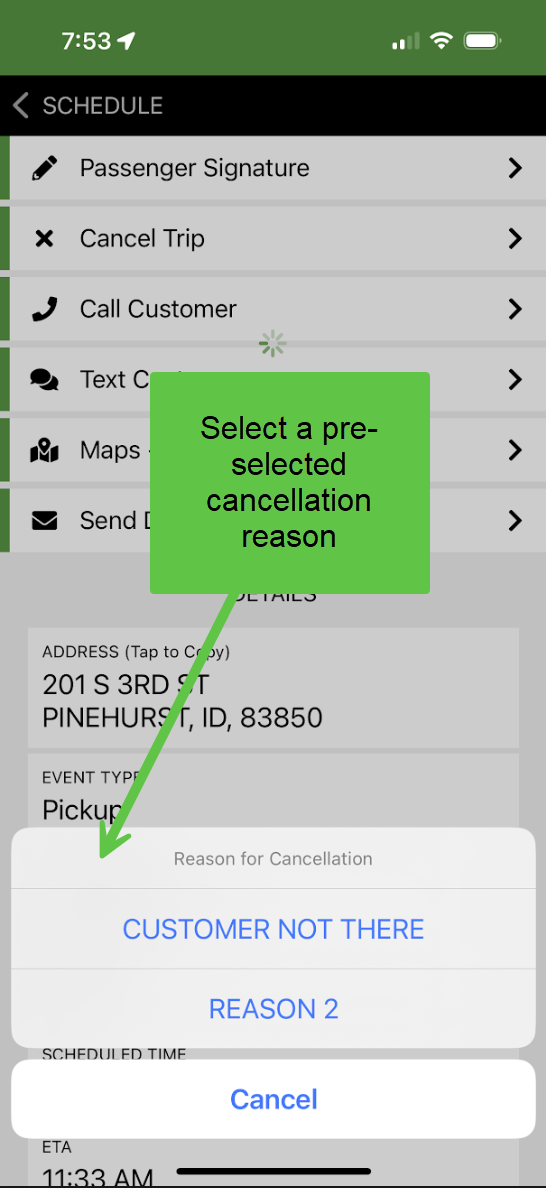
A text box will appear titled Reason for Cancellation. Or if your dispatcher has preselected cancelations reasons, select the one that applies.
Best practice for reason notes:
-
Be clear, specific, and professional
-
Include who you spoke with and what they told you
Examples:
-
“Spoke with front desk nurse, member left by cab at 12:45 PM.”
-
“Security advised member went home with family.”
-
“Reception stated member canceled appointment.”
These notes help dispatch understand why the trip was not performed and provide accurate documentation for auditing and billing.
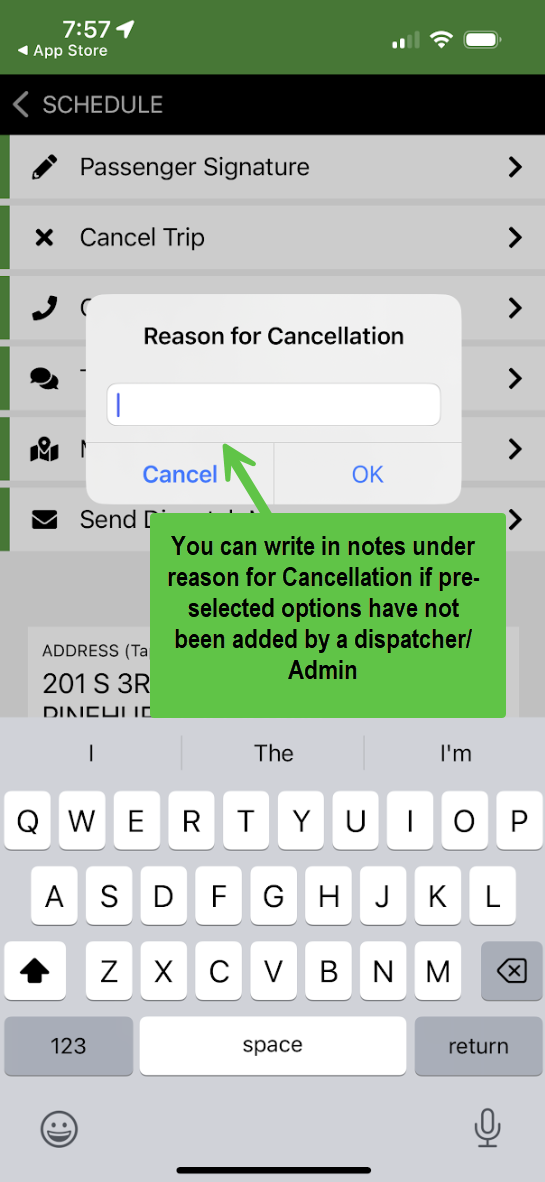
7. Confirm and Submit
After entering your cancellation notes, submit the cancellation to complete the process by clicking OK.
The trip will now be updated for dispatch and will no longer appear as active in your app.
Important Reminders
-
Always record who provided the information (nurse, receptionist, security, etc.)
-
Never leave a cancellation reason blank
-
Use Cancel at Door only when contact is made and cancellation is confirmed on-site
-
Use No Show only when no one confirms the cancellation and the member cannot be located