Why Use Driver No Show Reasons
-
Ensures drivers select accurate and consistent cancellation details
-
Speeds up workflow in the mobile app
-
Provides standardized reasons for auditing and compliance
-
Reduces confusion or vague notes from drivers
This is especially helpful when drivers mark a trip as No Show or Cancel at Door in the mobile app.
Where to Configure No Show Reasons
No Show Reasons are created and managed in the MediRoutes Desktop application.
Step-by-Step Instructions
1. Open MediRoutes Desktop
Launch the MediRoutes Desktop application and log in with appropriate access permissions.
2. Navigate to the Data Tab
-
From the main menu, click Data
-
Then select the Other tab
3. Select Driver No Show Reasons
In the list of configuration options, select:
Driver No Show Reasons
This will open the management window where you can view, add, edit, or remove selectable reasons for drivers.
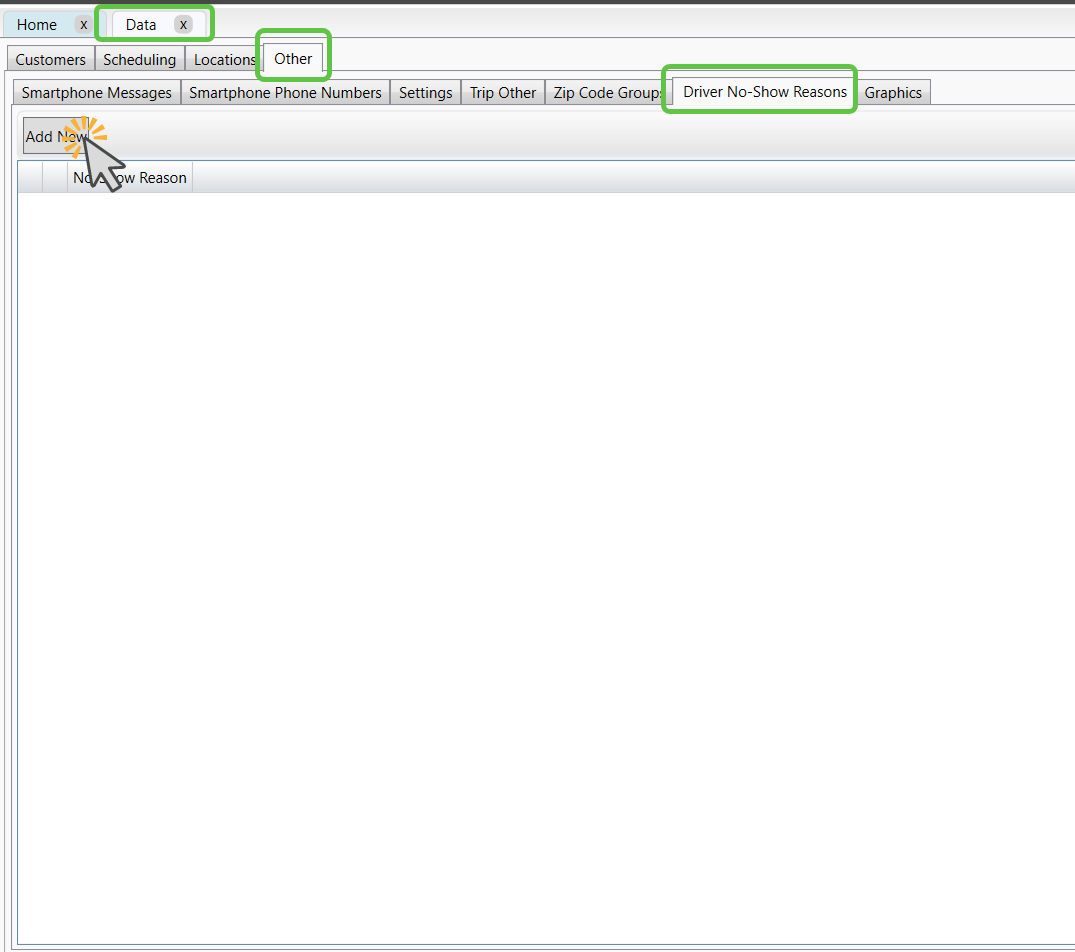
4. Add a New No Show Reason
-
Click Add New
-
In the text field, enter the reason you would like to appear as a selectable option for drivers
Examples of commonly used no show reasons:
-
Member not at address
-
Left with family
-
Facility reported patient already discharged
-
Patient refused transport
-
Unable to locate member
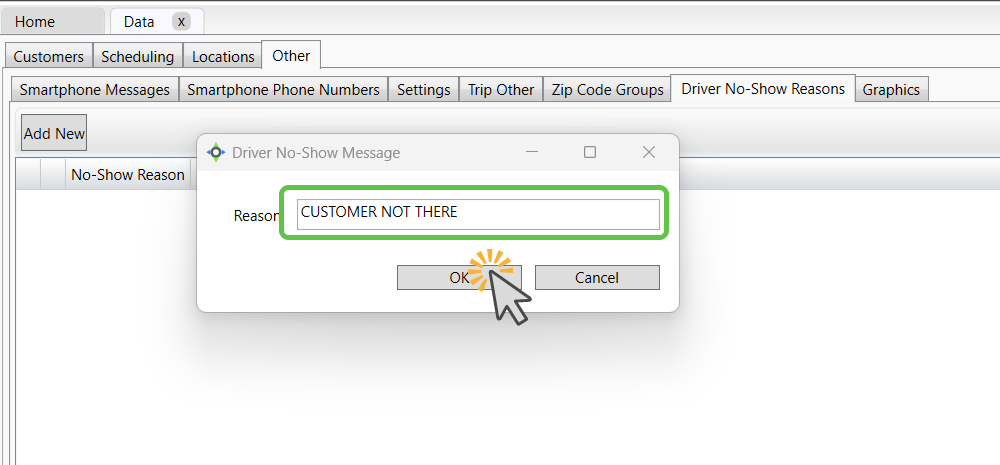
5. Save Your Changes
After entering a new reason, select ok to update the list.
The new option will now be available on driver mobile devices the next time they login and process a trip cancellation. If you add this in the middle of a drivers day, they may need to log completely out of the driver mobile application and log back in.

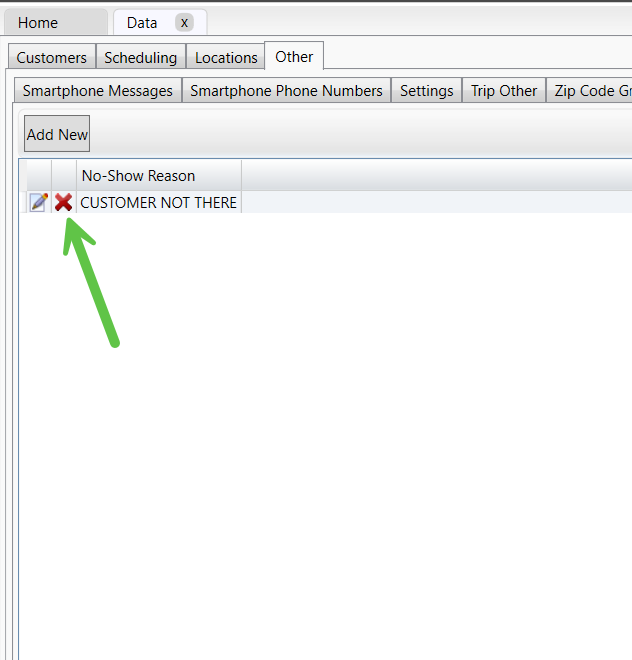
Editing or Removing Existing Reasons
-
To edit a reason, click on it in the list, update the text, and save by clicking OK

-
To remove a reason, select it and choose click the red X
Best Practices
-
Keep reasons short, clear, and specific
-
Avoid duplicate or overly similar options
-
Review your list periodically to remove outdated or unused reasons
-
Use language that helps dispatch understand what happened without needing additional explanation
Need Assistance?
If you need help setting up No Show Reasons or customizing cancellation workflows, our support team is happy to assist:
Phone: 855-393-3009
Email: support@mediroutes.com