Batch scheduling and forcing Will Call trips onto runs is especially valuable for owner–operators and smaller operations where drivers manage both outbound and return legs of a trip. By pre-assigning Will Calls, the driver who drops the passenger off at their appointment will automatically be assigned to the return trip, eliminating the need for a dispatcher to receive a phone call, activate the Will Call, and manually assign it later in the day. This workflow reduces interruptions, minimizes errors, and ensures passengers are connected with the same driver for consistency and safety — all while keeping the schedule organized and efficient.
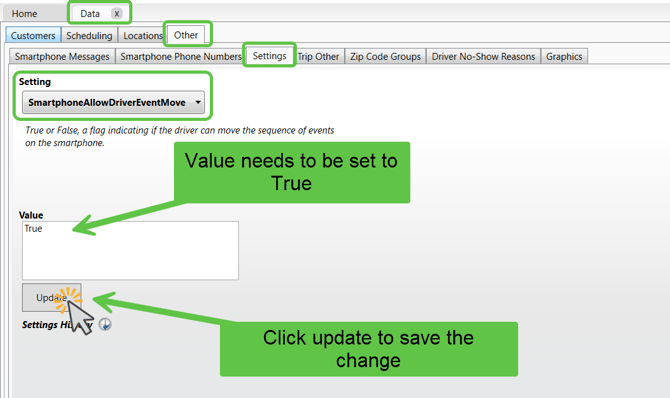
You will need to enable the "SmartphoneAllowDriverEventMove" setting in desktop settings.
SmartphoneAllowDriverEventMove
This controls whether a driver can reorder their trip events on the mobile app. Setting the Value to True allows drivers to move their trip events and setting it to False disables that capability. If trips are ever accidentally scheduled out of order, being able to reorder trip events may prevent a driver from having to contact their dispatcher to move trips.
Schedule trips and Pre- assign Will call trips using Batch Scheduling:
1️⃣ Prepare Your Schedule
-
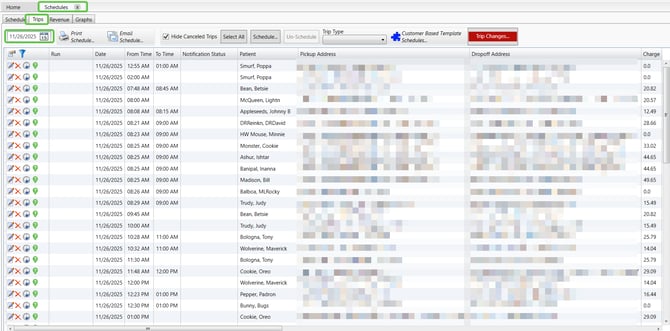
Go to the Schedules- Trips tab (top right of MediRoutes Desktop).
-
In the Schedules sub-tab (directly under the main Schedules header), set the Date you want to work on.
-
Make sure all trips for that day have been entered before continuing.
-
2️⃣ Shop All Scheduled Trips
You should Batch Schedule all trips with set pickup times first.
This includes:
-
Scheduled pickups
-
B-Legs with defined times
How to Batch Schedule:
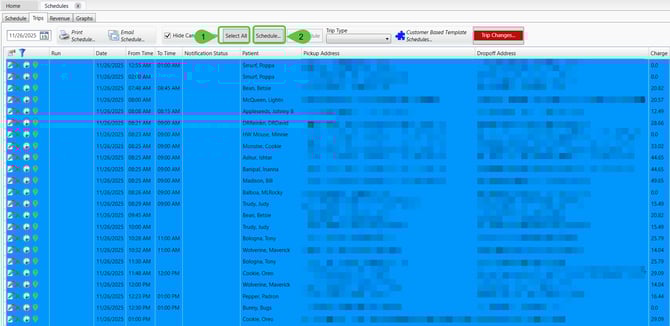
- Click the Select All Option next to each trip in the middle of the screen.
- Click Schedule
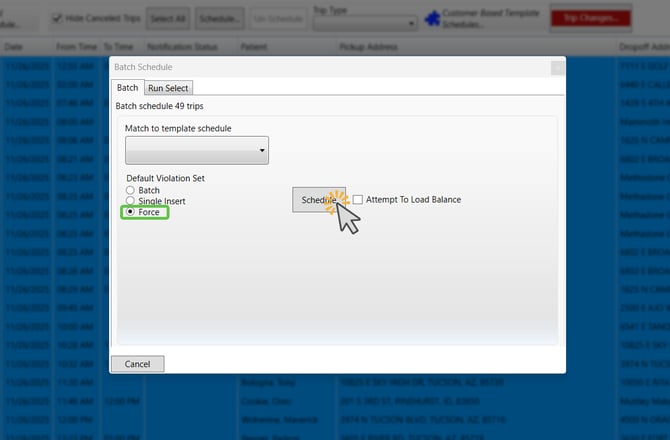
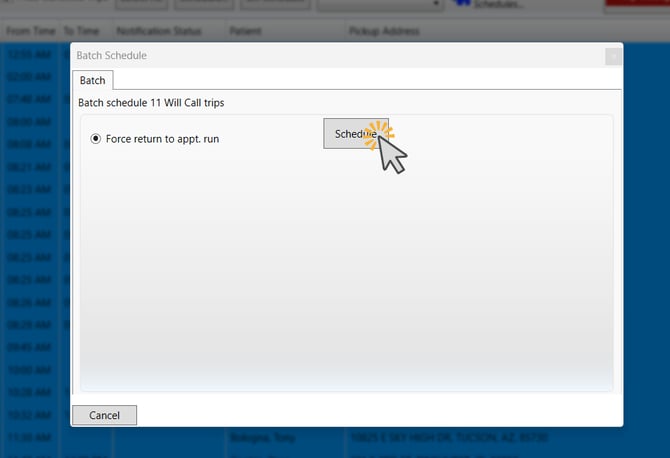
- Select the Force Option
- In the next pop up, select Schedule again.
Why Trips May Need to Be Shopped After Batch Scheduling
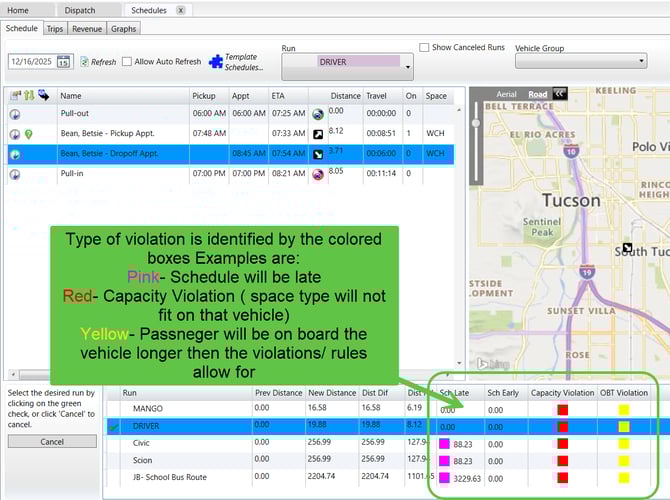
After batch scheduling, some trips may not automatically assign to a run even though they appear close to fitting. This happens because batch scheduling strictly follows violation sets, capacity rules, and timing thresholds. If a trip falls even slightly outside those configured rules, the system will not place it on a run.
Shopping trips allows a human dispatcher to review and make judgment calls in situations where the system cannot.
Common examples include:
-
If a rule (violation set) allows a pickup to be no more than 30 minutes early, but the actual arrival would be 31 minutes early.
While this technically violates the rule, a dispatcher may determine that the difference is acceptable and will not negatively impact the passenger. -
A return appointment may result in the passenger waiting 45 minutes, while the rule (violation set) disallows waits longer than a set threshold.
A dispatcher can communicate with the passenger and confirm that waiting is acceptable, making the trip workable in practice even if it fails the automated rule. -
Capacity or sequencing rules may flag a trip as invalid, even though it can realistically fit on a run when reviewed in context.
In these cases, shopping trips gives dispatchers the flexibility to:
-
Override rigid rule enforcement when appropriate
-
Apply real-world judgment and passenger communication
-
Ensure trips that are operationally reasonable are not left unscheduled
This is why shopping trips after batch scheduling is a critical step in building a clean, realistic schedule.
How to shop:
-
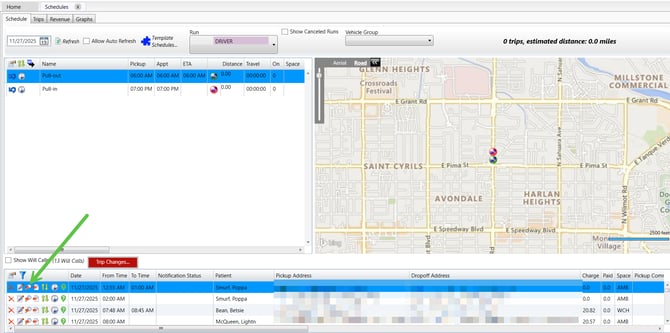
Click the magnifying glass icon with the red arrow next to each trip on the left side of the screen.
-
Continue until all remaining/ unscheduled timed trips have been shopped.
Review the violations with a human eye to determine the best fit for the trip assignment.
3️⃣ Schedule Will Call Trips
Once all scheduled trips are Batch Scheduled and/or shopped, you can route the Will Calls.
Repeat steps above
- Click the Select All Option next to each trip in the middle of the screen.
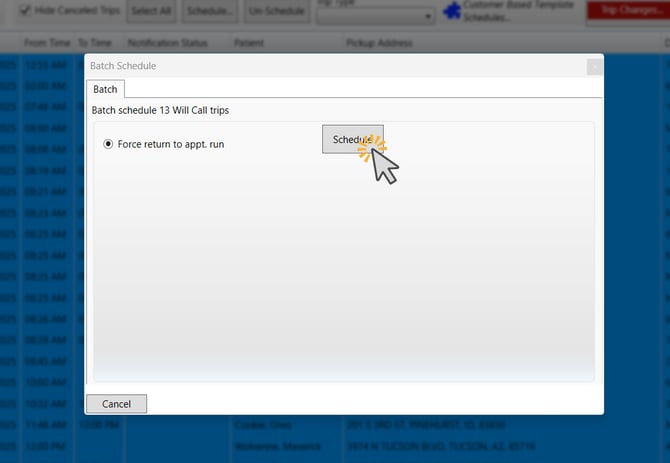
- Click Schedule
- Select the Force Option
- You will now have the option to "Force return to appt. run"
Click OK to complete.
🌟 Final Review
Return to the Schedules sub-tab to verify that everything looks correct.
Double-check:
-
✔️ All trips are fully scheduled
-
✔️ Pickup and drop-off times are accurate
-
✔️ Trips appear in the correct order for each run
This ensures drivers receive a clean, properly routed schedule.
Shop trips and pre assign will call trips Using the Schedules tab:
1️⃣ Prepare Your Schedule
-
Go to the Schedules tab (top right of MediRoutes Desktop).
-
In the Schedules sub-tab (directly under the main Schedules header), set the Date you want to work on.
-
Make sure all trips for that day have been entered before continuing.
-
2️⃣ Shop All Scheduled Trips
You should shop all trips with set pickup times first.
This includes:
-
Scheduled pickups
-
B-Legs with defined times
How to shop:
-
Click the magnifying glass icon with the red arrow next to each trip on the left side of the screen.
-
Continue until all timed trips have been shopped.
3️⃣ Schedule Will Call Trips
Once all scheduled trips are shopped, you can route the Will Calls.
-
Click SELECT ALL (top left of the trip list).
-
Click Schedule.
-
This will automatically force the Will Call return trips to the appropriate A-Leg Appointment Run.
-
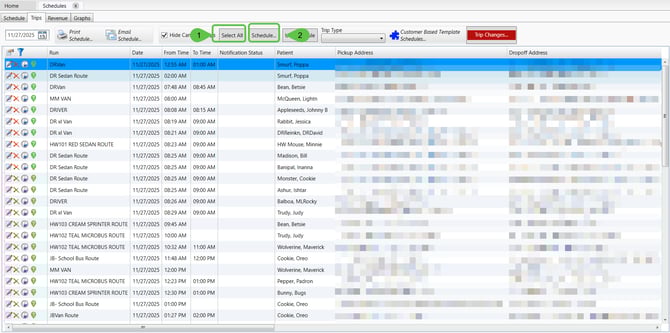
You will see a confirmation message:
“Force Return to Appointment Run”
Click OK to complete.
🌟 Final Review
Return to the Schedules sub-tab to verify that everything looks correct.
Double-check:
-
✔️ All trips are fully scheduled
-
✔️ Pickup and drop-off times are accurate
-
✔️ Trips appear in the correct order for each run
This ensures drivers receive a clean, properly routed schedule.