Step-by-Step: How to Resend a Verification Link
-
Log in to MediRoutes DekstopApplication
Sign in using your administrator credentials. -
Go to the Admin Tab
From the top menu, select Admin. -
Open the Users & Roles Tab
Click on Users & Roles to view all users in your system. -
Open the Filters Panel
Click the Filters button at the top right of the grid.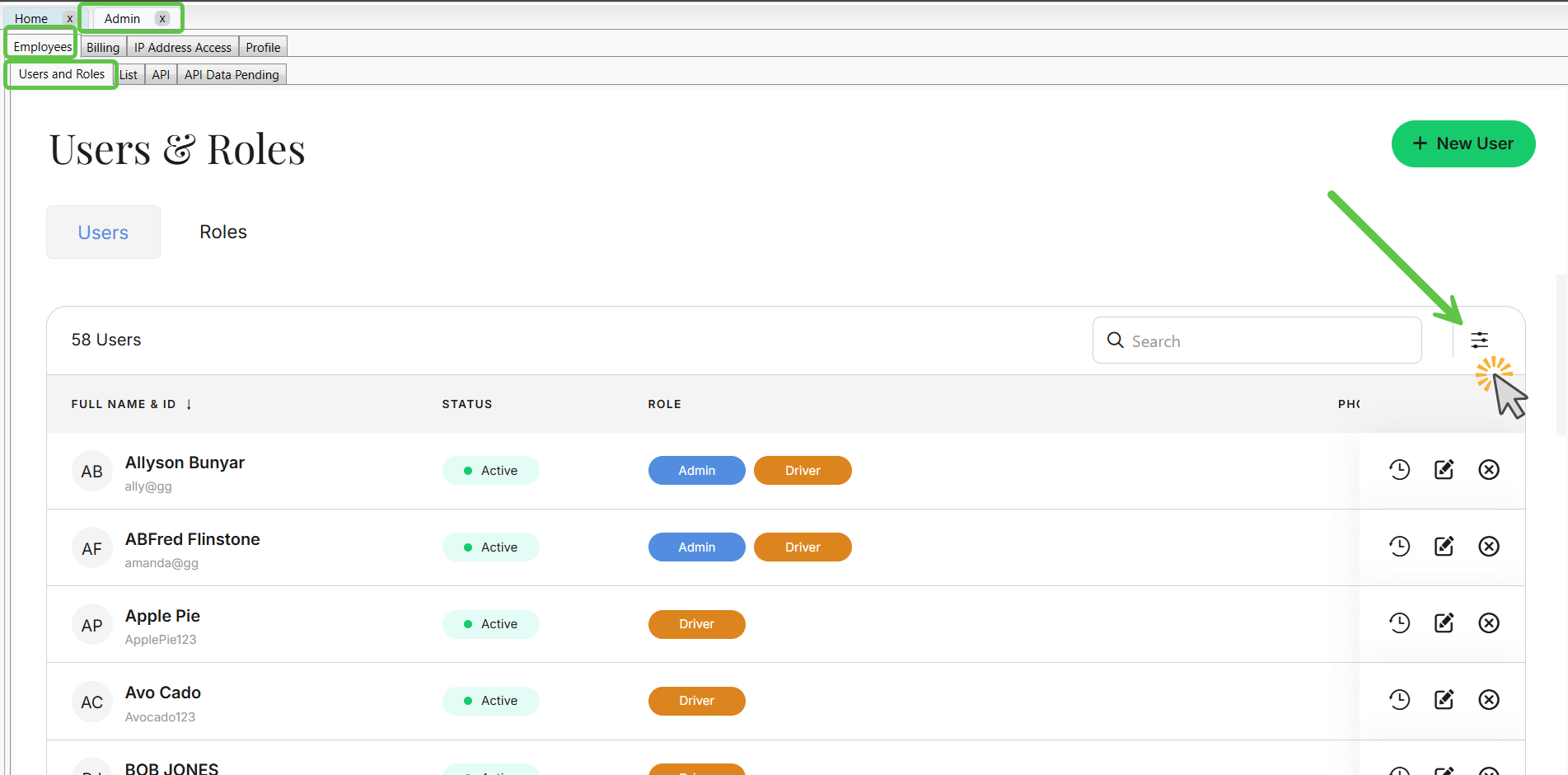
-
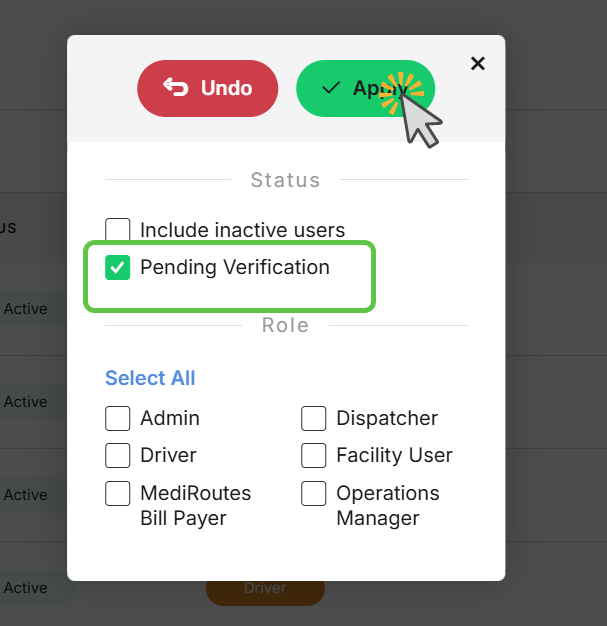
Select “Pending Verification”
-
Uncheck all other role filters
-
Check only the Pending Verification filter
-
Click Apply
-
-
Review Pending Users
You will now see a list of all users who have not verified their account.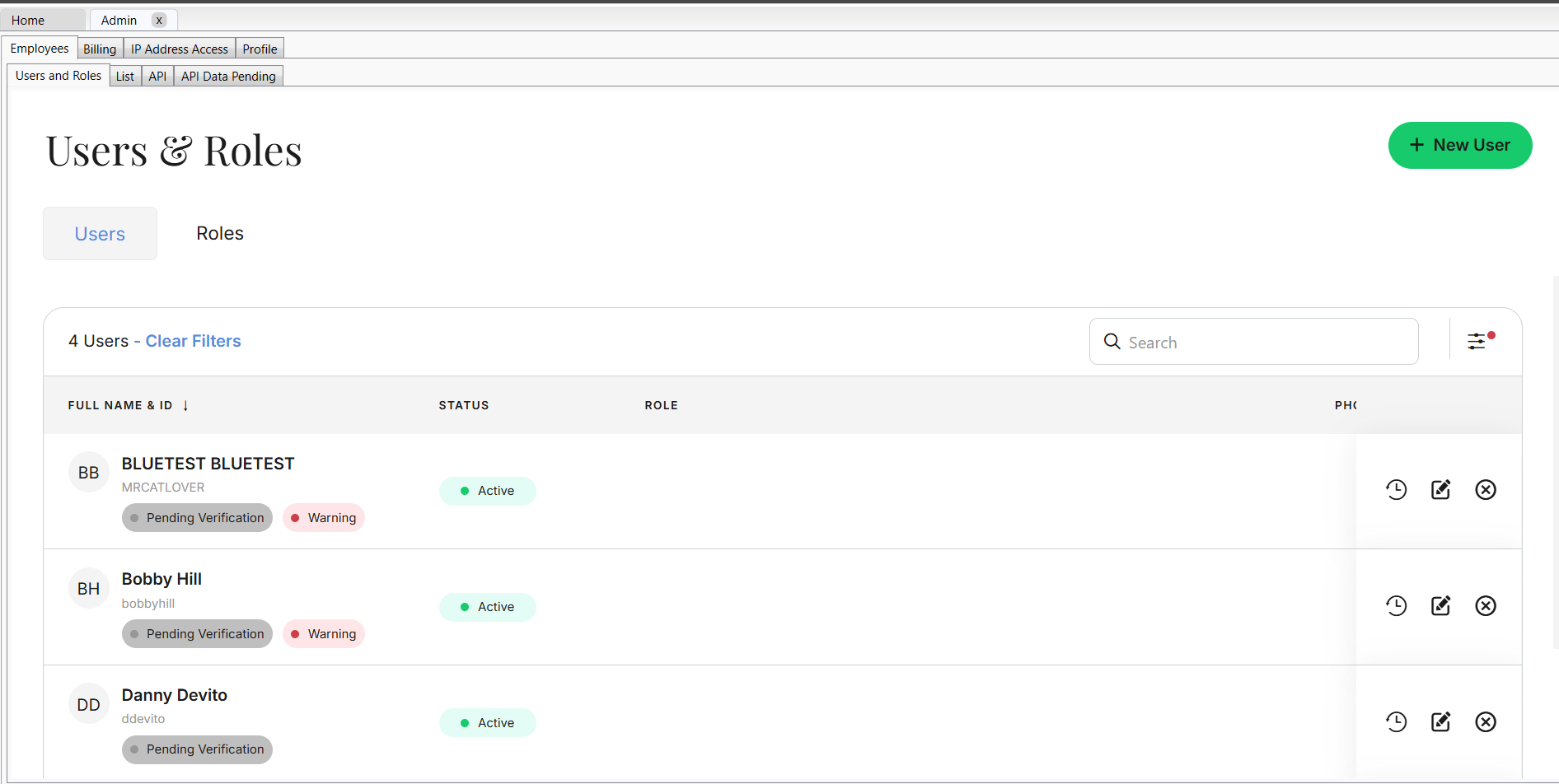
-
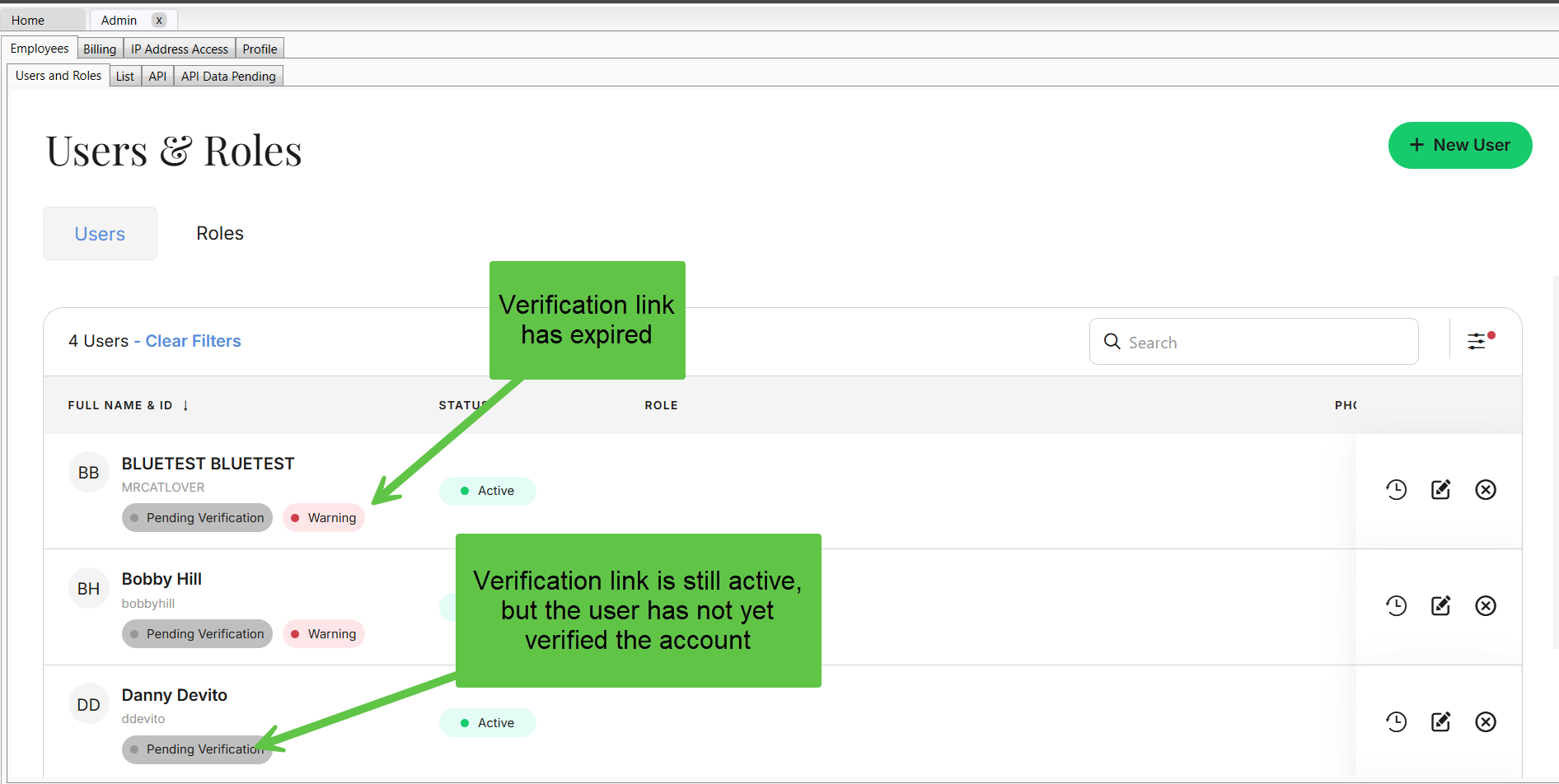
Locate the Status Icons
-
Warning (red icon): The verification link has expired
-
Pending Verification icon: Link is still active, but the user has not verified yet
-
8. Resend the Verification Link
-
-
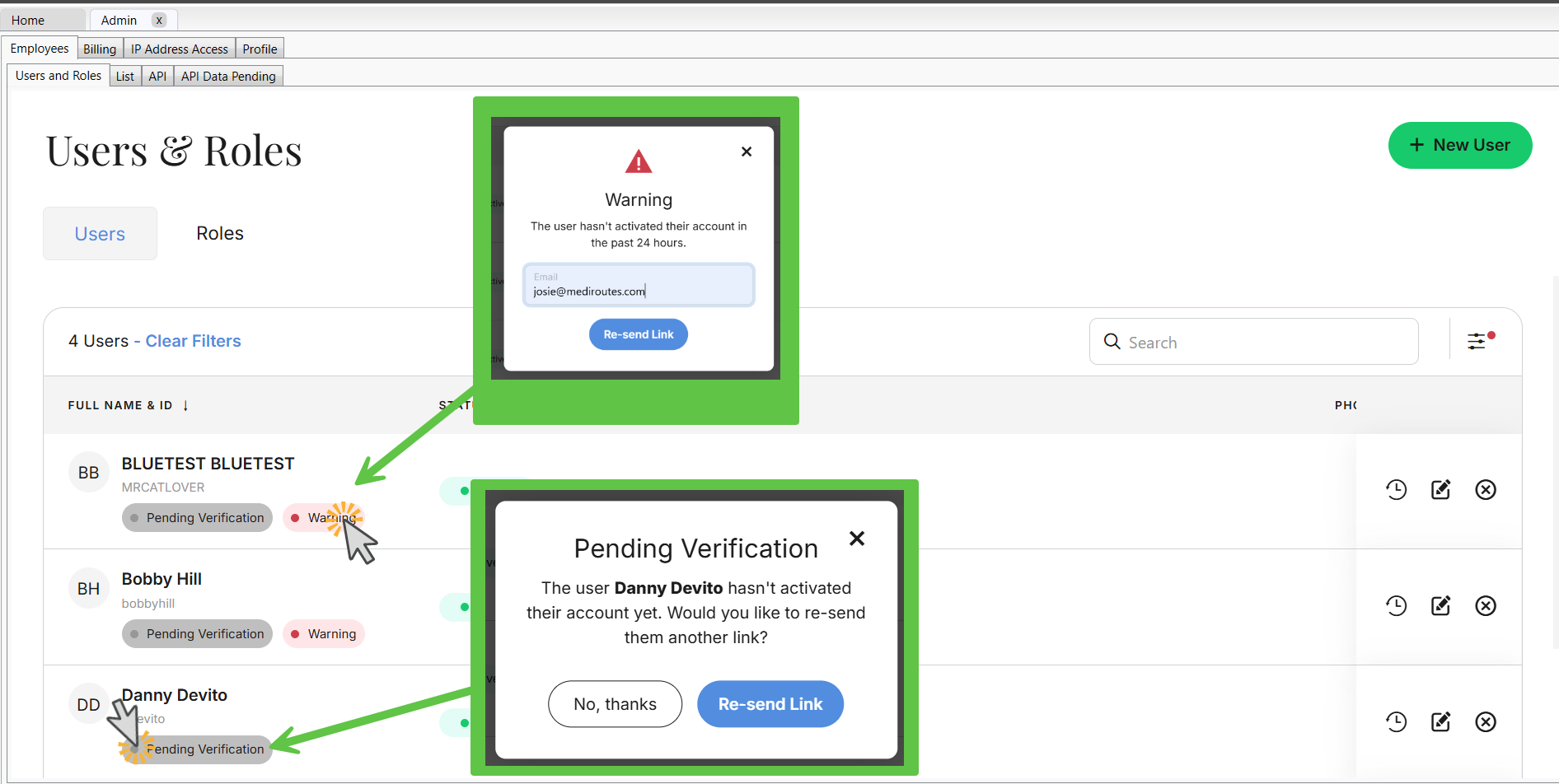
If you see the Warning icon:
Click the icon. You may be prompted to confirm or enter the user’s email address. Verify it is correct, then click Re-Send Link. -
If you see the Pending Verification icon:
Simply click the icon, then click Re-Send Link to send a new verification email.
-
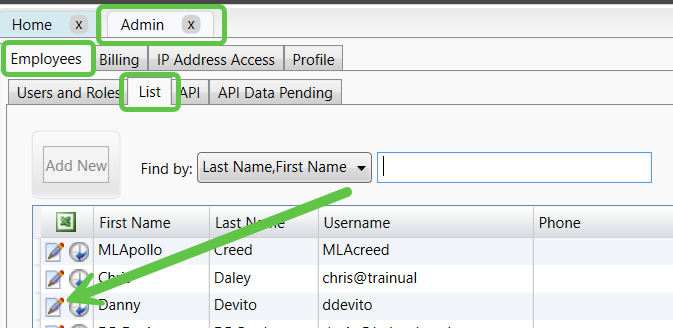
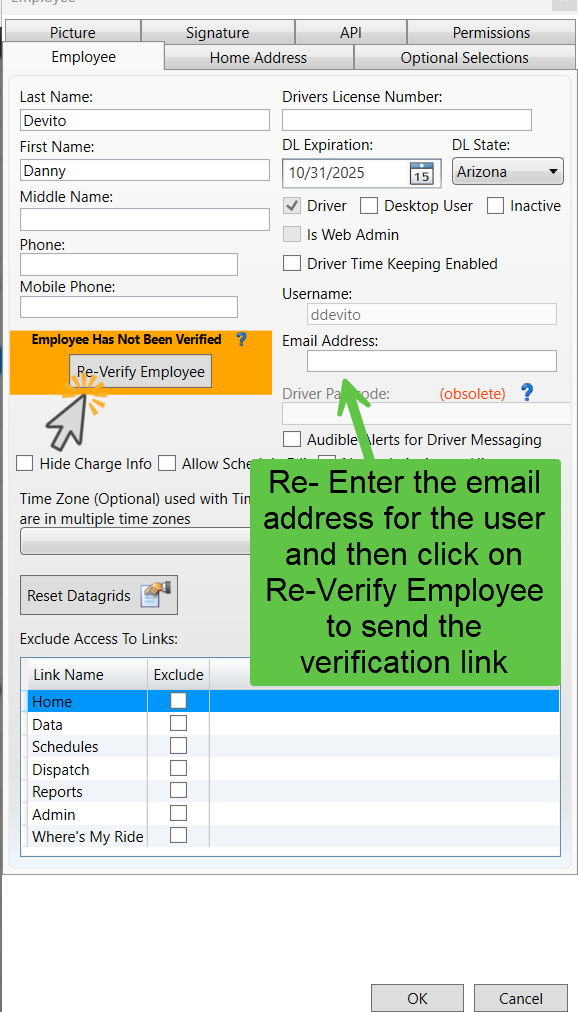
In the Desktop Application you can also re-send the verification link in the Admin> Employees> List tab. Locate the user and click on the paper pencil icon to edit the user account
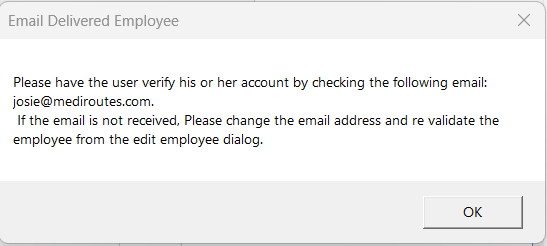
You will get a pop up that tells you the email has been sent:
9. User Completes Verification
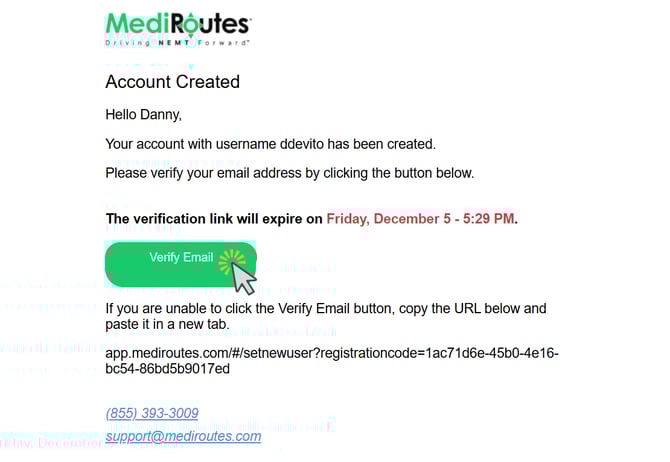
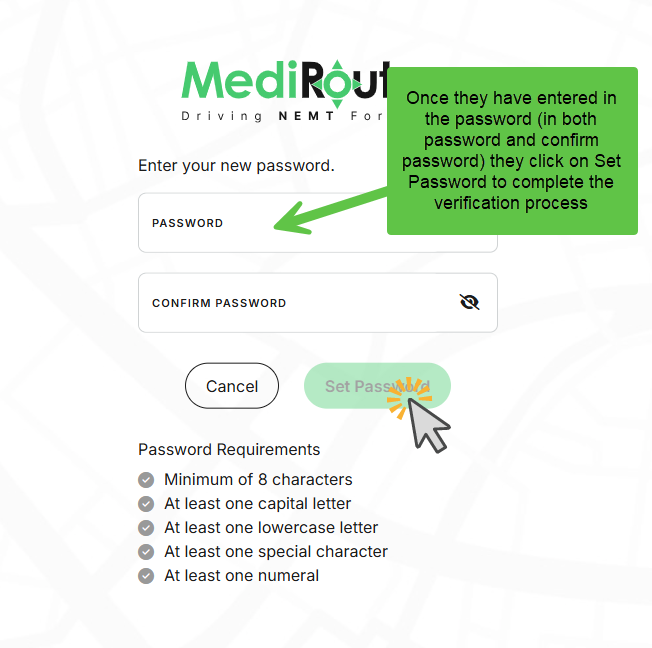
The user will receive a new verification email and be prompted to create a password. Once they finish this process, their account status will change to Active.