Part 1: Update Today’s Pull In Garage Location (Overnight Destination)
Use this when the driver will end their day at a hotel or other overnight location instead of the usual garage.
Open the MediRoutes Desktop application.
-
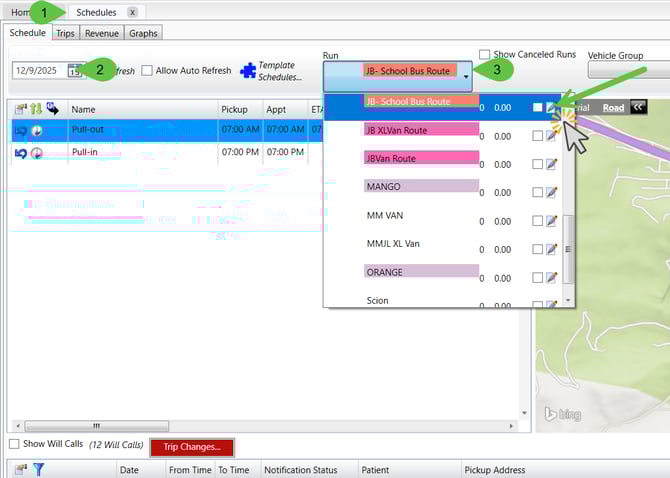
Go to the Schedules tab.
-
In the Calendar at the top, select the date for the start date of the overnight trip.
-
In the Run Drop down, select the Run that will be preforming the overnight trip.
-
click the Edit button (paper/pencil icon) next to it.
-
This opens the Daily Run window.
-
Note: This edits the daily run (pull out / pull in locations for this date), not all future days.
-
-
-
In the Daily Run window, select the Pull In Garage Location tab.
-
Update the address to the overnight location (for example, the hotel address).
-
Click Find Address to geocode the updated address.
-
Click OK (or Save) to save the daily run. This will only update the garage location for that day.
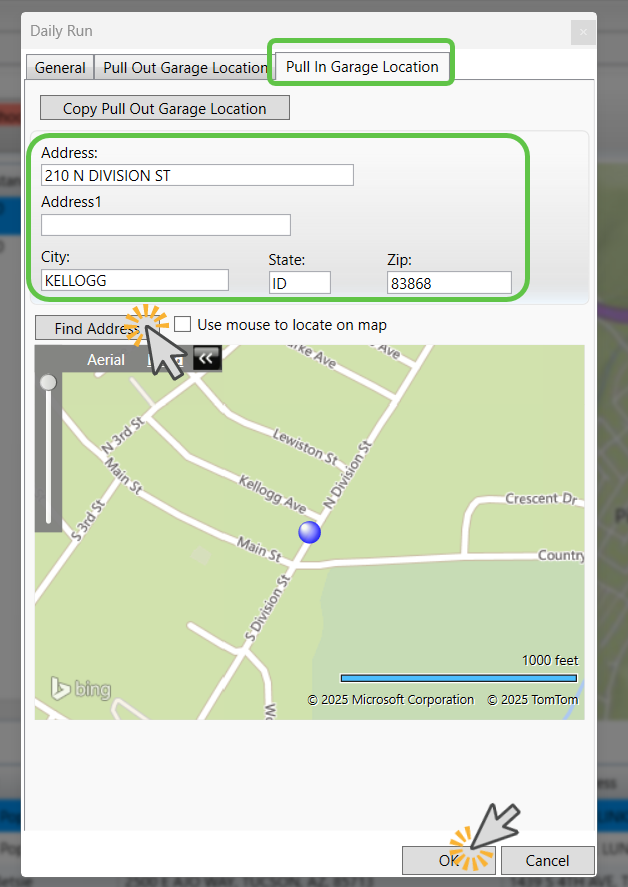
The driver’s pull in for that day is now set to the overnight address.
Part 2: Update the following day's Pull Out Garage Location (Start from Overnight Address)
Next, you’ll set the pull out garage location for the next day so the driver starts from the overnight location.
- Go to the Schedules tab.
- In the Calendar at the top, select the date for the end date of the overnight trip.
- In the Run Drop down, select the Run that will be preforming the overnight trip.
-
click the Edit button (paper/pencil icon) next to it.
-
This opens the Daily Run window.
-
Note: This edits the daily run (pull out / pull in locations for this date), not all future days.
-
- In the Daily Run window, select the Pull Out Garage Location tab.
- Update the address to the overnight location (for example, the hotel address).
- Click Find Address to geocode the updated address.
- Click OK (or Save) to save the daily run. This will only update the garage location for that day.
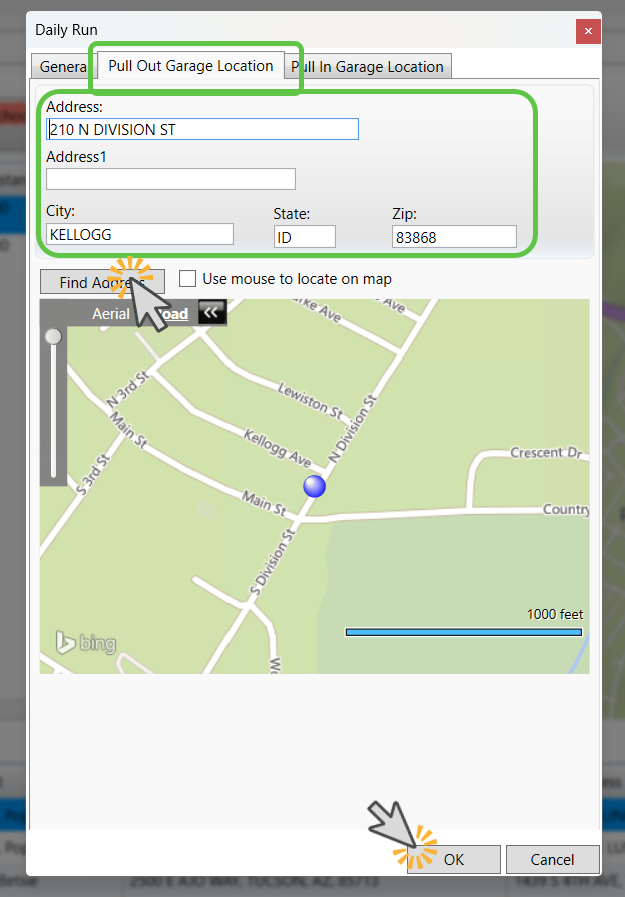
- The driver will now start their next day from the overnight address.