Overview
User accounts can be made inactive when an employee no longer needs access to MediRoutes. Inactive users can be reactivated later if access needs to be restored.
This article explains how to:
- Make a user inactive
- View inactive users
- Reactivate an inactive user
Make a User Inactive
Navigation
MediRoutes Online:
Admin → Users and Roles
MediRoutes Desktop:
Admin → Employees → Users and Roles
Steps
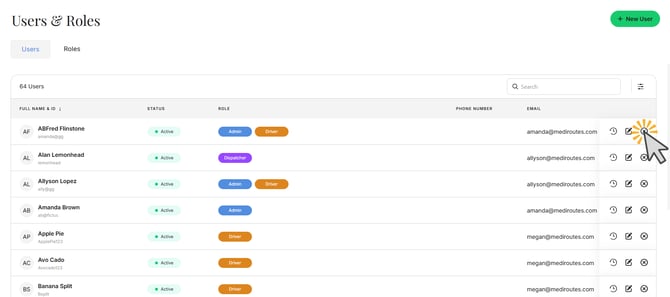
- Locate the user you want to make inactive
- Click the X icon on the far right side of the user record
- In the confirmation window, click Remove
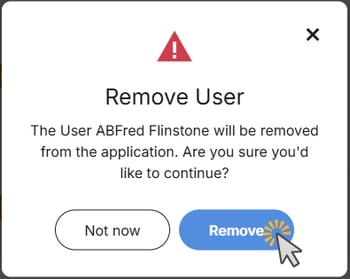
The user will now be inactive and will be automatically logged out within a few minutes.
Important:
Although the confirmation window uses the term Remove, the user account is not permanently deleted from MediRoutes.
The account is simply marked as inactive and can be reactivated at any time.
Reactivate an Inactive User
Navigation
MediRoutes Online:
Admin → Users and Roles
MediRoutes Desktop:
Admin → Employees → Users and Roles
Steps
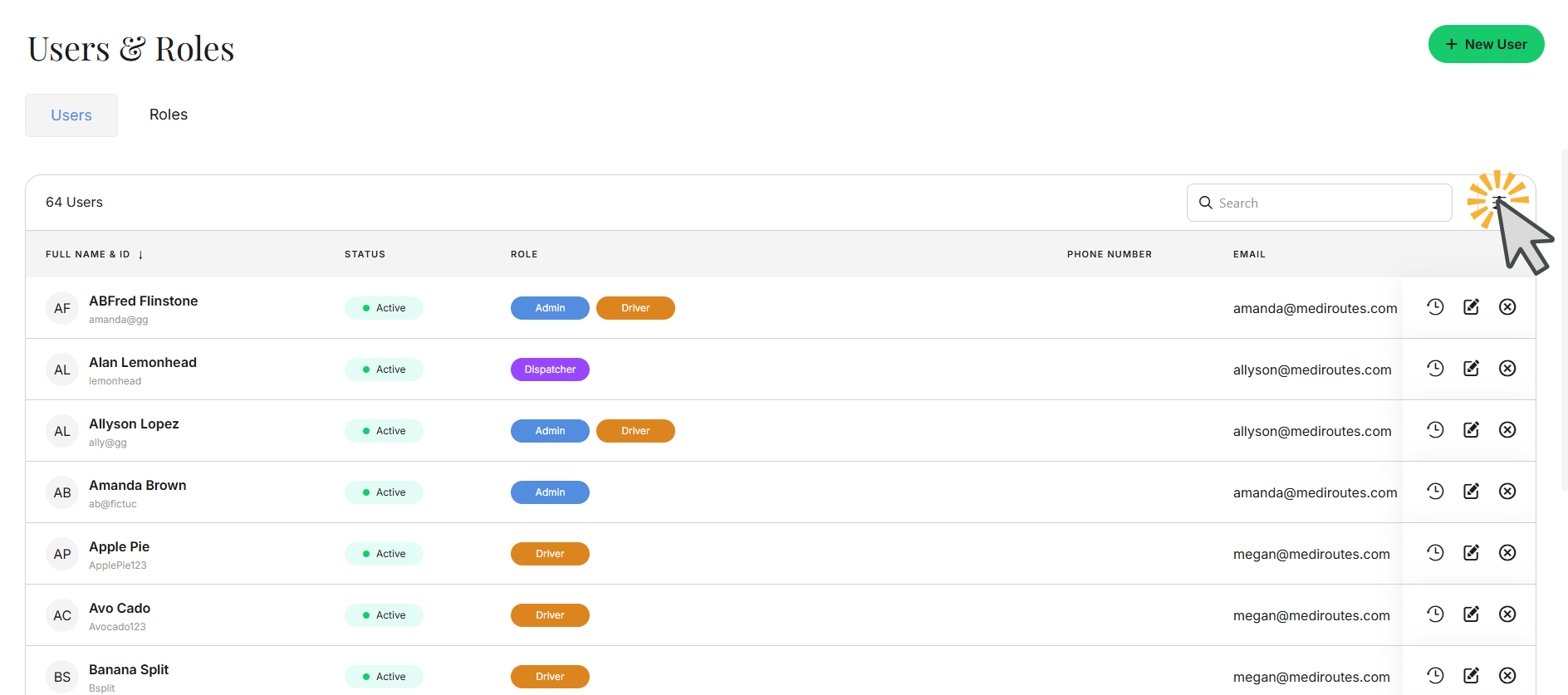
- Click the Filter icon in the upper-right corner of the user list
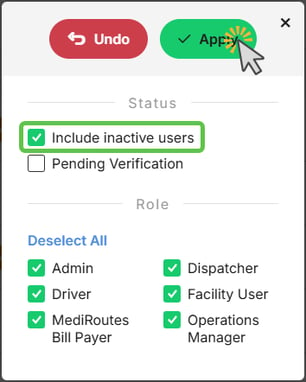
- Check Include Inactive Users
- Click Apply
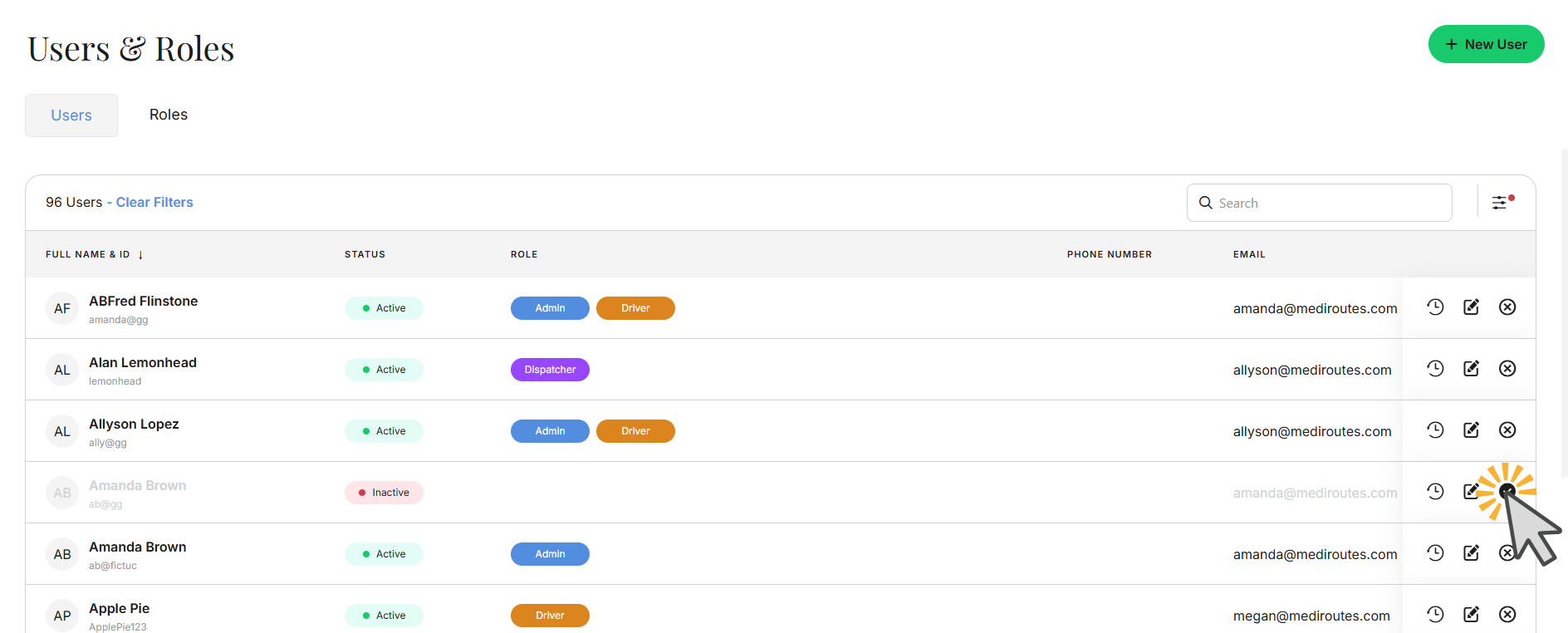
- Locate the inactive user
- Click the checkmark icon on the far right side of the user record
- In the confirmation window, click Reactivate
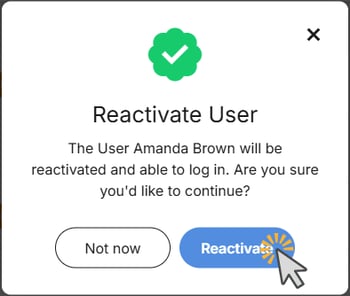
The user account will immediately become active again.
Need additional help? Contact Mediroutes Support for assistance.