Overview
The MTM API integration allows trips to automatically sync between the MTM portal and MediRoutes.
Before setup can begin:
- MTM must provide the API credentials
- A funding source must already exist in MediRoutes
This guide walks through the full MTM API setup process.
Before You Begin
Before configuring the MTM API, you must first create an MTM funding source.
→ How Do I Set Up a New Broker/Funding Source in MediRoutes?
Step 1 — Open the MTM Funding Source
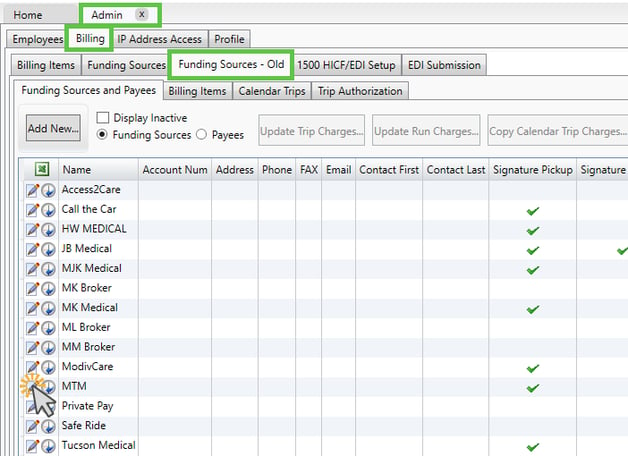
- Navigate to:
- Admin → Billing → Funding Sources - Old
- Locate the MTM funding source
- Click the pencil and paper (Edit) icon
Step 2 — Open the Brokerage Settings
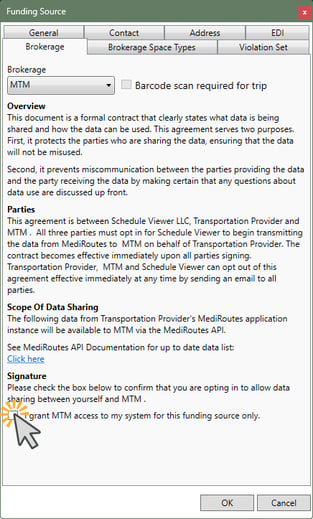
- In the funding source window, select the Brokerage tab
- From the dropdown menu, select MTM
- Click OK in the popup
- Grant Access
Step 3 — Configure the MTM API Connection
Within the MTM API Settings section:
- Click New API
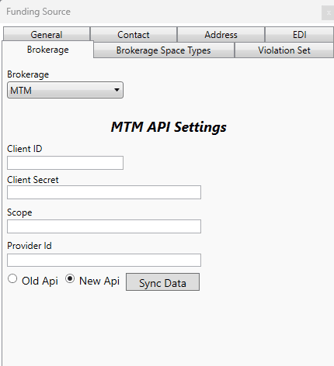
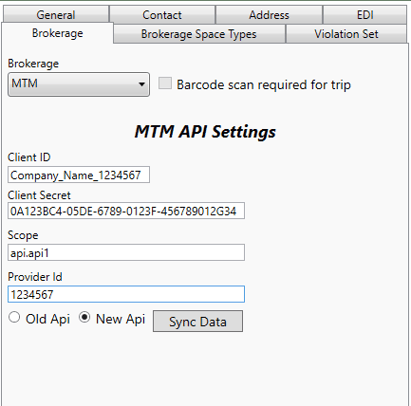
- Enter the following information:
- Client ID (provided by MTM)
- Client Secret (provided by MTM)
- Scope: api.api1
- Provider ID: the numbers at the end of the Client ID
Example
If the Client ID is Transportation_12345, then the Provider ID is 12345.
Step 5 — Sync Data
After entering all required information, click Sync Data.
This will sync:
- Current date trips
- Future MTM trips
from the MTM portal into MediRoutes.
What Happens During Sync
If trips exist in the MTM portal, they will begin syncing into MediRoutes.
If no trips currently exist, the sync icon may continue spinning.
Note:
If the Sync Data icon continues spinning, this usually means there are currently no trips available in the MTM portal to sync.
The API connection can still be activated successfully even if no trips exist yet.
Finalize the API Setup in MediRoutes
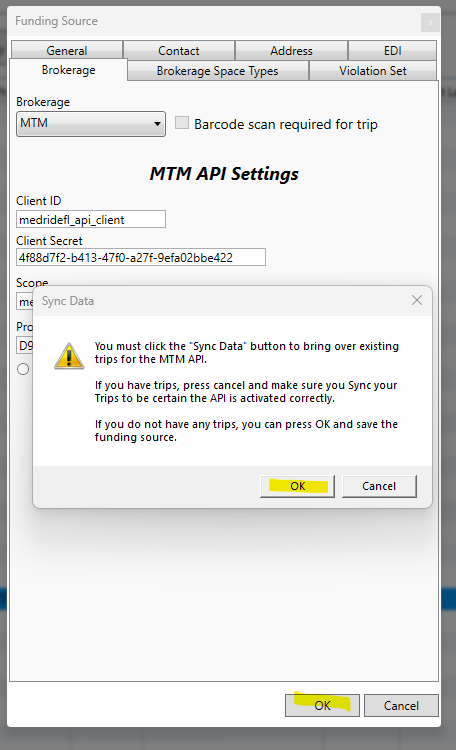
If no trips exist during the initial sync:
- Click OK
- Click OK again on the confirmation message
This will still activate the MTM API connection.
After completing the setup, contact MediRoutes Support so the integration can be finalized with MTM.
MediRoutes Support will:
- Reach out to MTM
- Confirm the integration setup gets completed on their end
Note:
MediRoutes Support will CC you on all communication with MTM so you can stay updated on the progress of the setup.
Best Practices
- Verify all API credentials carefully before saving
- Confirm the funding source is fully configured before setup
- Contact MTM if credentials appear incorrect