Overview
The inspections feature in MediRoutes allows administrators to create custom inspection forms and enables drivers to complete inspections through the mobile app.
Inspections help:
- Ensure vehicles are safe and compliant
- Standardize inspection processes
- Record inspection data for reporting and auditing
This article explains how to set up inspections and view inspection reports.
To skip to inspection reports, click here.
MediRoutes doesn’t currently have a way to require inspection completion in the mobile app, so drivers will need to be trained and reminded to complete their inspections.
Due to the high volume of requests for this option, it is something we hope to implement it in the future.
How to Access Inspection Setup
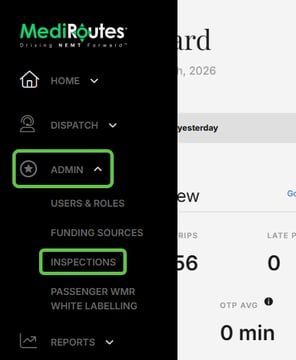
The Inspections screen will display all published inspections, with the option to view unpublished inspections.
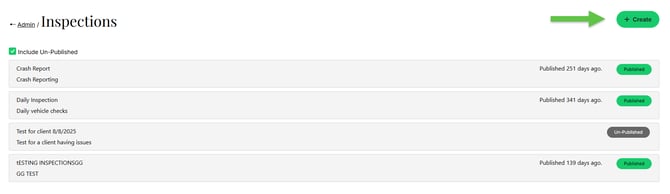
How to Create a New Inspection
- Click the Create button (upper right)
- Enter a Title and Description
- Click Save & Continue
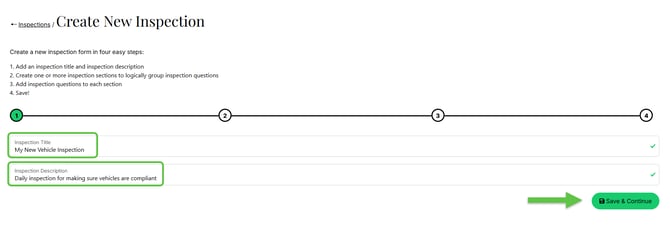
You will then proceed through the inspection setup process.
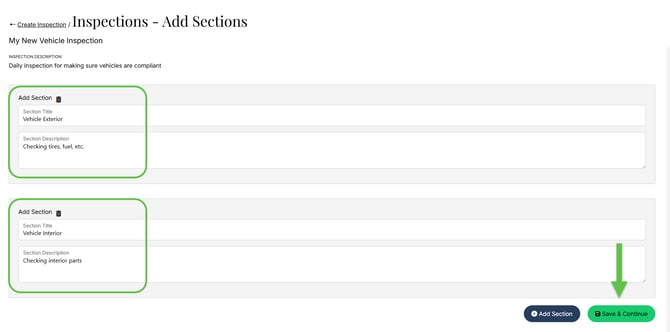
Adding Sections to an Inspection
Inspections must contain at least one section.
Sections allow you to group related inspection items.
Examples:
- Vehicle components (tires, windows, interior)
- Categories (vehicle, fuel, accessories)
To add sections:
- Enter a section title and description
- Click Add Section to create additional sections as needed
- Click Save & Continue
Adding Questions
- Enter each inspection question by clicking Add Question
- Select the question type:
- Yes/No
- Multiple Choice
- Written Answer
- Add as many questions as needed per section
- Click Save & Continue when finished
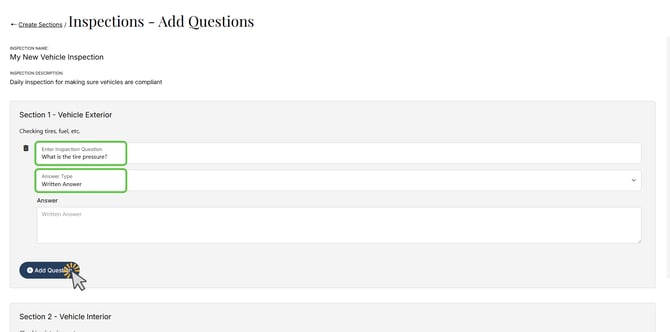
Yes/No questions will have an additional option-Fail if chosen. Selecting this marks the inspection as failed on the inspection report if that option is chosen by the driver completing it.

Reviewing and Publishing an Inspection
- Your progress is saved automatically
- You can return later to edit the inspection if needed or edit it before publishing using the pencil buttons on the right
- Questions and sections can be deleted at any point using the trash can icons
- When ready, click Publish to make the inspection available to drivers
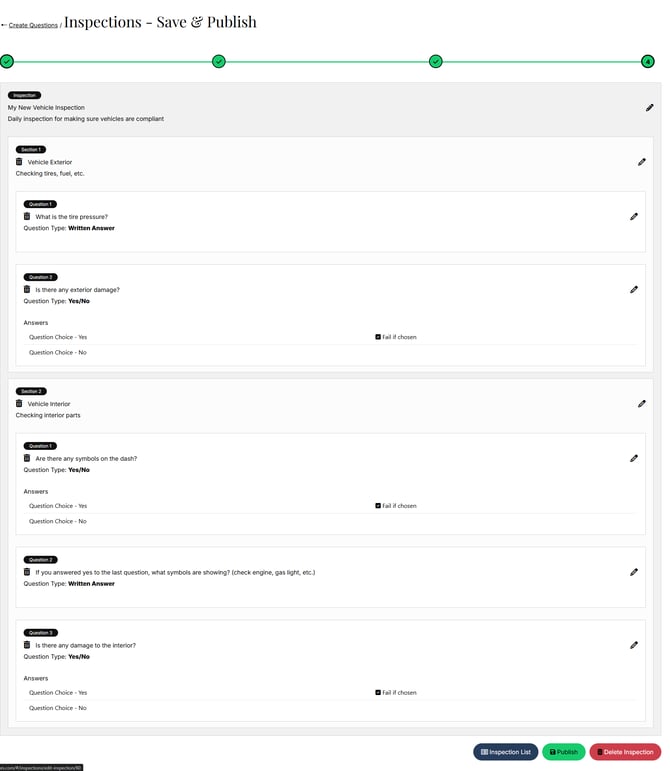
Inspections can be edited, unpublished, or deleted. Simply click the title of the inspection when viewing the full list and scroll to the bottom of the Save & Publish page. To edit or delete an inspection, it must be unpublished first.
To view our guide on completing inspections in MediRoutes Mobile, click here.
How to Run an Inspection Report
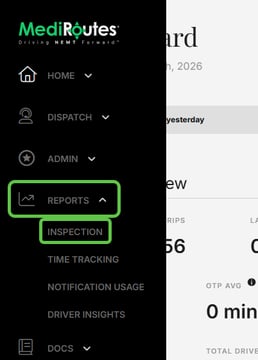
- Navigate to the Reports section
- Click Inspection
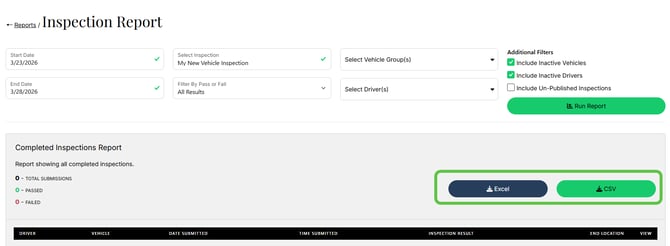
- Select a date range
- Choose the inspection to review
- (Optional) Apply filters:
- Select specific employees
- Filter by vehicle group
- Filter by Pass or Fail
- Include inactive vehicles or drivers or unpublished inspections
- Click Run Report

Exporting Inspection Report
-
Use the Excel or CSV options to download data
Need more help with your inspections? Contact MediRoutes Support.