MTM Billing Reports
MTM API will utilize the MTM Link portal for billing trips. In the event that the MTM Link system cannot collect the trip information from MediRoutes, MTM has a backup process to upload trip information from a couple MediRoutes Files. These formats are based on the ones MTM has previously used, so it is important to ensure that these formats are compatible with the MTM system.
The information we have is correct to the best of our knowledge. Broker requirements are subject to change. We do our best to keep up with those changes when they occur. If you have any issues importing these files into the MTM system, please contact MTM.
There will be two types of reports: one in the form of a Custom Trip Sheet PDF and the other as a Trip Sheet Data Grid Custom Export. We will begin with the PDF Custom Trip Sheet format.
Step 1: Custom Trip Sheet Format Set Up
To assist with setting up the trip sheet format for MTM, we have a helpful guide on how to create a Custom Trip Sheet format. You can access the guide by following the link below.
Below is a screenshot of the trip sheet format that MTM prefers to use. It includes the Field values and Footer Text. You will need to use the guide above and then copy the format in the screenshot. Under the screenshot, you will find the Footer Text that you can easily copy and paste into your custom format.
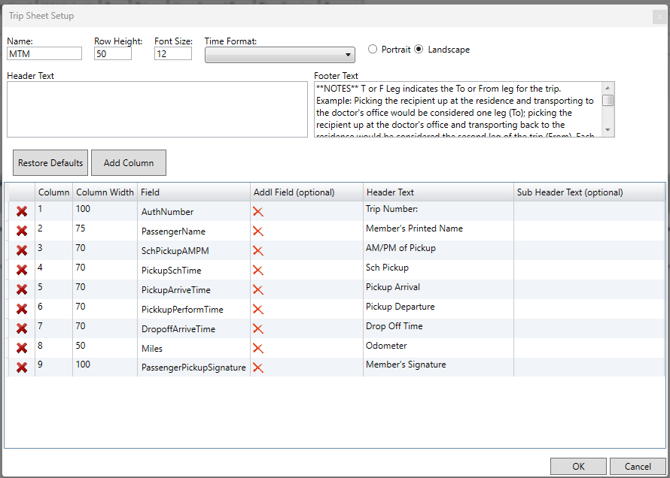
Footer Text:
**NOTES** T or F Leg indicates the To or From leg for the trip. Example: Picking the recipient up at the residence and transporting to the doctor's office would be considered one leg (To); picking the recipient up at the doctor's office and transporting back to the residence would be considered the second leg of the trip (From). Each leg of the transport must be documented on separate lines. A signature is required for each leg of the transport. If the Member is unable to sign the Trip Log, please have the Facility Staff or Aid sign on behalf of the Member. AM/PM is indicated for the time of the Scheduled Pickup. No shows will be indicated with NS in the Drop-Off Time.
Step 2: Run Custom Trip Sheet Report
Now that you have the format set, make sure to choose that format on the Page Setup tab before running the report.
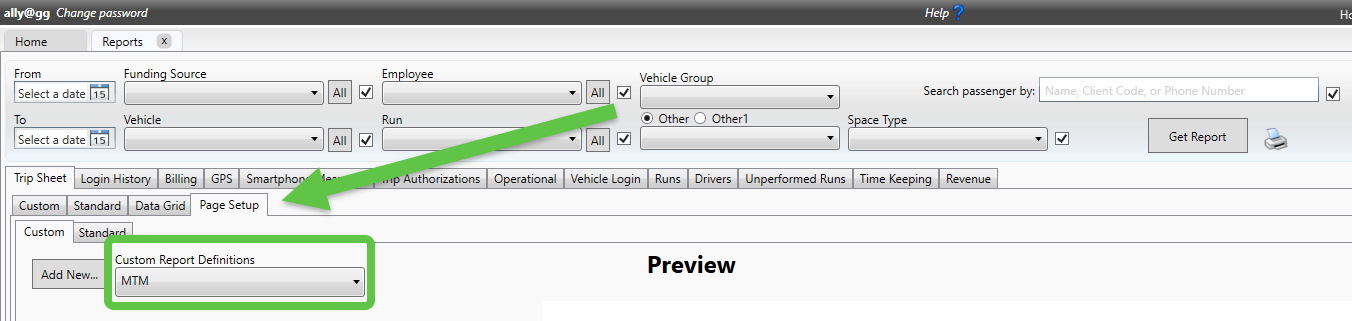
To run the report:
- Go to Reports, Trip Sheets, Custom, Print Preview.
- Put in dates and select the filter for the MTM Funding Source, then click Get Report.

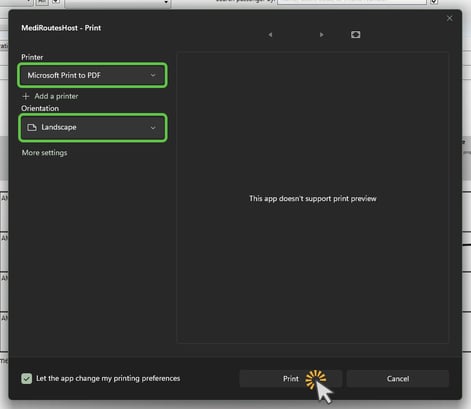
- After running the report, click the printer icon to save as a PDF. Instead of selecting a physical printer, you will select Microsoft Print to PDF, change the Orientation to Landscape, and click Print.
Step 3: Trip Sheet Data Grid Export
While still on the Reports tab, choose the Data Grid tab under Trip Sheets. At the top of the report, uncheck Include Cancelled and uncheck Include Unscheduled. In the far-right corner you will see two MTM logos. Make sure to use the one on the right. Click on the logo and save the Excel Spreadsheet (CSV) to your computer.

Before uploading, please confirm:
- VIN numbers are present
- Driver license numbers are included
- All timestamps are filled in
- Mileage is populated
Save and close the file completely before uploading
Step 4: Upload Files to the MTM Portal
When creating a billing packet in the MTM portal, files must be uploaded in the correct order:
-
Upload the Trip Data Excel file first.
-
Once accepted, MTM will then prompt you to upload the Trip Log PDF.
Uploading out of order can cause the packet to be rejected.
MTM could change their process at any time. If this process doesn’t work—please reach out to your MTM representative for further instructions on how to complete billing on their portal.