Overview
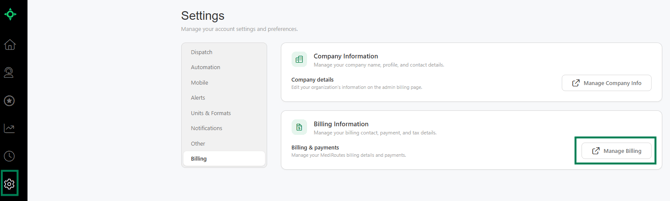
Settings on the MediRoutes website is where you manage how you pay MediRoutes and review what you have been billed. You can add or edit a payment method, update your billing contact information, view your full invoice history, download or print invoices, and pay a past-due balance.
-
Go to https://mediroutes.com/
- Login to your account
- Click
Settings - Click
Billing - Click
Manage Billing
When You Are Billed
Invoices are generated and billed on the 1st of the month for the prior month's activity.
If a payment fails, MediRoutes retries the charge daily. A warning message appears on the 3rd. Accounts still unpaid by the 10th are subject to suspension.
What Trips You are Charged For
| Trip outcome | Billable |
|---|---|
| Performed | Yes |
| Performed, then un-performed and cancelled | Yes — the performed event still counts |
| Active but not performed | Yes |
| No-show, cancel at door, dry run | Yes — treated as performed trips |
| Cancelled by broker via API or dispatcher | No — cancelled before service |
How to View the Trips You Were Charged For
To generate an itemized list of the trips included on an invoice, use MediRoutes Desktop:
- Go to the
Reportstab. - Enter the date range for the billing month.
- Click
Get Report - Switch to
Data Gridview. - Uncheck
Include Canceled - Check
Include Dry Run/No Shows
The result is every active trip that factored into your invoice. Export to Excel if you need to work with the list.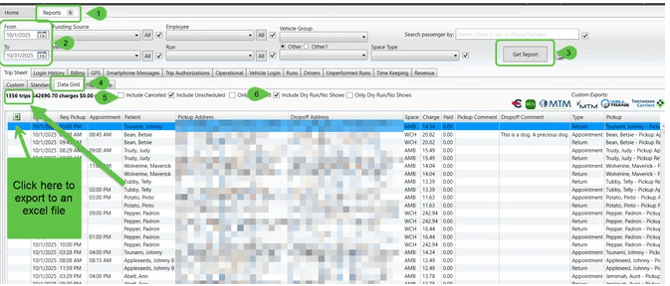
Updating Your Payment Method & Billing Information
Your default payment method can be changed at any time. MediRoutes accepts ACH bank accounts and credit cards.
Your billing address appears as the Bill To address on your invoices and serves as the contact of record for account discussions. Keep it current so invoices and billing notices reach the right person.
Viewing and Paying Invoices
The Billing Summary section shows your full invoice history and your next bill due date. Each record lists the creation date, due date, payment status, invoice number, amount, and download and pay options.
To pay an overdue invoice, select the $ button. The charge is applied to your current default payment method.
Sales Tax
Many states require sales tax on software subscriptions and related services (SaaS), and MediRoutes collects it in compliance with those requirements.
- The rate is based on your billing address jurisdiction and generally falls between 2% and 7%.
- Individual line items may be taxed differently depending on state regulations.
- MediRoutes Support does not have access to individual rate information.
- MediRoutes retains none of the tax collected. All of it is remitted directly to state governments.
- Per your customer contract, responsibility for applicable taxes rests with the customer.
Tax-exempt organizations: send your exemption documentation to Billing@mediroutes.com. Once approved, future invoices will not include sales tax.
Need Help?
Contact MediRoutes Billing at Billing@mediroutes.com. Include your invoice number and the date of the charge in question.