Overview
User accounts in MediRoutes are used to grant access to the system and store important information about staff members. When creating a new user, administrators can define the user’s access, permissions, and required details based on their role.
There are two main types of users that can be created in MediRoutes:
-
System Users – These users log into MediRoutes (Desktop or Online) and are assigned roles and permissions that determine what features and data they can access.
-
Drivers – These users log into the MediRoutes mobile app and perform trips. Their accounts also store driver-specific information such as driver’s license details, which may be required for billing.
This article explains how to create new users of either type and configure their roles, permissions, and required information.
If you're making a new user account for an existing user, make sure to follow the guide below to make their original account inactive.
Navigate to Users and Roles
-
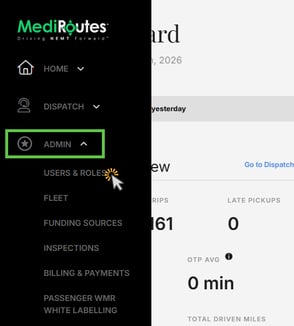
Open the Admin tab.
-
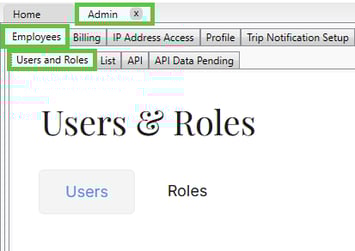
Select Users and Roles (online) or Employees then Users and Roles (desktop)
-
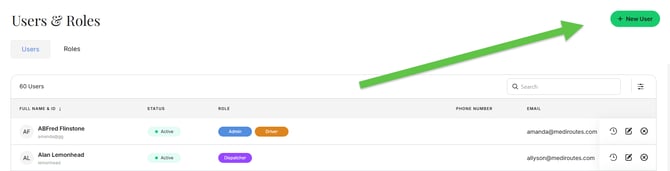
Click New User
Creating System User Accounts
-
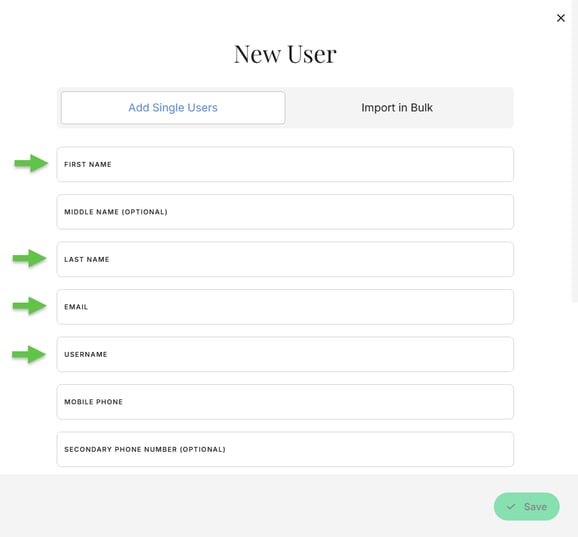
Enter First Name
-
Enter Last Name
-
Enter Email Address - This must be a valid email address so that the user receives the email to verify the account and set their password.
-
Enter Username (must be unique to all MediRoutes user accounts)
-
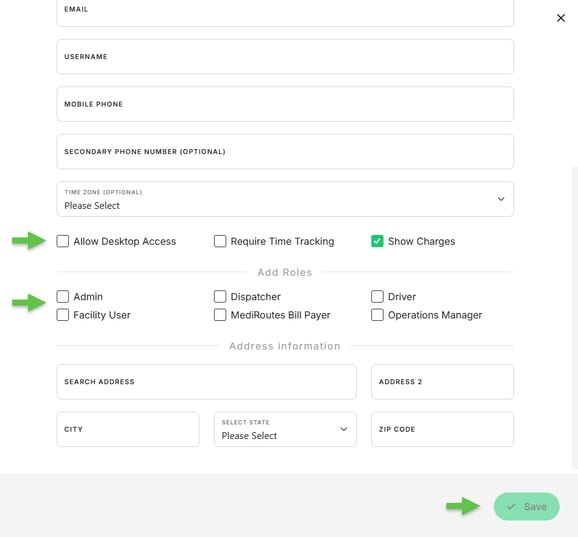
Add a Role and select Allow Desktop Access for a Desktop User
-
Click Save
For more information on Roles, please check out the article linked below.
Creating Driver Accounts
-
Enter First Name
-
Enter Last Name
-
Enter Email Address - This must be a valid email address so that the user receives the email to verify the account and set their password.
-
Enter Username (must be unique to all MediRoutes user accounts)
-
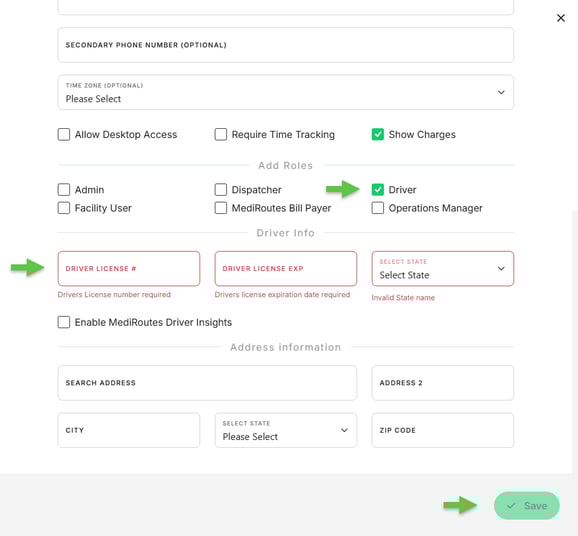
Select the Driver Role
- Enter the required driver’s license details
- Click Save
Drivers Who Require Desktop Access
For users who drive and work in office, combine the steps from the two previous sets of instructions. Make sure to check a desktop/online Role, check Allow Desktop Access if needed, and check the Driver Role. This will grant access to the online/desktop system as well as the driver mobile app.
Verifying the Email Address
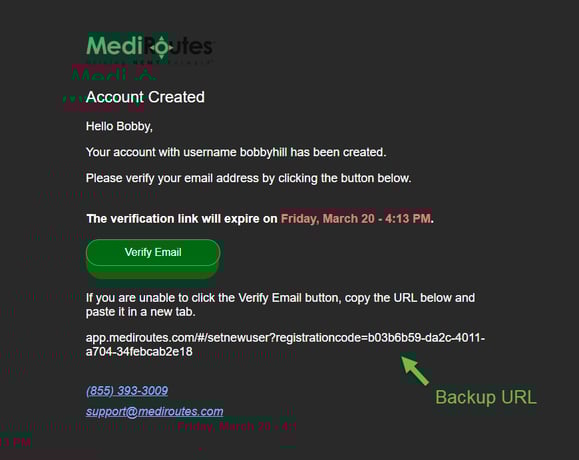
This is a process that all new accounts will need to do. An email will be sent from info@mediroutes.com to the valid email that was entered for the user account. Click on the green button to verify, and set the account password on the following webpage.
Tip: If the Verify Email button does not show or is not working, copy and paste the backup URL into a web browser.
-
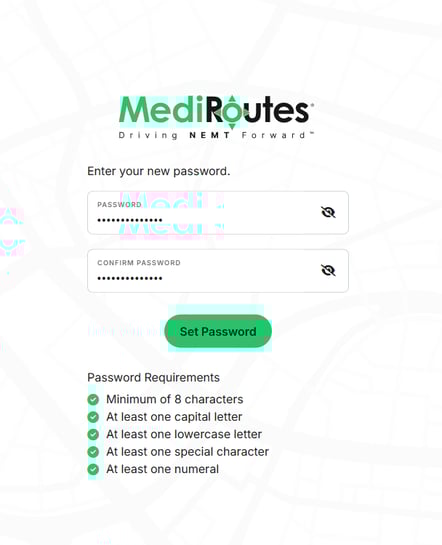
Enter password
-
Confirm password
-
Click Set Password
Your password must be at least 8 characters and contain a capital letter, a lowercase letter, a number, and a special character.
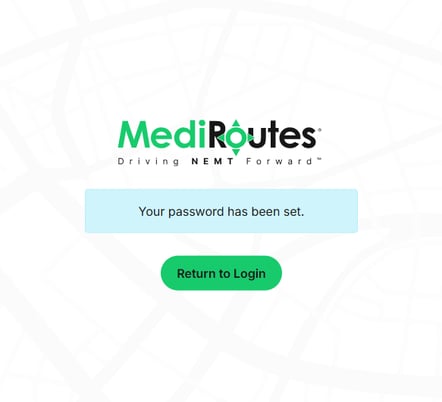
The Return to Login button takes users to the MediRoutes Online login. Drivers will not be able to login there and will need to go to the MediRoutes Mobile App.
What's Next?
- Drivers can download and install the MediRoutes Mobile App from the App Store (iPhone/iPad) or the Google Play Store (Android)
- Desktop users can download and install the desktop app using this guide:
Installing Our Desktop Application - Provide drivers with the appropriate Run and Vehicle Logins to access their mobile schedule. Learn how to find that information with this guide:
How to Locate a Driver's Run and Vehicle Login
Running into issues or have questions? Contact MediRoutes Support.