What This Means
If you are using a Mac and our support team can connect to your computer but cannot see your screen, windows, or apps, this is caused by macOS privacy settings.
This is normal Mac behavior and must be fixed by enabling a few required permissions.
Windows computers do not require these steps.
What Needs to Be Enabled (Required)
Your Mac must allow Splashtop to:
-
See your screen → Screen Recording
-
Control your mouse and keyboard → Accessibility
If either one is missing, the connection will be limited.
Step 1: Determine Which Mac Settings You Have
Look at your Settings app
-
If it is called System Settings and has a left sidebar, follow Option A
-
If it is called System Preferences and shows icons, follow Option B
OPTION A: Newer Macs
macOS Ventura, Sonoma, Sequoia (and newer)
Uses: System Settings
A1. Enable Screen Recording (Required to See the Screen)


-
Click the Apple menu ()
-
Open System Settings
-
Click Privacy & Security
-
Scroll down and click Screen Recording
-
Toggle Splashtop Streamer or Splashtop SOS ON
-
If prompted, click Quit & Reopen
⚠️ If this is OFF, support can connect but your screen will be blank or invisible
A2. Enable Accessibility (Required for Mouse & Keyboard Control)

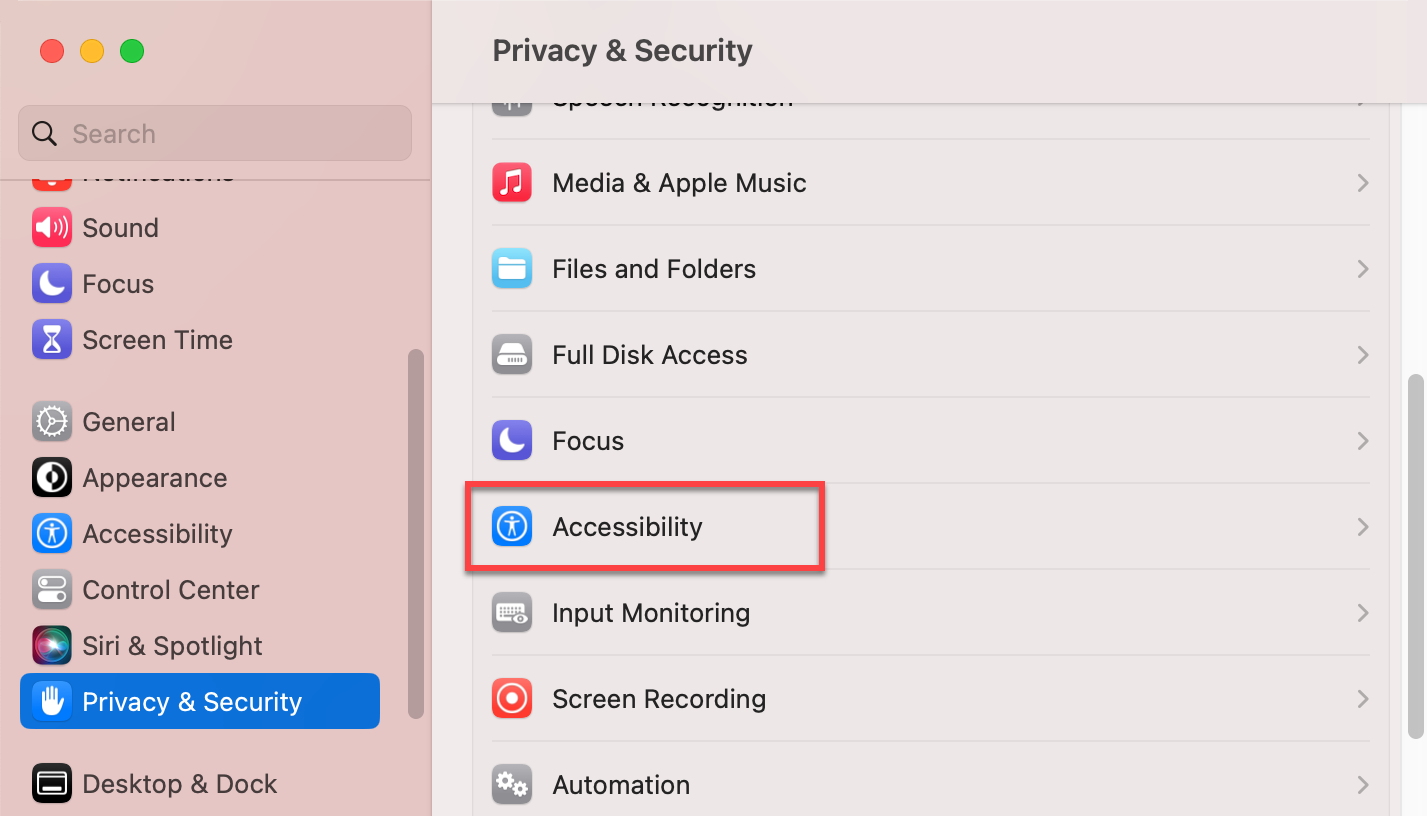
-
In Privacy & Security, click Accessibility
-
Toggle Splashtop Streamer or Splashtop SOS ON
-
Enter your Mac password if prompted
⚠️ If this is OFF, support may see the screen but cannot click or type
OPTION B: Older Macs
macOS Monterey and earlier
Uses: System Preferences
B1. Enable Screen Recording
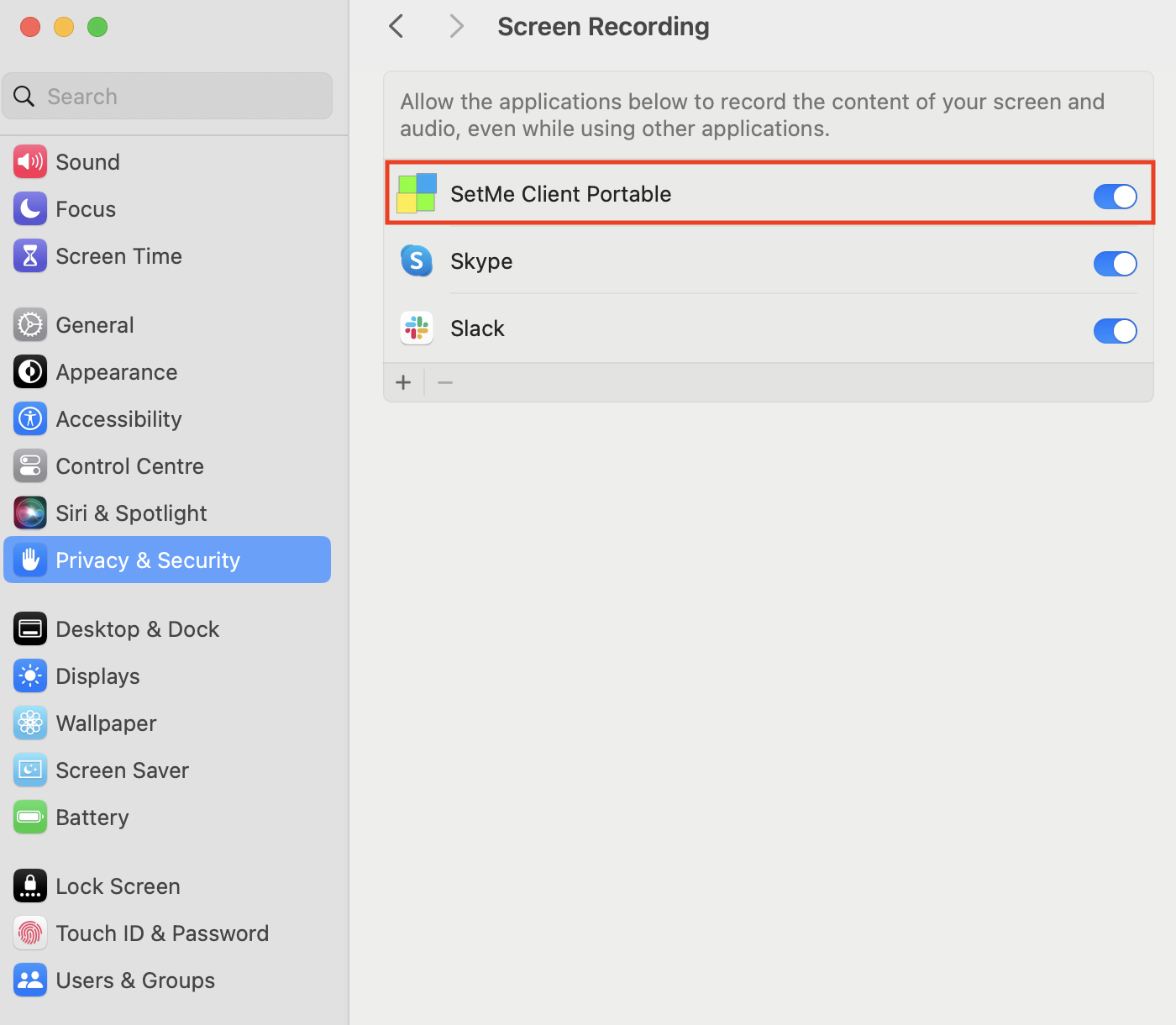
-
Click the Apple menu ()
-
Open System Preferences
-
Click Security & Privacy
-
Select the Privacy tab
-
Click Screen Recording
-
Click the lock icon to unlock changes
-
Check the box next to Splashtop Streamer or Splashtop SOS
B2. Enable Accessibility


-
In Security & Privacy → Privacy, select Accessibility
-
Unlock the settings
-
Check the box next to Splashtop Streamer or Splashtop SOS
Optional Permissions You May See
These may be requested depending on what support is helping with:
-
Full Disk Access – file access or transfers
-
Microphone – audio features
These are not required just to see the screen.
Important Notes (Please Read)
-
These settings must be enabled by you on the Mac
-
They cannot be enabled remotely
-
You may need to restart Splashtop after enabling permissions
-
macOS updates may reset permissions, requiring this again
Quick Troubleshooting Checklist
If support still cannot see your screen:
-
Confirm Screen Recording is enabled
-
Confirm Accessibility is enabled
-
Restart Splashtop
-
Restart your Mac if needed
-
Reconnect with support