Overview
When updating rates for a funding source in MediRoutes, it is important to ensure that:
- Existing trips retain their original rates
- New trips use the updated rates
- Any trips already created with outdated rates are corrected
This process involves:
- Expiring the current billing items
- Creating new billing items with updated rates
- Updating trips that were created under the old rates
This article walks through the full process.
How to Access Funding Source Billing Items
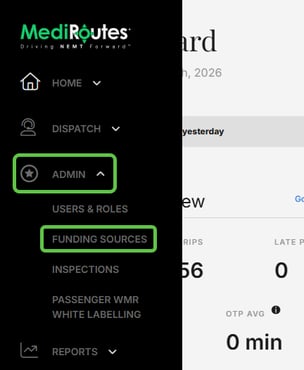
- Navigate to Admin
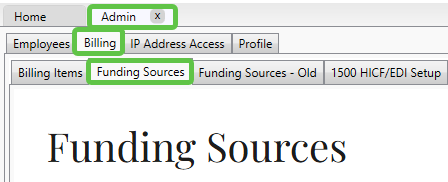
- Access Funding Sources:
- MediRoutes Online: Click Funding Sources
- MediRoutes Desktop: Click Billing, then select Funding Sources
- MediRoutes Online: Click Funding Sources
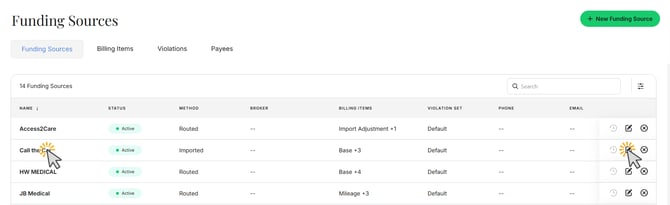
- Locate the funding source you want to update
- Click the funding source name or the pencil (Edit) icon
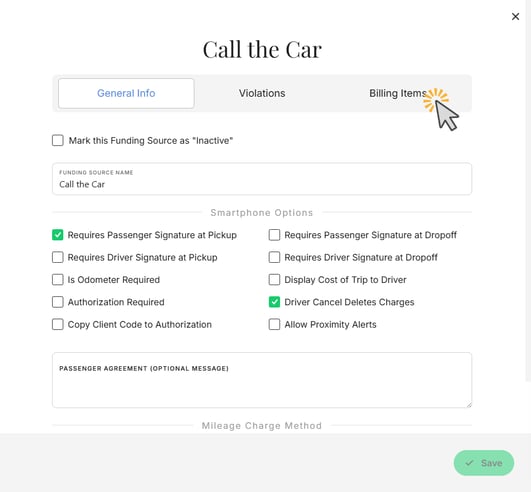
- Select the Billing Items tab
Expiring the Current Rates
To prevent changes from affecting existing trips, the current billing items must be expired.
- Click the pencil (Edit) icon
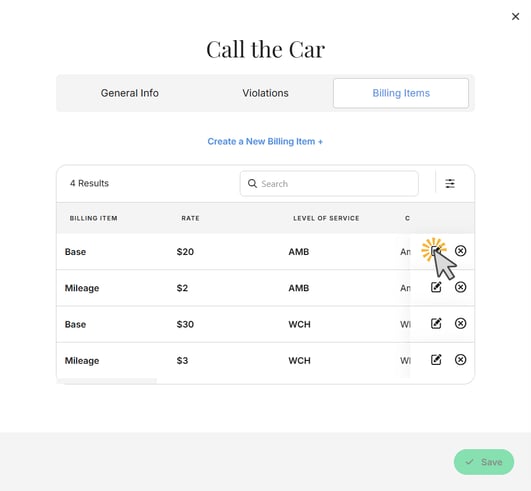
- Uncheck the Indefinite checkbox
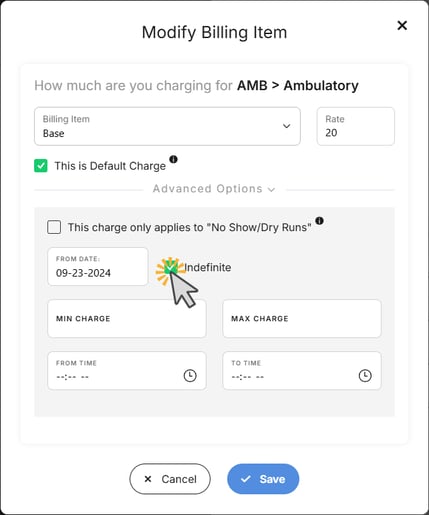
- Enter the last date the current rate is valid in the To Date field
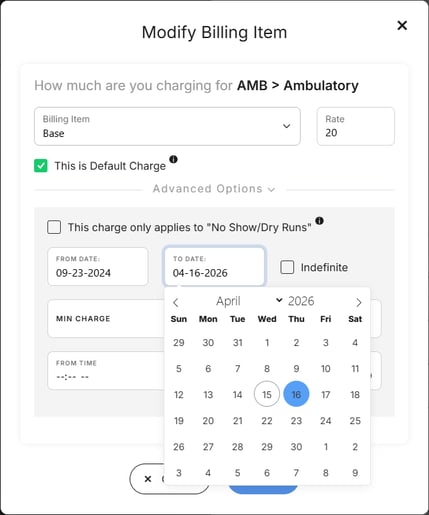
- Click Save
- Repeat these steps for each billing item
Creating New Rates
After expiring the old billing items, create new ones with the updated rates.
- Click Create a New Billing Item
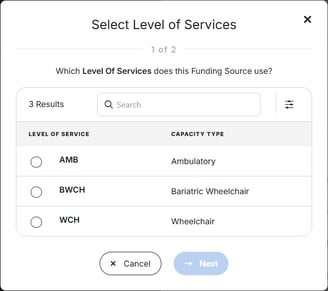
- Select the appropriate Level of Service and click Next
- Enter the rate details, including:
- Billing Item
- Rate amount
- Any other required fields
- Set the From Date as the day after the previous rate’s end date
- Click Save
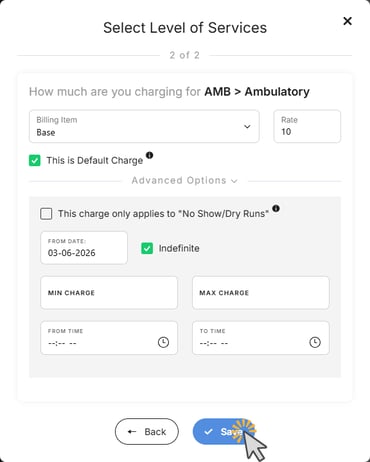
- Repeat these steps until all new billing items are created.
If you need more help adding new rates, click here.
Important:
The From Date must begin immediately after the previous rates end to avoid gaps or overlaps in billing.
Updating Existing Trips
Updating trip charges can only be performed in the MediRoutes Desktop Application.
Accessing Update Trip Charges
- Navigate to Admin
- Click the Billing tab
- Select Funding Sources – Old
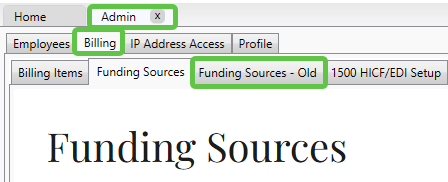
- Highlight the funding source
- Click Update Trip Charges
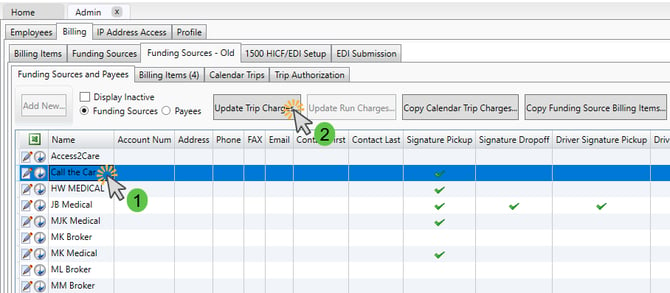
Selecting the Date Range
In the pop-up window:
- Select the start date when the new rate takes effect
- Select an end date far enough in the future to include all affected trips
- Click OK
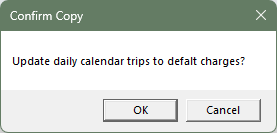
- Click OK in the confirmation window
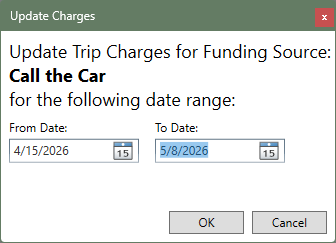
Processing the Update
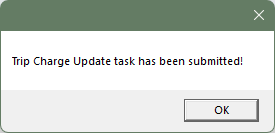
- A message will appear confirming the update task was submitted
- Click OK to acknowledge
Processing Time:
Allow up to 30 minutes for the system to update trip charges.
If Rates Do Not Update
If trips still show the old rates after 30 minutes, contact MediRoutes Support for assistance.