Overview
The Verida (formerly Southeast Trans) integration allows providers to manage the full trip workflow between Verida and MediRoutes.
This guide covers:
- Requesting and activating the Verida API connection
- Configuring driver information required for billing
- Importing trips from Verida trip files
- Submitting completed trips for billing through the Verida integration
- Reviewing responses and billing errors from Verida
Because Verida trips are imported through a trip file rather than received directly through the API, both the trip import process and billing submission process must be completed to successfully manage and bill Verida trips.
Note: The details in this guide about the Verida portal and workflow reflect our current knowledge, but Verida may update their process at any time. At MediRoutes, we work continuously to keep broker information current and update our guides as soon as changes are reported.
API Set Up
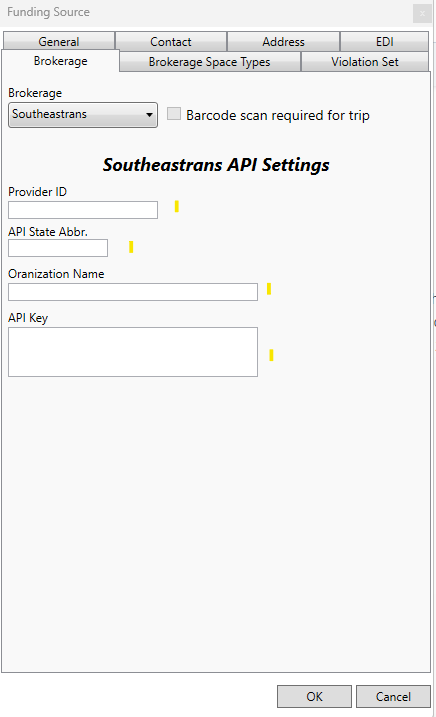
To start the Verida integration, complete the Verida API setup form (link below) and email it to MediRoutes Support (support@mediroutes.com). This form gives Verida the details needed to create your API credentials.
After Support receives your form, it is sent to Verida, who generates the API key. When those credentials return to MediRoutes Support, our team adds them to your system and activates the Verida API connection.
During this process, Verida will also email you login information for their billing website, where you will later upload trip files and review billing responses.
Note: Before the Verida API key and information can be added to your MediRoutes system, you must have a Funding Source created. If you need help creating a Funding Source, see the article below.
Completing Driver Information
After set up, make sure to update Driver ID's.
Steps
- Navigate to Admin > Employees > API
- Select Southeastrans (old Verida name)
-
Click Get Drivers
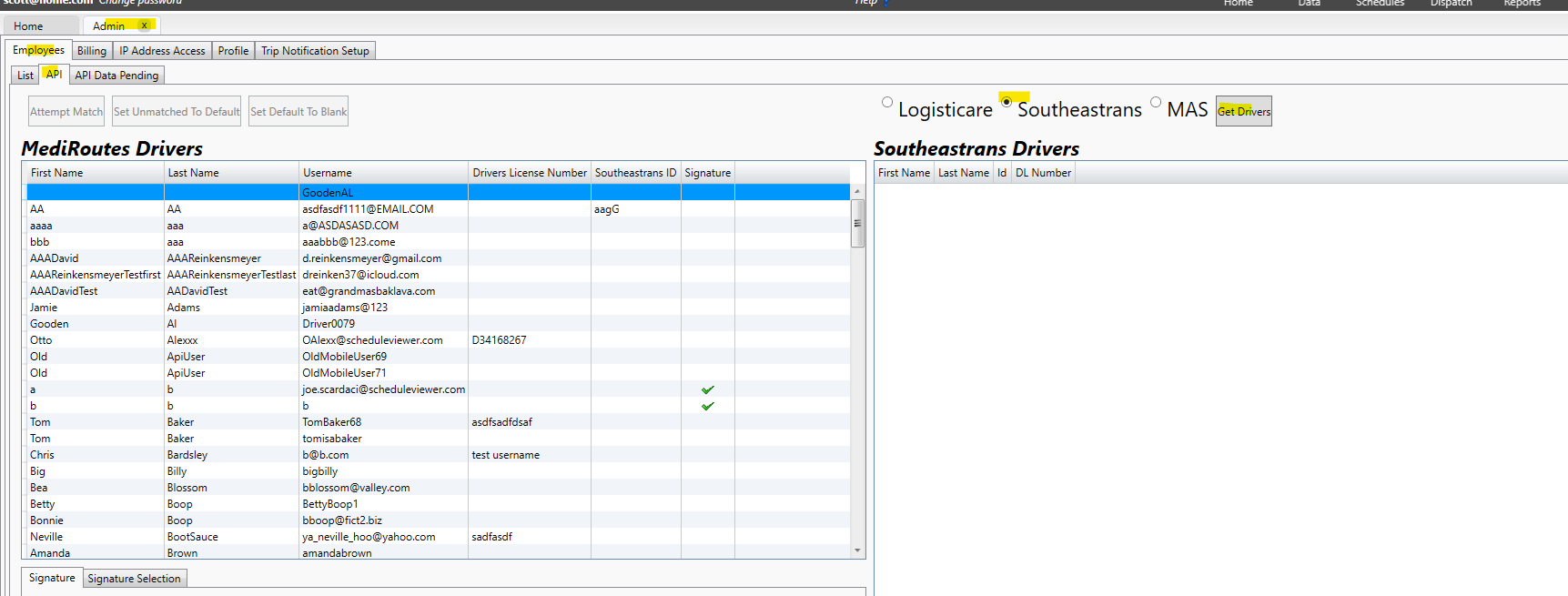
- Click Attempt Match
Important: After setup, it can take up to 24 hours before driver information is available from Verida. If you pull drivers earlier, you may see an error to contact MediRoutes Support. Try again the next morning—Verida updates the driver file once each morning.
Importing Trips from a Trip File
Verida does not send trips directly to MediRoutes through the API. Instead, you will download a trip file (CSV) from the Verida web portal and use it to import trips in bulk into MediRoutes. If you need help finding the correct trip file or accessing the Verida portal, contact Verida Support. The trip file uses MediRoutes’ standard import format, so you can upload it from the Home tab in MediRoutes Desktop without any additional setup.
If you need help importing trips from a CSV file, reference the article below.
Submitting Trips to Verida for Billing
Verida Website
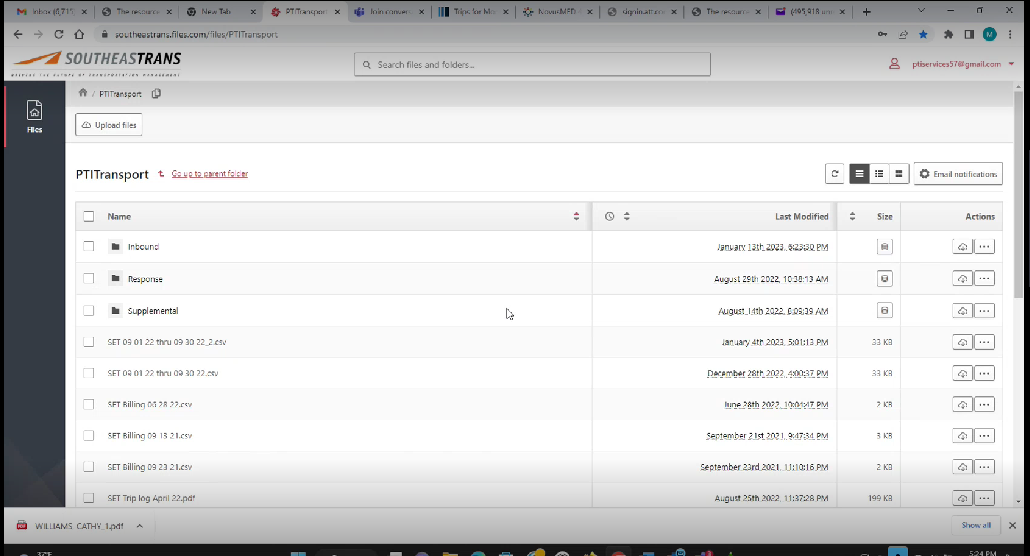
Once the API is set up, Verida will email you login details for their FTP site. This site is the hub for all trip files and responses.
-
Upload trip files from MediRoutes to the **INBOUND** folder.
-
Review Verida responses, including missing driver information or signatures, in the **RESPONSE** folder.
Be sure to check the RESPONSE folder regularly for errors or missing information.
Tip: Click here to access the Verida website.
Submitting Trips In MediRoutes Desktop
- Navigate to Admin > Billing > EDI Submission > API Submission
- Choose the Date and Funding source
- Click Get Trips
- Highlight the Trips for Submission (Shift + Click)
- Click Submit Trips
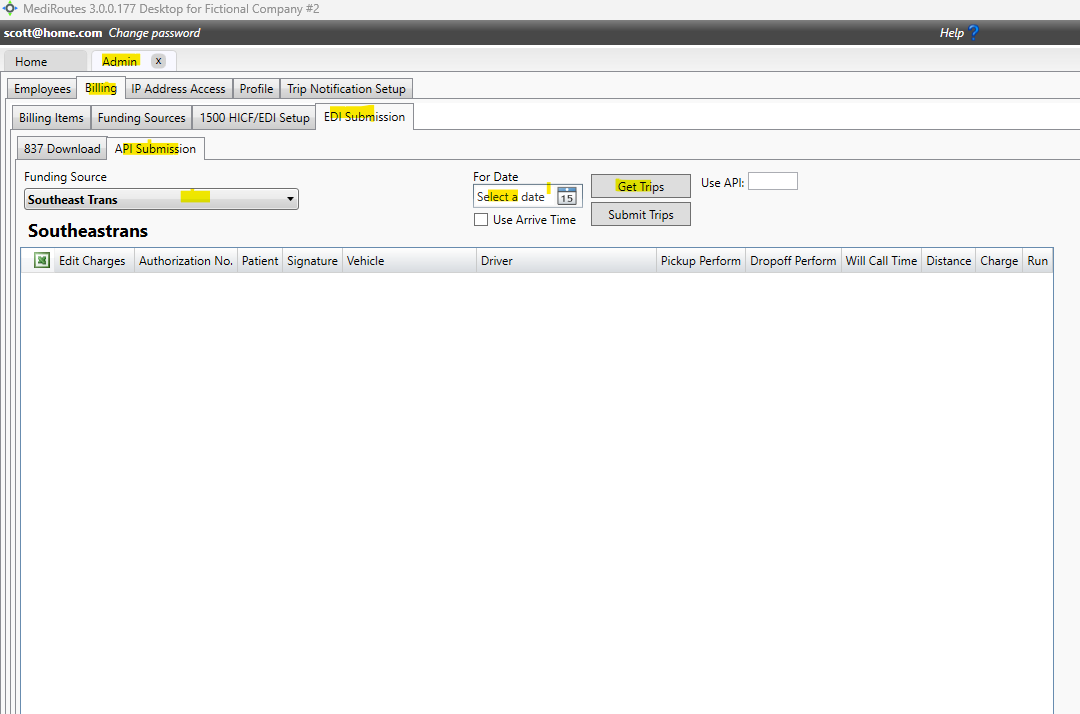
Once you submit the trips, the file is sent to the Verida site and appears in the INBOUND folder. Verida then retrieves that file to complete their processing. Be sure to check the RESPONSE folder regularly for any errors or missing information.
- Update the trip details in your Trip Log.
- Print to PDF and save the PDF file to your computer.
- Upload the saved PDF to the Verida portal for electronic submission.
Still Need Help? Contact MediRoutes Support.