Overview
The timekeeping feature in MediRoutes allows organizations to track employee work hours, including shifts and breaks, using the mobile app and reporting tools.
Timekeeping helps:
- Track driver shifts and work hours
- Record and manage breaks
- Maintain accurate records for payroll and reporting
This article explains how to enable timekeeping, how drivers use it, how breaks are managed, and how to review timekeeping data.
Before Enabling Timekeeping
Before enabling timekeeping for drivers:
- Schedule training with employees on how to:
- Begin and end shifts
- Start and end breaks
- Ensure drivers understand how to use the MediRoutes Mobile App
Important: Once timekeeping is enabled, drivers will see the feature the next time they log in.
How to Enable Timekeeping for a User
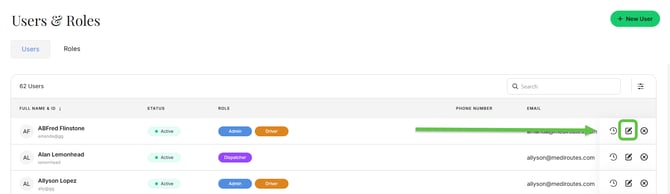
- Navigate to Admin
- Open Users & Roles
- Click the pencil (Edit) icon for the user
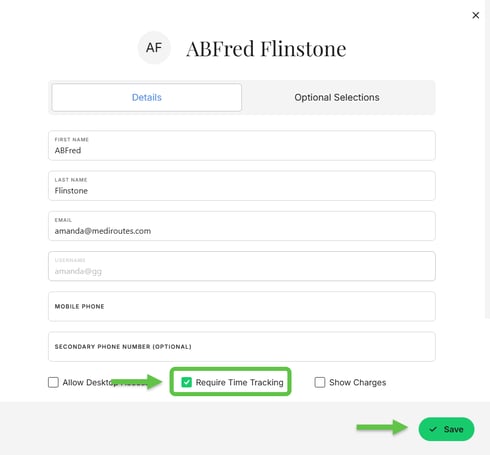
- Check Require Time Tracking
- Click Save
Once enabled:
- The Timekeeping option will appear in the mobile app menu
- The Begin Shift and End Shift events will appear on the mobile schedule
- Drivers can begin tracking shifts and breaks
How Timekeeping Works
Timekeeping functions as a punch clock system.
Drivers use the MediRoutes Mobile App to:
- Begin their shift to start tracking time
- Record breaks during their shift
- End their shift when finished
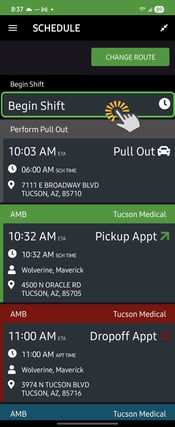
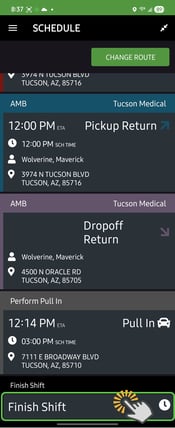
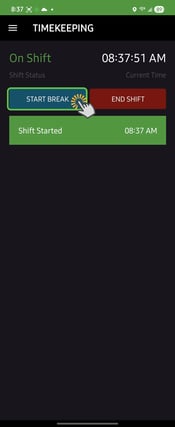
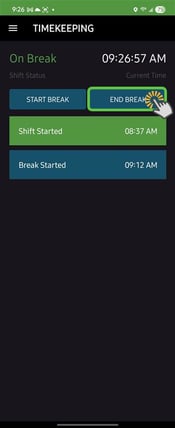
To view our guide on driver timekeeping in MediRoutes Mobile, click here.
Managing Breaks in Timekeeping
MediRoutes supports two methods for managing breaks.
Option 1 — Driver-Initiated Breaks (Mobile App)
Enable Driver-Initiated Breaks (Desktop)
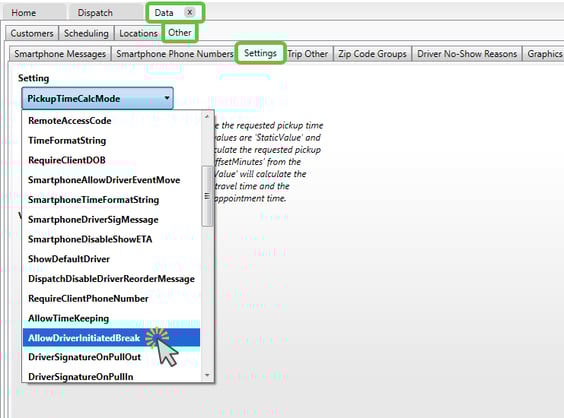
- Navigate to Data > Other > Settings
- Locate AllowDriverInitiatedBreak
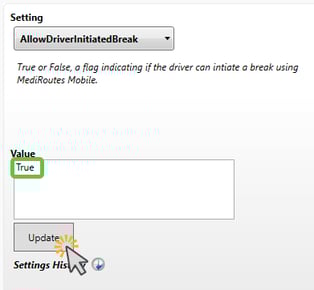
- Set the value to True
- Click Update
How Drivers Start and End a Break
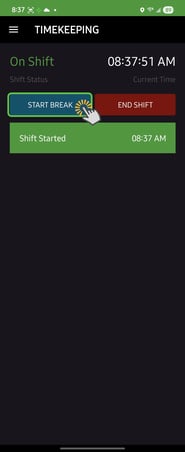
To Start a Break:
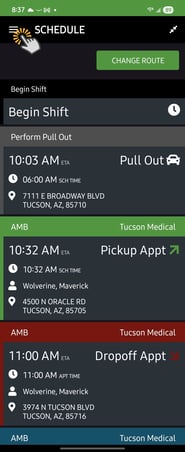
- Login to the mobile schedule
- Open the Menu in the top left
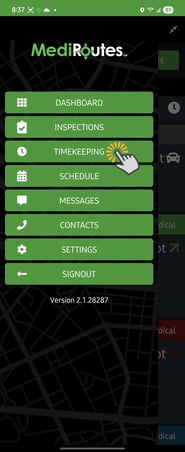
- Select Timekeeping
- Tap Start Break
To End a Break:
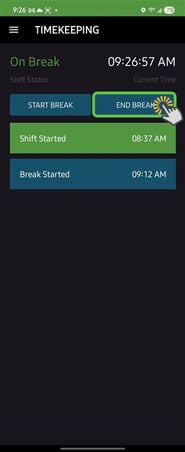
Option A — Timekeeping Menu
- Open the Menu
- Select Timekeeping
- Tap End Break
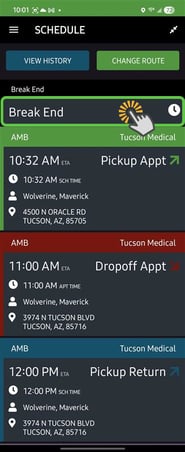
Option B — Schedule
- View the Schedule
- Select the Break End event
Option 2 — Scheduled Breaks (Dispatcher/Scheduler)
Dispatchers or schedulers can insert breaks into a driver’s schedule.
How to Insert a Break
- Navigate to the Schedules (future) or Dispatch (same day) tab
- Select the run/route
- Click the Insert Break icon
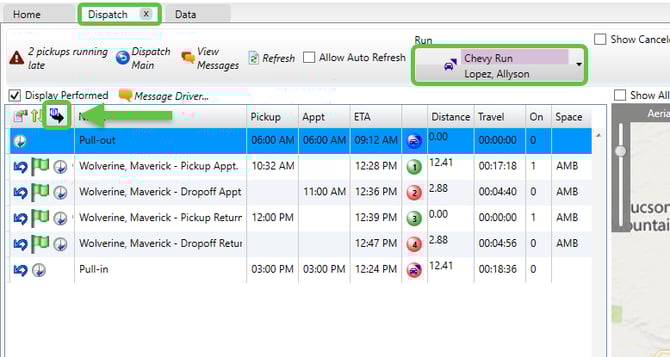
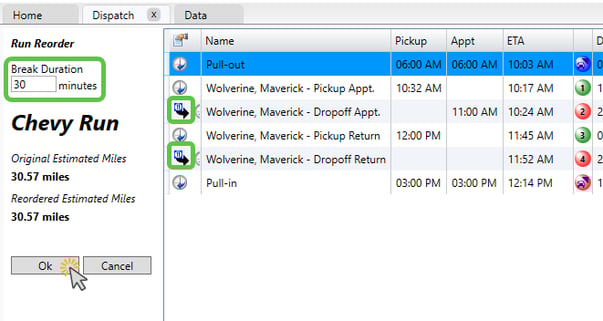
The Run Reorder screen will appear with available time slots.
- Select the Break icon at the desired position
- Change the Break Duration (optional)
- Click OK
Break Behavior
- Breaks appear as scheduled events in the run
- Breaks are performed like trips
- Breaks can be moved within the schedule
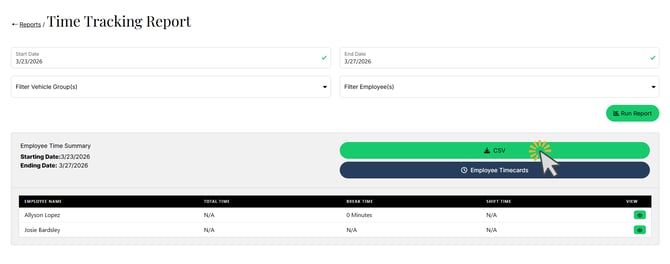
How to Run a Timekeeping Report
This report is only available when logged into MediRoutes Online. It is not available in the desktop app.
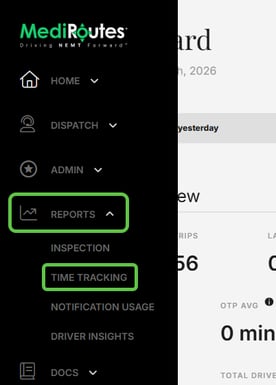
- Navigate to Reports on MediRoutes Online (mediroutes.com)
- Click Time Tracking
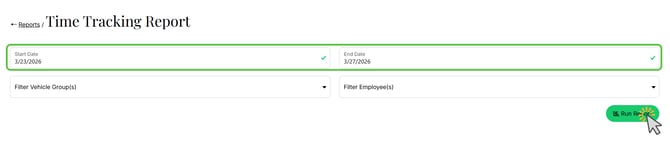
- Enter a date range
- (Optional) Apply filters:
- Select specific employees
- Filter by vehicle group
- Click Run Report
Seeing “N/A” for total time or shift time?
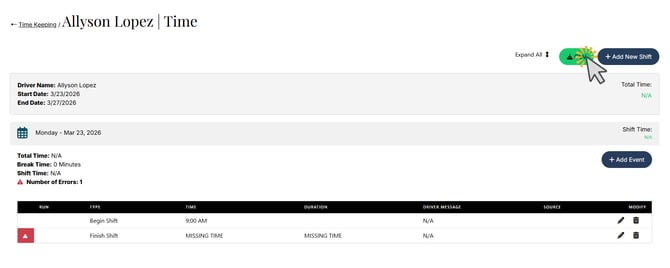
This means required timekeeping events are missing from the employee’s timecard. Proceed to Viewing and Managing Timekeeping Data, or click here to view our more detailed guide on editing employee timecards.
Viewing and Managing Timekeeping Data
- Click Employee Timecards to view times for all employees
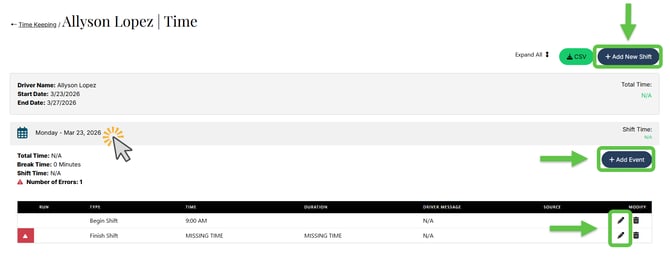
- Click the View Details icon to review an employee’s timekeeping logs

- Edit timestamps on View Details page using the pencil button
- Add missing timekeeping events or missing shifts (also on View Details page)
Exporting and Printing Timekeeping Data
- Use the CSV button to export reports
- Export full reports (main report page) or individual employee data (View Details page)