Overview
If MediRoutes Desktop gets stuck on the loading screen or displays an error such as:
“Object reference not set to an instance of an object”
the issue is most commonly caused by the computer’s system date and time being out of sync.
MediRoutes relies on secure authentication certificates, and if the system time is incorrect—even slightly—it can prevent the application from loading or logging in properly.
This article explains how to correct your system time and resolve the issue.
Quick Fix: Sync Your Computer’s Date & Time
In most cases, syncing your system time will resolve the issue immediately.
Step-by-Step Fix
Open Date & Time Settings
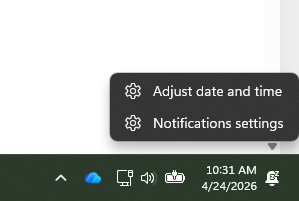
- Right-click the clock in the bottom-right corner of your screen
- Click Adjust date and time
Verify Date, Time, and Time Zone
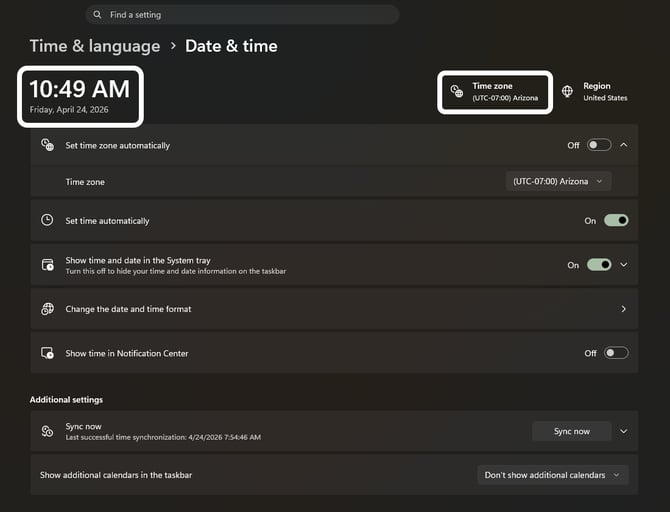
- Confirm the date and time are correct
- Make sure the time zone is set correctly for your location
Sync Your System Time
- Scroll down to find the sync option:
- Click Sync now, or
- Click Additional settings → then Sync now (depending on your Windows version)
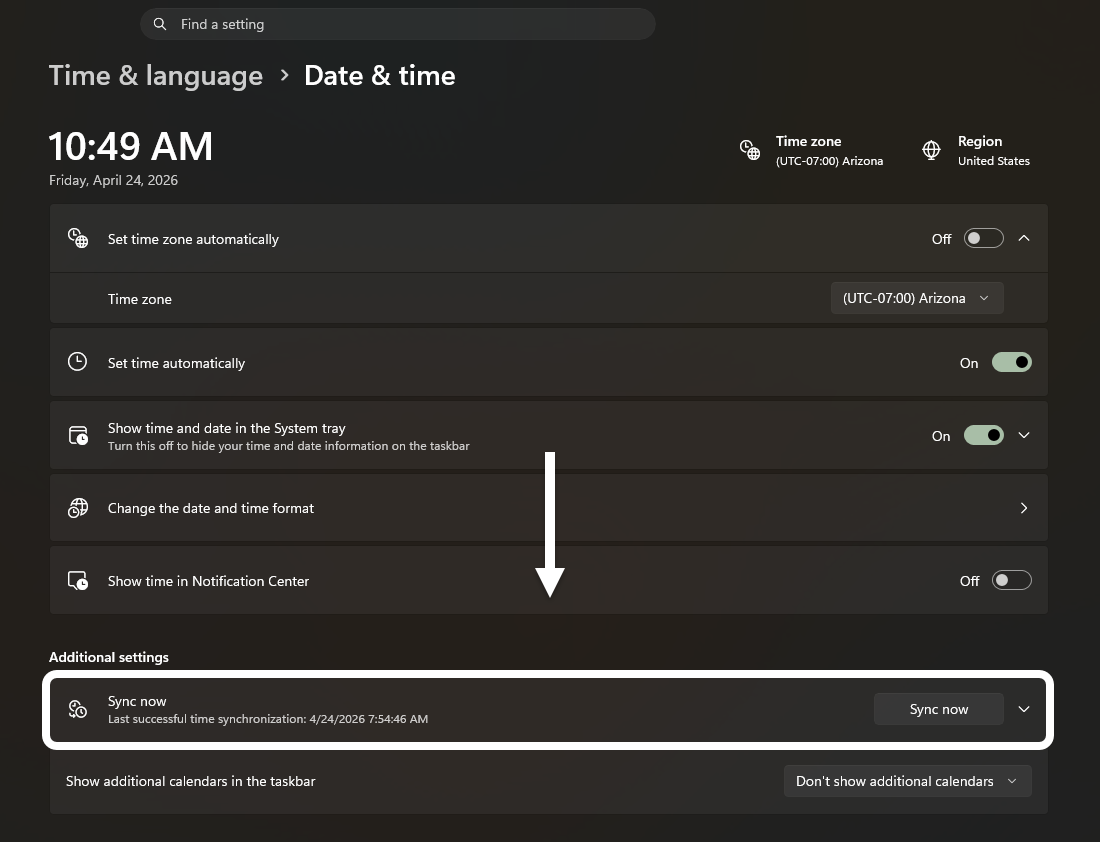
- Wait for confirmation (checkmark) that the time was successfully synchronized
Tip:
If you see a message like “Please check network”, wait a moment and click Sync now again.
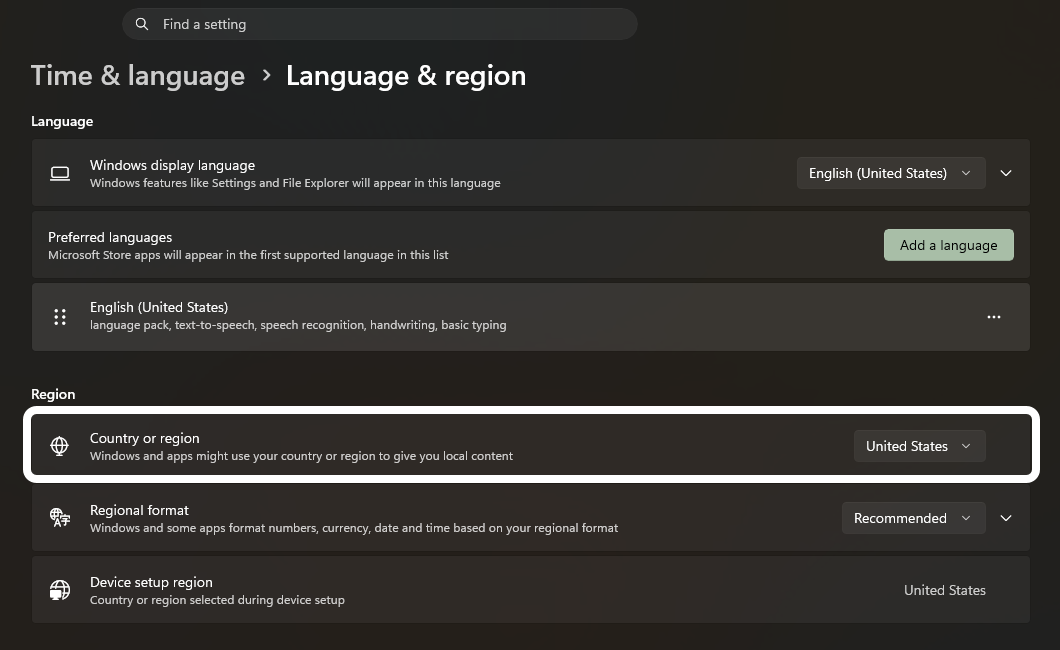
Verify Region Settings
- In Windows Settings, go to:
Time & Language → Language & Region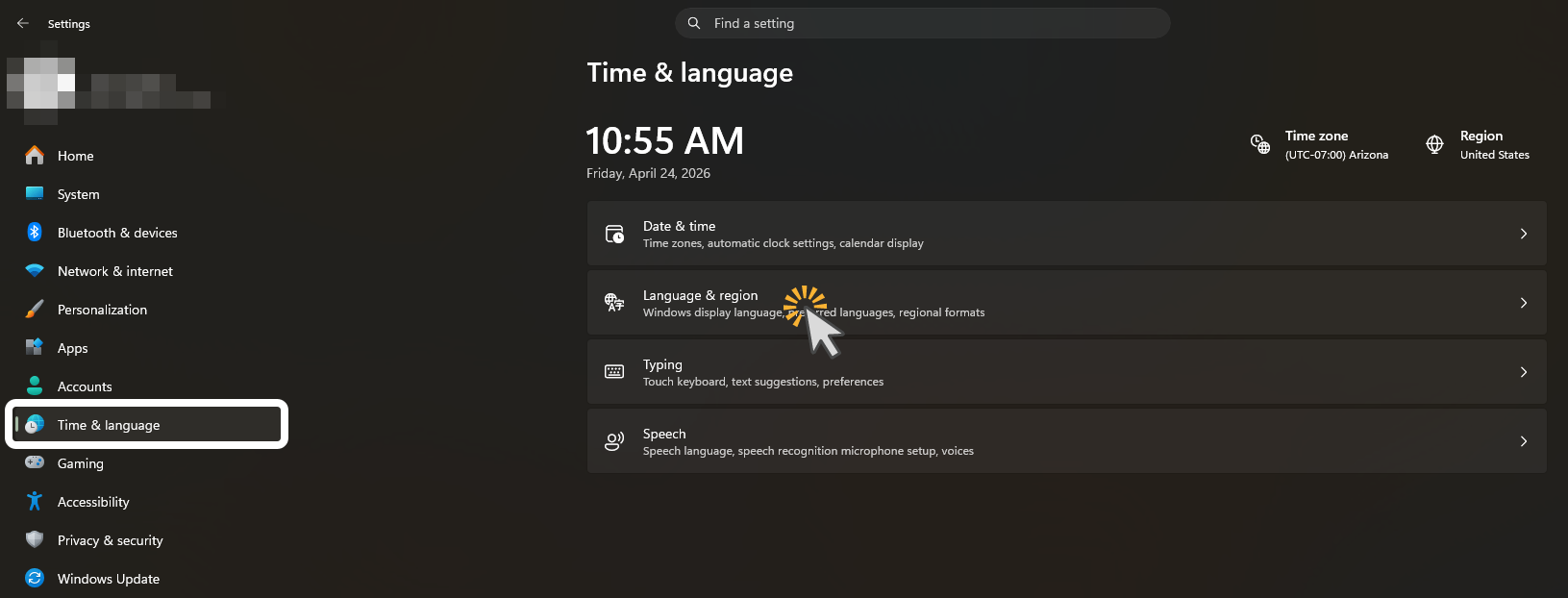
- Confirm the Region is set to United States
Restart MediRoutes Desktop
- Close MediRoutes Desktop completely
- Reopen the application
- Attempt to log in again
Why This Works
MediRoutes uses secure authentication certificates during login.
If your computer’s system time is:
- Incorrect
- Outdated
- Not synced
…the certificate validation can fail, causing:
- The application to get stuck on loading
- Login errors such as “Object reference not set to an instance of an object”
Syncing your system time ensures the certificate can validate correctly.
When to Contact Support
Contact support if:
- Your system time is correct and synced
- The issue persists after restarting the application