Overview
When running the Time Tracking report in MediRoutes Online, you may notice that total time and shift time display as N/A for some employees.
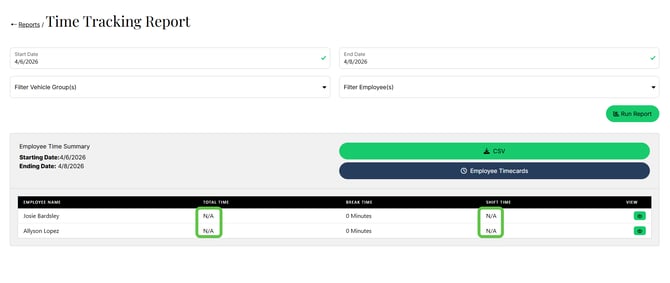
This typically occurs when timekeeping data is incomplete or not properly recorded, such as when shifts or breaks are not ended correctly.
This article explains the most common causes and how to review and correct employee timecards.
Why Total Times May Be Missing
Total time calculations depend on complete shift data. If required events are missing, totals may not generate and will display as N/A in the report.
Common causes include:
- Shift was not ended (no Finish Shift event)
- Breaks not properly ended (no end break event after a start break event)
If either of these are missing, MediRoutes cannot calculate total worked time.
How to View Individual Employee Timecards
To review timekeeping data:
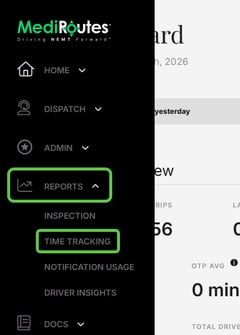
- Navigate to the Reports tab
- Select the Time Tracking Report
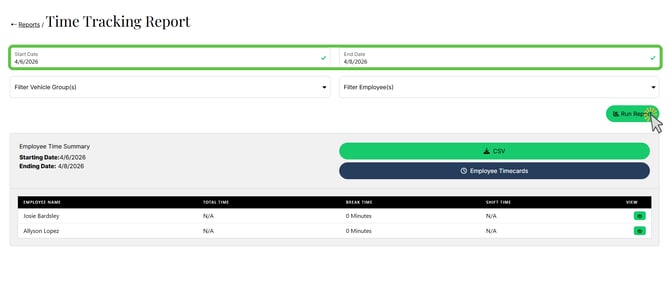
- Enter the desired date range
- (Optional) Filter by vehicle group or employee
- Click Run Report
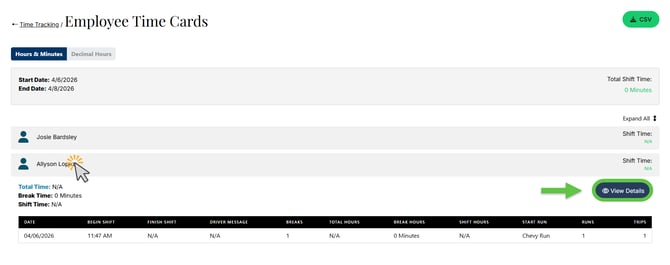
- Locate the employee
- Click the View Details icon to the right (looks like an eye)

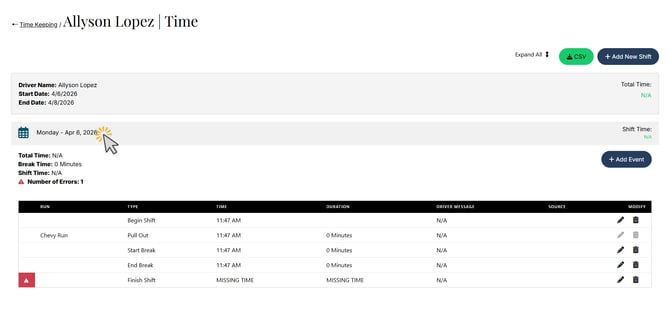
- Select a date on the employee's detail page
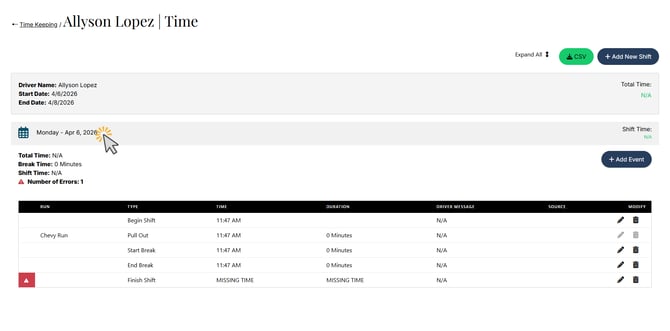
This will open the employee’s timecard, showing all recorded events for that day.
Clicking the Employee Timecards button will not take you to a page where edits can be made. It will simply show all timecards for each employee. However, you can click the employee's name to access the View Details button there.

What to Look for in a Timecard
When reviewing a timecard, check for:
- A Begin Shift event
- An End Shift event
- Properly paired Start Break / End Break events
- Any missing or out-of-order timestamps
Missing or incomplete events will prevent totals from calculating.
How to Edit a Timecard
If timekeeping data is incorrect or incomplete, it can be adjusted.
To Edit an Existing Event
- Open the employee’s timecard
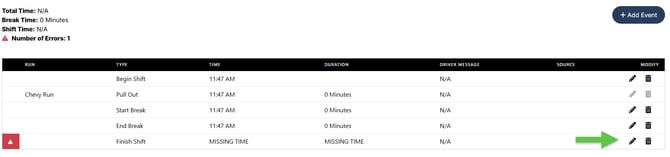
- Locate the event you want to adjust
- Click the pencil icon to the right of the event
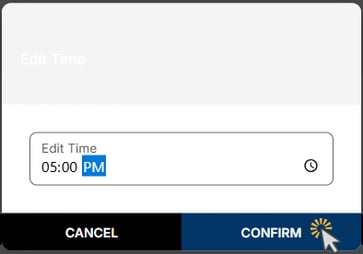
- Update the time as needed
- Click Confirm to save
To Add a Missing Event
- Open the employee’s timecard
- Click the option to add an event
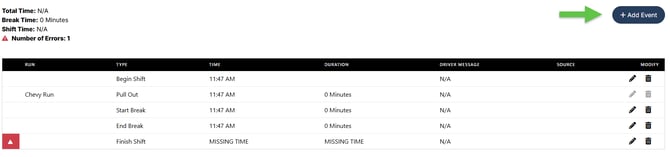
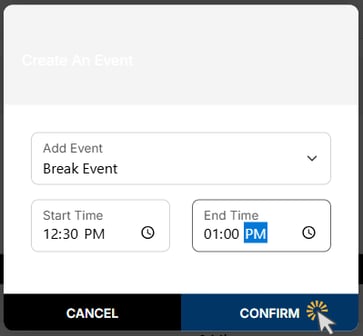
- Select the event type:
- Shift Event (adds a new shift)
- Break Event (adds a break to the shift)
- Enter the correct times
- Click Confirm to save
After Making Corrections
- Re-run the Time Tracking report
- Confirm that totals now appear correctly
Once all required events are present, totals will calculate automatically.
Best Practices
- Train drivers to always:
- Start their shift
- End their shift
- Properly start and end breaks
- Review timecards regularly
- Correct missing data as soon as possible
Still need help with your timecards? Contact MediRoutes Support.