Overview
In some cases, you may not see the cancel (X) option on the Home tab or may be unable to unschedule a trip.
Note:
It is normal system behavior for performed trips to not have the cancel (X) option on the Home tab.
This article applies to situations where a trip should be cancelable (such as an unscheduled trip) but the option is missing.
This typically occurs when:
- A trip is edited on the Schedules tab on the same day, or
- Multiple users are editing the same trip at the same time
This can cause the trip to enter an inconsistent state, preventing certain actions.
Schedules Tab Behavior
The Schedules tab is designed for future scheduling and making edits to past trips.
- Trips cannot be unperformed from the Schedules tab
- Performed trips cannot be unscheduled
- This is normal system behavior
Important:
The Schedules tab should not be used for same-day operations.
Always use the Dispatch/Home tab for same-day changes.
Why This Matters
Using the Schedules tab for same-day changes can:
- Prevent the trip from updating correctly
- Cause actions like Cancel (X) or Unschedule to become unavailable
- Lead to confusion about missing options
Why This Issue Happens
Same-Day Edits on the Schedules Tab
Using the Schedules tab for same-day changes can prevent the system from properly updating the trip’s state in all system areas, which may cause actions like canceling to become unavailable.
Multiple Users Editing the Same Trip
If multiple dispatchers edit the same trip at the same time:
- Changes can conflict
- The trip may not update correctly
- Certain actions may become unavailable
Important:
Having multiple Schedules tabs open at the same time, even by a single user, can also cause conflicts.
Avoid working in multiple Schedules tabs simultaneously, especially for same-day trips, as this can lead to trips not updating correctly or confusion on trip status.
How to Fix the Issue
Follow these steps to restore the ability to cancel the trip.
Step 1 — Confirm No One Else Is Editing the Trip
Before making any changes:
- Confirm with your team that no one else is currently editing the trip
Step 2 — Unperform and Unschedule the Trip (Dispatch Tab)
Important:
If the trip is currently unscheduled and does not have the cancel (X) option, it must first be scheduled to a run before it can be unperformed.
It is recommended to schedule the trip to a run that is already completed for the day to avoid confusion for drivers.
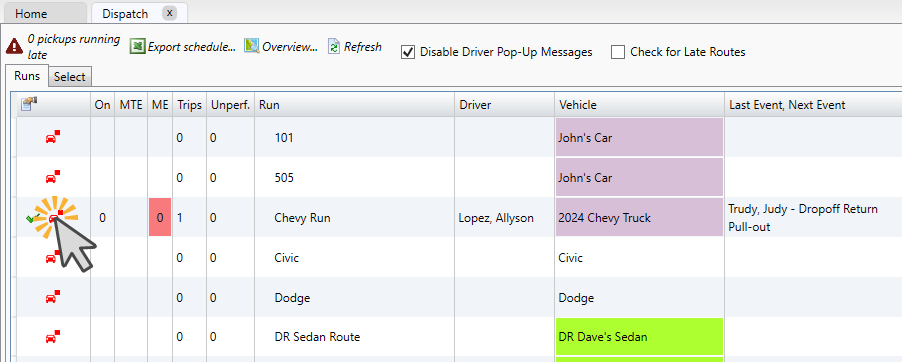
- Navigate to the Dispatch tab
- Locate the run the trip is assigned to
- Click the car icon to the left of the run
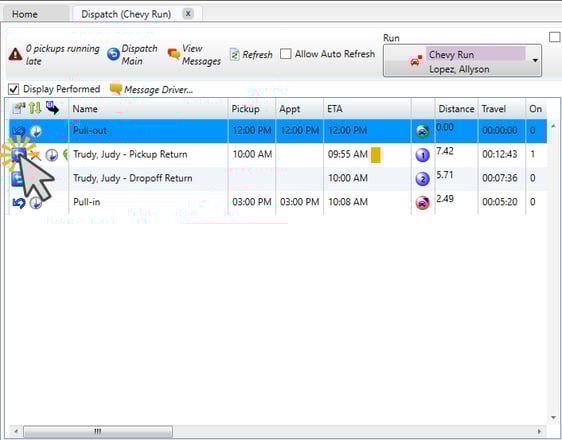
- Find the trip in the run schedule
- Click the blue box with the white back arrow to unperform both trip events
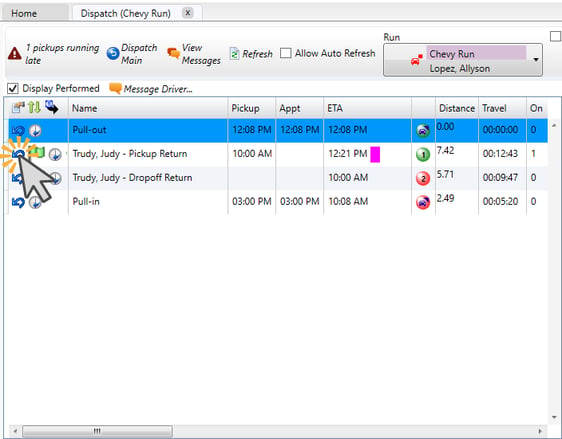
- Once unperformed, click the blue back arrow on either event to unschedule the trip
Step 3 — Return to the Home Tab
- Go back to the Home tab
- Refresh the page
- Locate the trip
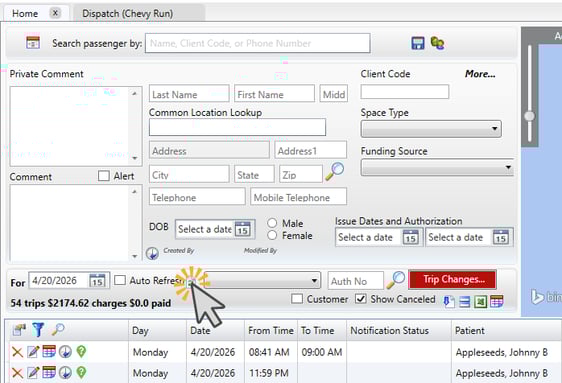
The cancel (X) option should now be available.
Step 4 — Contact Support (If Needed)
If the issue persists after following these steps:
- Contact MediRoutes Support
- Provide:
- Passenger Name
- Date of service
- Description of the issue
Best Practices
- Use the Dispatch/Home tab for all same-day changes
- Use the Schedules tab only for future scheduling or past trip edits
- Avoid editing the same trip simultaneously with other users
- Refresh tabs after making changes