Overview
If a driver reports that they cannot proceed with their schedule or do not see the Arrive option for a trip event, it usually means something is preventing the system from allowing the next event to be performed.
This is typically caused by:
- The driver not starting their shift (Pull Out not completed)
- The driver attempting to perform an event out of order
- Missing Arrive or Perform times on a previous event
- Missing or mismatched break events when timekeeping is enabled
This guide walks through how to identify and resolve each scenario.
Quick Check: Start Here
If a driver cannot proceed:
- Confirm they completed Pull Out
- Confirm they are working on the next event in order
- Check that all previous events have both Arrive and Perform times
- If timekeeping is enabled, confirm Start Break and End Break events are completed and properly recorded
Step 1 — Confirm Pull Out Is Completed
The Pull Out event is how drivers start their day.
- It appears as the first event at the top of the schedule
- It must be completed before any trips can be performed
Note: If timekeeping is enabled, drivers need to tap Begin Shift before they can complete the Pull Out.
How to Check
In Dispatch (Online or Desktop):
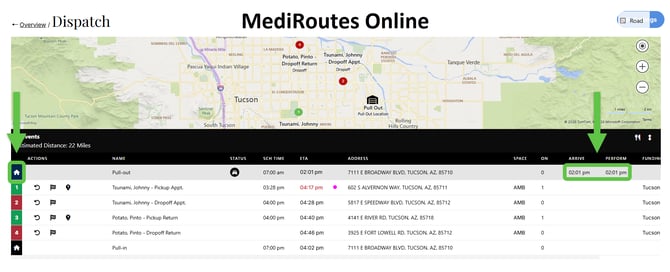
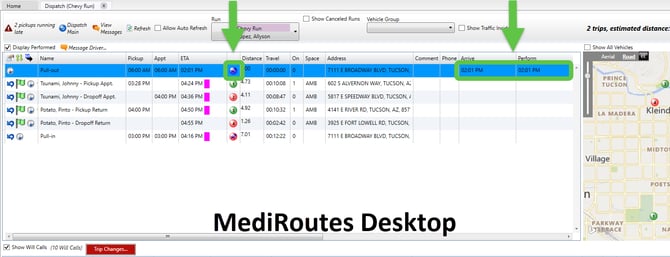
- Locate first event (Pull Out)
- Confirm it is blue
- Confirm both:
- Arrive time
- Perform time are filled in
If Pull Out Is Not Completed
- Have the driver complete the Pull Out event in the mobile app
Common Scenario:
This often happens with new drivers who are unfamiliar with starting their shift.
Step 2 — Confirm the Driver Is Performing the Next Event
Drivers can only perform the next event at the top of their schedule.
If they try to perform:
- A later trip
- An event out of order
The Arrive option will not appear.
How to Fix
You have two options:
- Option 1: Reorder the trip in Dispatch
- Option 2: Have the driver reorder events in the mobile app
Tip:
If this happens frequently, consider enabling the SmartphoneAllowDriverEventMove setting so drivers can reorder events themselves. Click the link below for more information.
Step 3 — Check Previous Events for Missing Times
If the driver is on the correct event and still cannot proceed, check the previous event(s).
Each completed event must have:
- Arrive time
- Perform time
Why This Happens
Missing times can occur when:
- Multiple users are editing trips at the same time
- A No Show was confirmed but did not fully record
- A minor system interruption occurred
How to Check
In Dispatch (Online or Desktop):
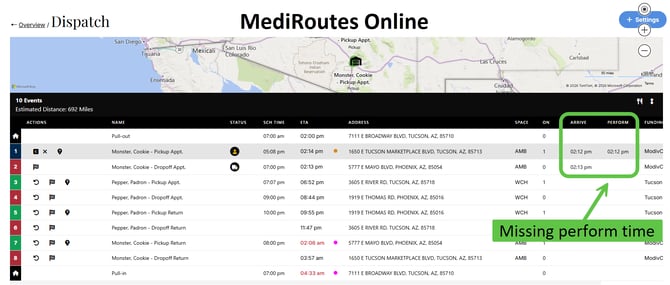
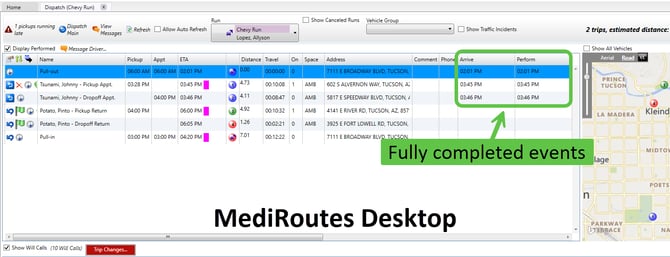
- Scroll to the right in the trip grid
- Locate the Arrive and Perform columns
- Verify both times are filled in for the previous event
How to Fix Missing Times
Only use this fix when the trip event was previously completed or a problem has occurred. In normal operations, the driver should fully complete all trip events.
- Click the trip event with the missing time
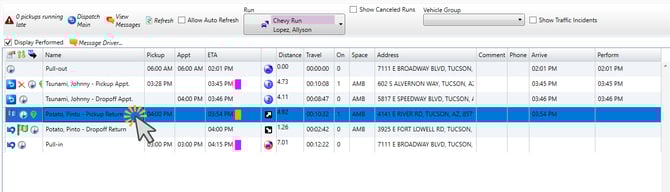
- Double-click the missing time field
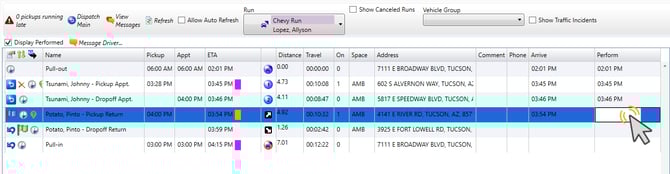
- Click inside the white box and enter the correct time
- Click down to the next row to save
Important:
This must be done in the MediRoutes Desktop Application.
If You Do Not Have Desktop Access
- Contact MediRoutes Support
- Provide the trip details so times can be added
Step 4 — Check Timekeeping Break Events (If Enabled)
If your drivers use Timekeeping and track breaks in MediRoutes, missing or mismatched break events can prevent them from proceeding.
Check Break Events in Dispatch
- Go to the Dispatch tab
- Locate the driver’s run
- Look for Start Break and End Break events
- Confirm both events:
- Are present
- Are blue (indicating they are completed)
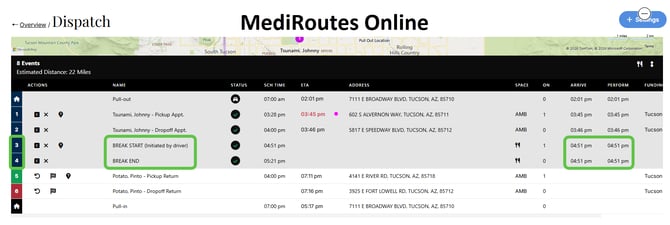
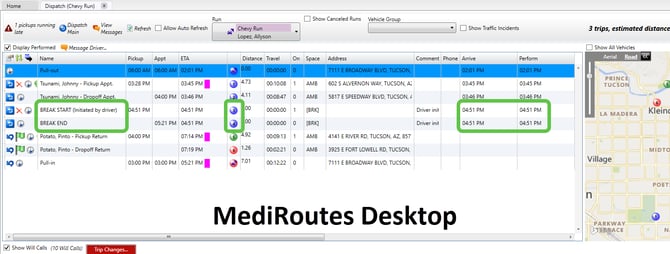
If Break Events Are Not Completed
Confirm with the driver that they successfully started and ended their break. Drivers can verify this by opening the menu in the mobile app and selecting Timekeeping. If the break has not been ended, they can complete it there using the End Break button.
If Break Events Appear Completed
You will need to verify the driver’s timecard.
Check the Timecard (MediRoutes Online)
- Navigate to Reports and select Time Tracking
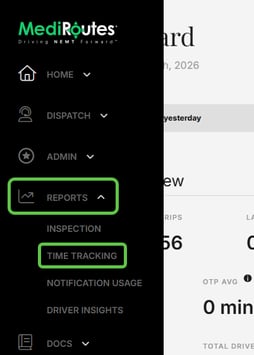
- Run the Time Tracking report for the driver and date
- Click the View Details (green eye icon)

- Review the timecard for that day
What to Look For
- A Start Break time
- A corresponding End Break time
How to Fix Issues
If you find:
- Missing End Break
→ Add the correct end break time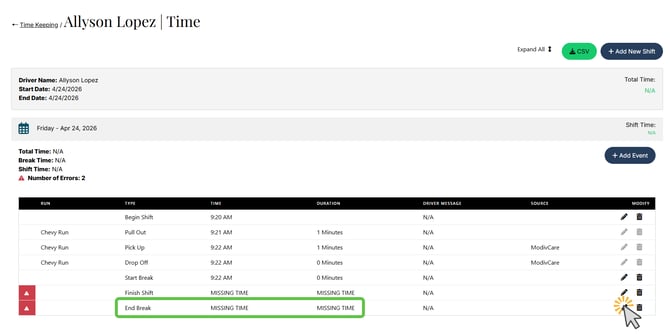
- Duplicate Start Break events
→ Remove the duplicate entry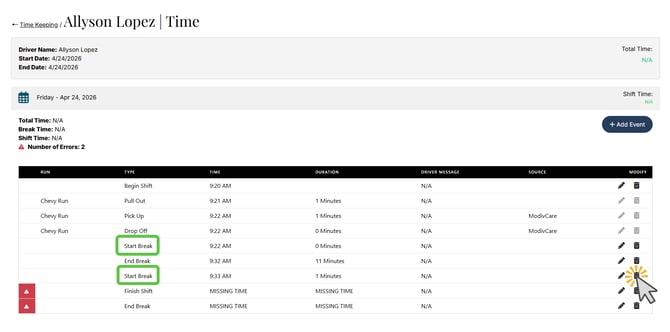
- Mismatched break events
→ Correct the times so each Start Break has a matching End Break
For more information on viewing and editing timecards, please reference the following articles:
After Making Corrections
- Have the driver log out and back in to the mobile app
- Ask them to try performing the next trip event again
Important:
Break events must be properly paired in the timecard for the system to allow the driver to proceed.
When to Contact Support
Contact support if:
- Pull Out is completed
- The driver is working on the next event in order
- All previous events have both Arrive and Perform times
- Break events are completed and correctly recorded (if timekeeping is enabled)
…and the driver still cannot proceed.
Be Ready to Provide
- Driver name
- Run name
- Description of the issue
- Confirmation of steps already taken
Best Practices
- Ensure drivers complete Pull Out at the start of their shift
- Schedule events in the correct order
- Avoid multiple users editing the same trip simultaneously
- Verify all events have both Arrive and Perform times
- Enable driver event movement if needed