Overview
If a driver receives the error:
“There was an error logging into the route”
when attempting to log into their run in the MediRoutes Mobile App, the issue is most commonly caused by an invalid space type on one of the trips assigned to the run.
This typically occurs when:
- A trip has an inactive space type
- A trip has a newly created space type
This article explains how to identify the issue and correct the affected trip.
Common Causes
Inactive Space Type
A trip on the driver’s run may be using a space type that is currently inactive.
This is most commonly seen with API-created trips.
Newly Created Space Type
In rare cases, the issue may occur when a new space type was created the same day.
This has only been seen occasionally and is not consistently reproducible.
Step 1 — Check the Trips on the Driver’s Run
Review the trips assigned to the affected driver.
- Identify the space types being used on the trips
- Look for:
- Unusual space types
- Recently added space types
- Inactive space types
Step 2 — Review Space Types
- Navigate to:
- Data → Scheduling → Vehicles → Space Types
- Review the listed space types
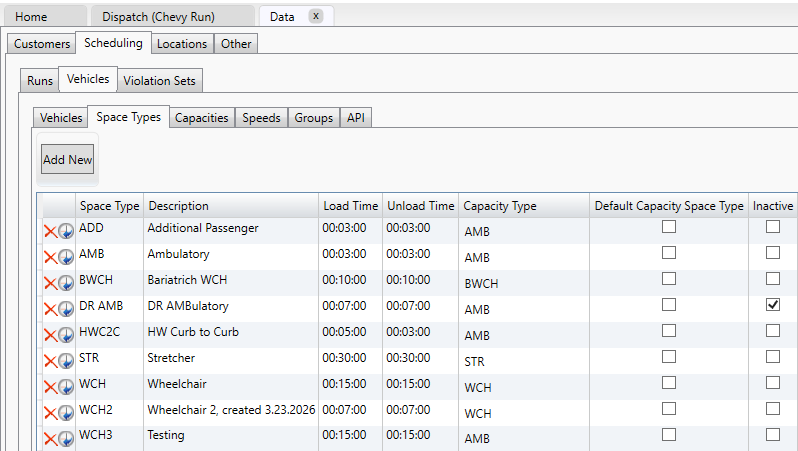
What to Look For
Check whether any space types are:
- Inactive
- Newly created
You can use the History icon  to review the create date for the space type.
Step 3 — If the Space Type Is Inactive
If the affected trip is using an inactive space type:
- Reactivate the space type by unchecking Inactive
- Have the driver:
- Log out of the mobile app
- Log back in
- Attempt to log into the run again
In many cases, this resolves the issue immediately.
Step 4 — Edit the Trip Space Type
If:
- The space type is not inactive, or
- Reactivating it does not resolve the issue
…then the trip’s space type will need to be changed.
Steps to Fix the Trip
- Unschedule the affected trip

- Edit the trip

- Change the trip to a different valid space type
- Save the trip

- Schedule the trip back to the driver’s run
Once the trip is updated, the driver should be able to log into the route successfully.
Important API/Broker Note
If:
- The trip was created through an API integration, and
- The issue has happened before, or
- A recurring passenger continues receiving trips with incorrect space types
…contact the broker to ensure future trips are sent with valid space types.
When to Contact MediRoutes Support
Contact MediRoutes Support if:
- No invalid space types are found
- Changing the space type does not resolve the issue
- Multiple drivers are affected
- The issue continues recurring unexpectedly
Best Practices
- Review API-imported trips before scheduling
- Contact brokers if invalid space types continue being imported
- Contact MediRoutes Support if you have issues with new space types