Overview
Drivers use the Timekeeping feature in the MediRoutes Mobile App to track their work hours, including shifts and breaks.
With Timekeeping, drivers can:
- Start and end their shift from their schedule
- Record breaks during the day
- Ensure accurate time tracking
This guide explains how to use Timekeeping directly from the mobile app.
Important:
Drivers are not able to start their own breaks unless the setting for driver initiated breaks is enabled in MediRoutes. More information can be found in this guide: What Is Timekeeping in MediRoutes and How Does It Work?
How to Start Your Shift
- Open the MediRoutes Mobile App
- Log in using your MediRoutes username and password
- Log in to your Run to open your schedule
- Tap Begin Shift at the top of the schedule
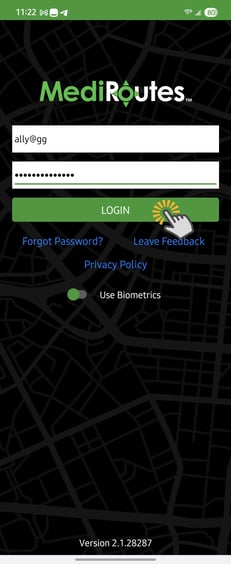
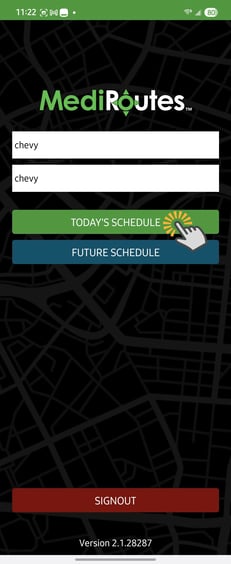
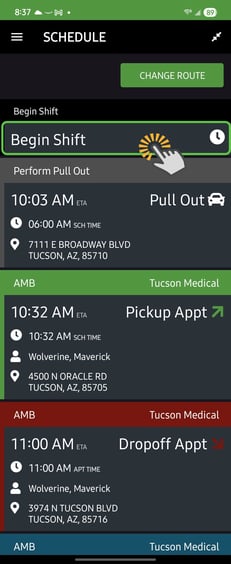
Your shift start time will be recorded automatically.
How to Start a Break
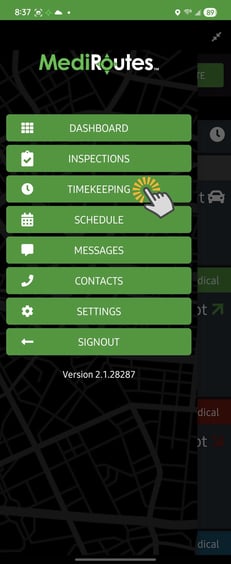
- Open the Menu
- Select Timekeeping
- Tap Start Break
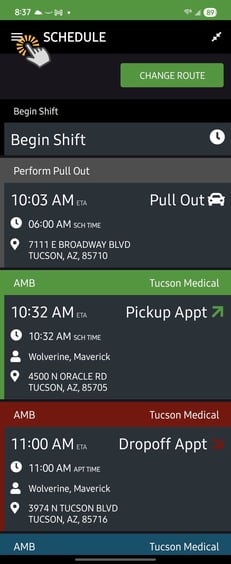
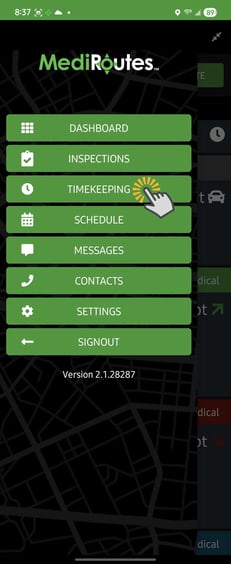
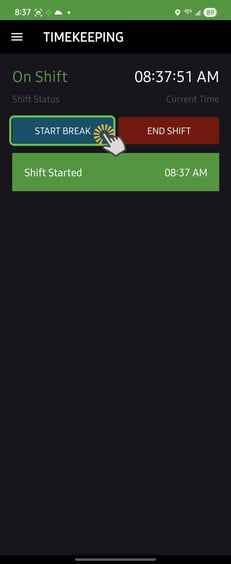
Your break start time will be recorded at the moment you tap the button.
How to End a Break
You can end your break in two ways:
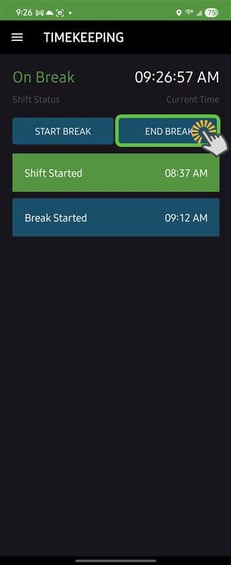
Option 1 — From the Timekeeping Menu
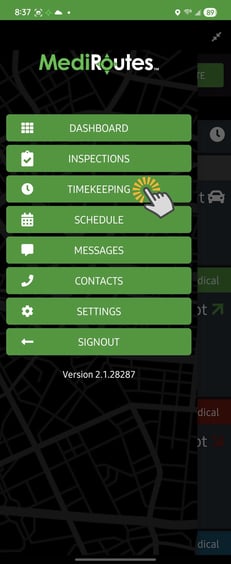
- Open the Menu
- Select Timekeeping
- Tap End Break
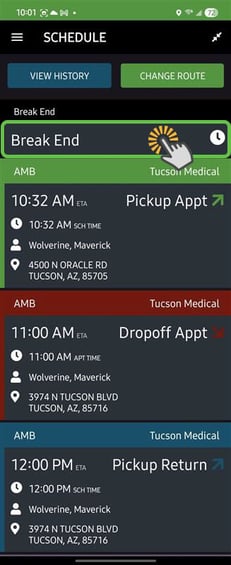
Option 2 — From Your Schedule
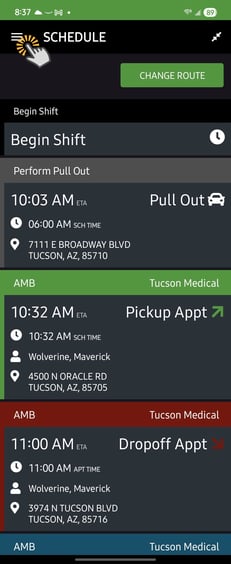
- Open Schedule
- Select the Break End event
How to End Your Shift
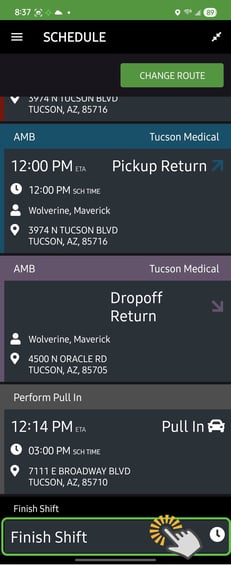
Option 1 — From Your Schedule
- Open the Schedule
- Tap Finish Shift
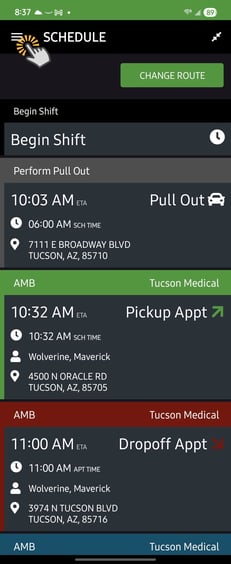
Option 2 — From the Timekeeping Menu
- Open the Menu
- Select Timekeeping
- Tap End Shift
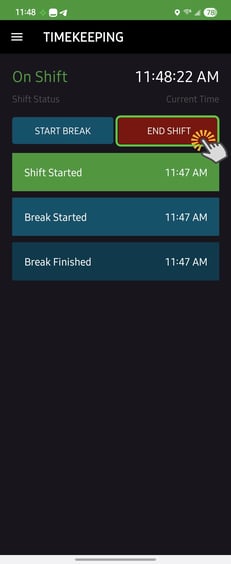
Your shift end time will be recorded.
Important Notes
- Always start your shift before beginning work
- Always end your shift when your workday is complete
- Make sure to start and end your breaks correctly
- Your time is recorded automatically when buttons are pressed
Troubleshooting
| Issue | What to Do |
|---|---|
| Timekeeping menu option not visible | Contact your administrator to confirm timekeeping is enabled for your user account |
| Forgot to end break or shift | Notify your dispatcher or administrator so your time can be corrected |
Having trouble? Contact MediRoutes Support.