Running Report:
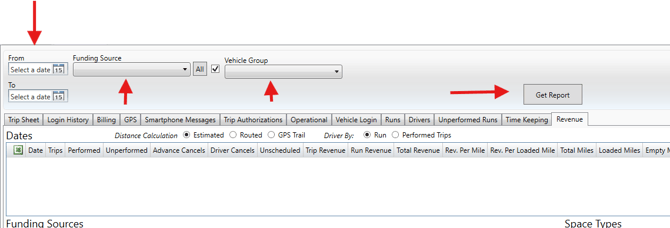
Revenue report in the Desktop program, in Reports tab. To get started, choose a Date range and filters (optional).
-
Date Range: Pick a Date Range in From and To date calendars
- Funding Source: Optional area to restrict to only certain trips under those Funding Sources you pick in drop down menu, or leave it blank, and ALL Funding Source will be chosen.
- Vehicle Group: Optional filter for only certain Vehicle Group.
-
Click Run Report to get the report.
Once the report is loaded, you will see each trip date listed in the Dates area. The rows you have highlighted will then populate the six sub‑category sections below, and the system will automatically total all of the Date Row values for those selected records. 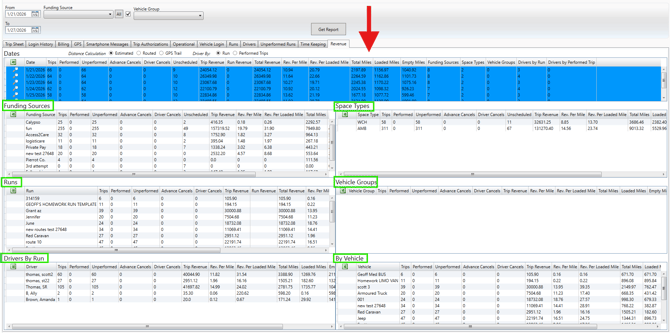
Report Layout:
-
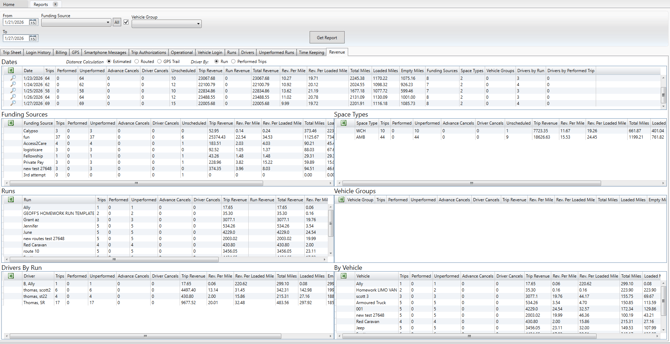
Dates – shows the grand totals for all trips on each individual date, broken out by each column’s value (such as trip count, mileage, revenue, and other applicable metrics) so you can quickly compare daily performance across your selected date range.
- Sub‑Categories – displays detailed subtotals for the specific Date rows you select in the Dates section. Each Sub‑Category block is generated from your highlighted Date rows and shows the grand totals for every column (for example, total trips, total loaded miles, total unloaded miles, total revenue, and any other relevant fields). This allows you to drill down into a subset of days and instantly see summarized performance metrics for just those selected dates.
-
- Funding Source – shows trip data grouped by the Funding Source attached to each trip, so you can analyze volume, mileage, and revenue by payer or program.
- Space Types – shows trip data grouped by the Space Types on trips (for example, ambulatory, wheelchair, stretcher), helping you understand demand and performance by passenger accommodation type.
- Runs – shows trip data grouped by the Runs those trips belong to, allowing you to review performance and totals at the run level for the selected dates.
- Vehicle Group – shows trip data grouped by the Vehicle Group assigned to each vehicle, so you can compare utilization, mileage, and revenue across different segments of your fleet.
- Driver by Run / Performed Trip – shows trip data grouped either by the Driver assigned to the Run or by the Driver who actually performed the trip, giving you flexibility to review driver performance based on operational assignment or actual execution.
- By Vehicle – shows trip data grouped by the Vehicle performing the trips, regardless of Run, enabling you to track utilization, mileage, and revenue per vehicle across your fleet.
Export Data to CSV Format:
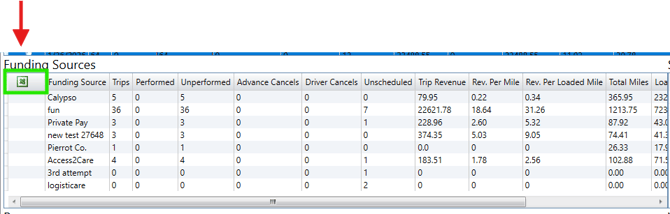
When you want to export the report data—either the Dates section or any of the Sub‑Category sections—simply click the green “X” export icon located next to each section title. This will download that specific section as its own CSV file, which you can then open in Excel or another spreadsheet program. Each exported file will include the same columns and totals you see on screen, allowing you to sort, filter, or combine the data for further analysis or for sharing with other team members or departments.
Changing Miles calculation Method:
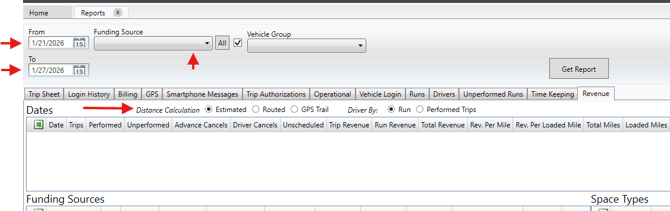
MediRoutes offers several different mileage calculation methods that can be applied to this report. After the report has finished loading, use the Miles option section to select the calculation method you want to view. Once you make your selection, the report will automatically recalculate and refresh all Miles values based on the option you chose.
You can choose from 3 x different Miles Values on Revenue report:
-
Estimated Miles – Miles used in the MediRoutes scheduling algorithm. This is a algebraic calculated value based on the trip’s pickup and drop‑off locations and is used when scheduling trips on Runs to help optimize routing and assignments.
-
Routed – Miles calculated by Bing Maps using your selected routing preference (shortest time or shortest distance), based on your system settings. This value reflects the mapped route distance between trip stops.
-
GPS Trail – Actual GPS miles captured from the MediRoutes Mobile Driver App while the driver is running trips. GPS Trail is recorded as long as the app is turned on and active on the device, with Location permissions enabled and not restricted.
For additional information on the Revenue report and its available options, click the link below to open a related Help Article.
Revenue Report Tips Help article